


 Claim Ownership
Your Tech Makeover
Subscribed: 2Played: 12
Subscribe

© Frank Bravo
Description
Your Tech Makeover is a practical tech podcast for everyday people who want clearer answers about phones, passwords, Wi-Fi, smart home devices, online safety, and AI.
If technology often feels harder than it should, you are not alone. Frank Bravo breaks down what matters in plain English so you can make better choices, avoid common mistakes, and feel more confident day to day.
Each episode focuses on one topic you can use right away: backups, scams and phishing, subscriptions, cloud storage, video calls, travel tech, accessibility, and more. The goal is simple: help you get more out of the tech you already own.
New episodes drop every two weeks. Visit YourTechMakeover.com for more information.
If technology often feels harder than it should, you are not alone. Frank Bravo breaks down what matters in plain English so you can make better choices, avoid common mistakes, and feel more confident day to day.
Each episode focuses on one topic you can use right away: backups, scams and phishing, subscriptions, cloud storage, video calls, travel tech, accessibility, and more. The goal is simple: help you get more out of the tech you already own.
New episodes drop every two weeks. Visit YourTechMakeover.com for more information.
65 Episodes
Reverse
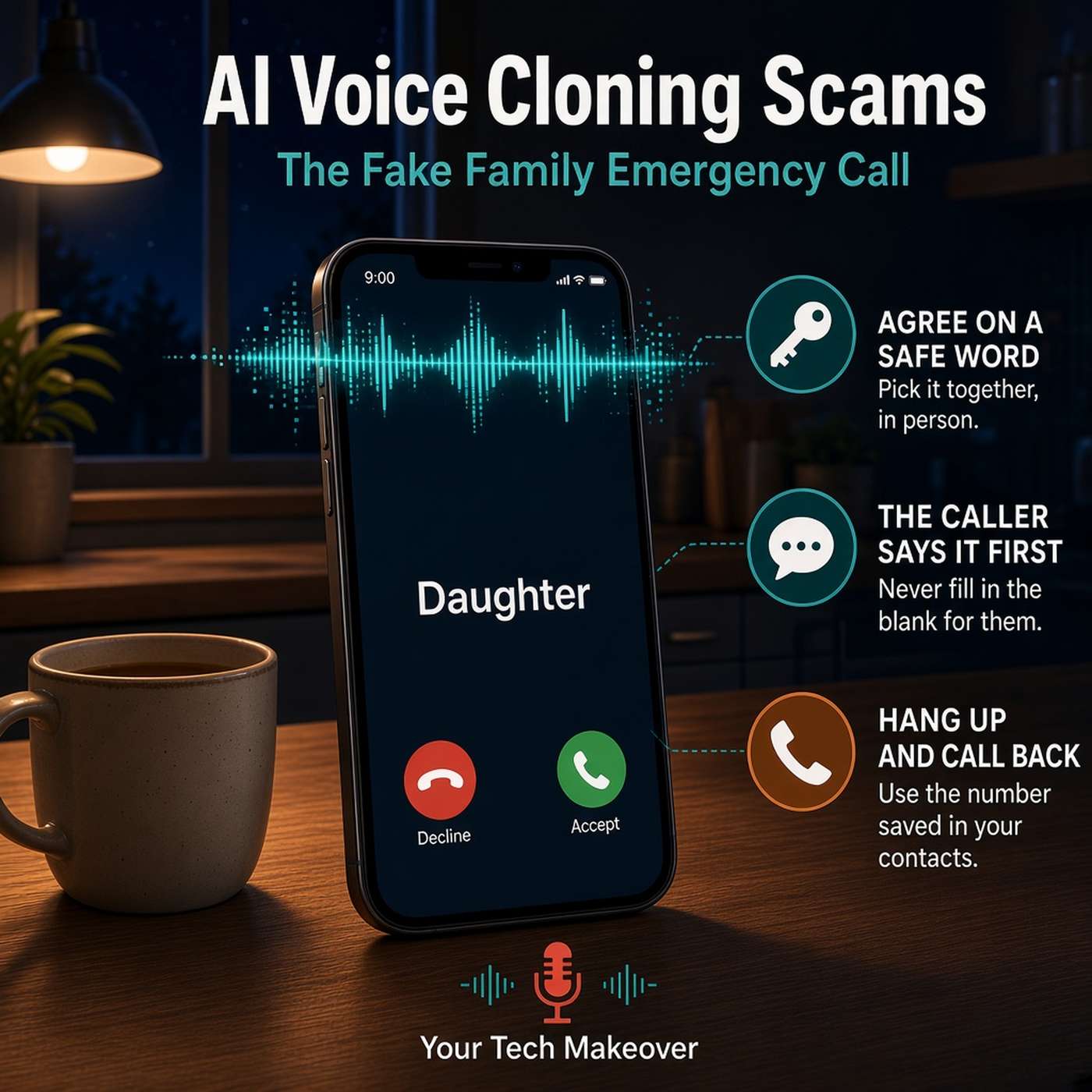
An AI voice cloning scam can make a phone call sound exactly like your daughter, your son, or your grandchild, crying, scared, and asking for help. It is the old "grandparent scam" with one new and very effective twist: the voice on the line really does sound like someone you love.Frank Bravo explains how little it takes to pull this off. Researchers at McAfee found that a free online tool could produce about an 85% voice match from just three to four seconds of someone talking. That is a graduation clip, a church livestream, a voice note in a group chat, or the first few seconds of an Instagram post. Teenagers and young adults are the most exposed, because their voices are already in dozens of public places.That is why the usual advice to "listen for something off" no longer holds up. People cannot reliably pick out a cloned voice even in a quiet room, and these calls are built to create panic: an emergency, a family member, a police officer or lawyer on the line, and instructions not to hang up or tell anyone else.The fix is old-fashioned and free. The FBI recommends that families create a secret word or phrase to verify each other's identity. Frank adds the rule that makes it work: the caller has to produce the word, and you never fill it in for them. He also walks through exactly what to do if the call comes before your family has set one up.In this episode, you will learn:How AI voice cloning scams work, and where scammers get a recording of your family member's voiceWhy your ear can no longer be trusted to spot a fake voiceHow the fake family emergency call uses panic, authority, and secrecy to keep you on the lineHow to set up a family safe word, and the one rule that keeps scammers from getting it out of youHow to choose a safe word that cannot be researched, and why you should share it only in personWhat to do if you get the call before you have a safe word: hang up, call back on the saved number, and call someone elseWhy any demand for gift cards, wire transfers, cryptocurrency, or a payment app means it is a scamResources:FBI public service announcement on criminals using generative AI for fraud (December 2024; includes the "secret word or phrase" advice)Report a scam to the FTC at ReportFraud.ftc.govRelated episodes:Gift Card Scams: How to Spot Them Before You Get Hooked (the earlier episode Frank mentions on air, covering the pay-with-gift-cards scam and the grandparent scam)Dark Web Explained: Should You Actually Be Worried? (where the personal details in these calls often come from)Stop the Spam: Cut Down Junk Calls and Emails (how to reduce scam calls in the first place)Chapters:(00:00) - Cold open: the call at nine at night
(00:57) - Welcome and what we are covering
(01:40) - Where scammers get your family's voice
(01:53) - How little audio it takes
(02:35) - Why teens and young adults are most exposed
(02:56) - Why you can't trust your ear anymore
(03:15) - The real weapon is panic
(04:00) - Support message
(04:26) - The fix: a family safe word
(04:55) - The rule that matters most: the caller says it first
(05:42) - How to pick and share a safe word
(06:20) - If the call comes before you have a safe word
(07:12) - Listen for the ask: how scammers want to be paid
(07:52) - Coming up in two weeks: gift card scams
(08:05) - Wrap up: what to do this Thanksgiving
(09:10) - Listener question
(09:36) - Outro
★ Support this podcast ★
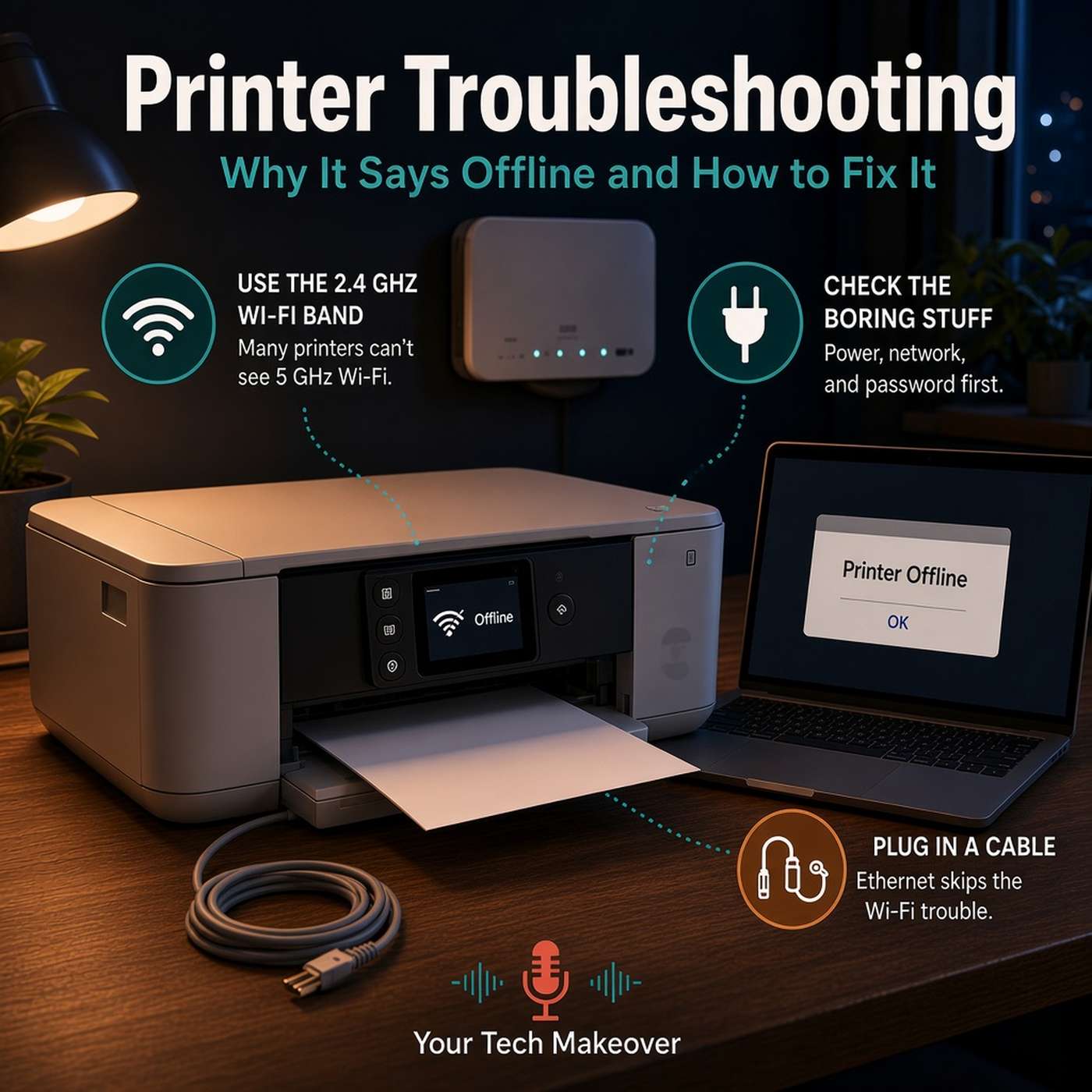
Printer troubleshooting usually starts the same way: you need one page, and the printer that worked fine last week says it is offline. Nothing changed, you did not touch it, and it has quietly decided to become a table.Frank Bravo starts with why printers behave like this. Printers are often sold at a price that does not cover what they cost to build, because the money is in the ink. The printing mechanism tends to be good. The wireless networking is where the corners get cut.The biggest culprit is your Wi-Fi. Routers broadcast on two bands, 2.4 GHz and 5 GHz, and many home printers can only use 2.4. When a newer router or mesh system combines both bands under one network name (a feature called band steering or Smart Connect), it can push the printer toward the band it cannot see, and the connection fails without telling anyone. Frank then walks through the boring causes in the order he checks them, including the hotel business center printer in San Diego that turned out to be unplugged. Finally, he shares the fix he reaches for first on every printer call: if the printer has a network port, plug it into your router with an Ethernet cable and skip Wi-Fi altogether.The episode closes with honest buying advice for when troubleshooting stops being worth it.In this episode, you will learn:Why your printer says offline when nothing seems to have changedHow the 2.4 GHz and 5 GHz Wi-Fi bands affect your printer, and why a new router or mesh system can knock it offlineThe simple checks to run first: power, sleep mode, the right network, and a changed Wi-Fi passwordWhy the printer's network address can change, and how a DHCP reservation keeps it in placeThe Windows "Use Printer Offline" setting, and how to turn it offWhy an Ethernet cable is the most reliable printer fix there isHow to shop for a printer by the cost of ink rather than the box, and why laser printers often winWhat to know about ink subscription plans before you sign upResources:HP Instant Ink: what happens if you cancel (cartridges keep working until the end of your current billing cycle, then stop; the plan also needs the printer to stay online)Want help setting up a DHCP reservation for your printer? Frank offered on air to walk you through it. Email [email protected] episodes:Master Your Home Wi-Fi: Simple Tricks for Optimal Coverage (more on the 2.4 and 5 GHz bands; one network name for both bands is still the right setup for phones and laptops, but a printer may need the 2.4 band on its own)The Right Way to Share Wi-Fi with Guests (guest networks, and why your printer should not be on one)Staying Cyber-Safe on Vacation (the full San Diego hotel business center story)Chapters:
★ Support this podcast ★
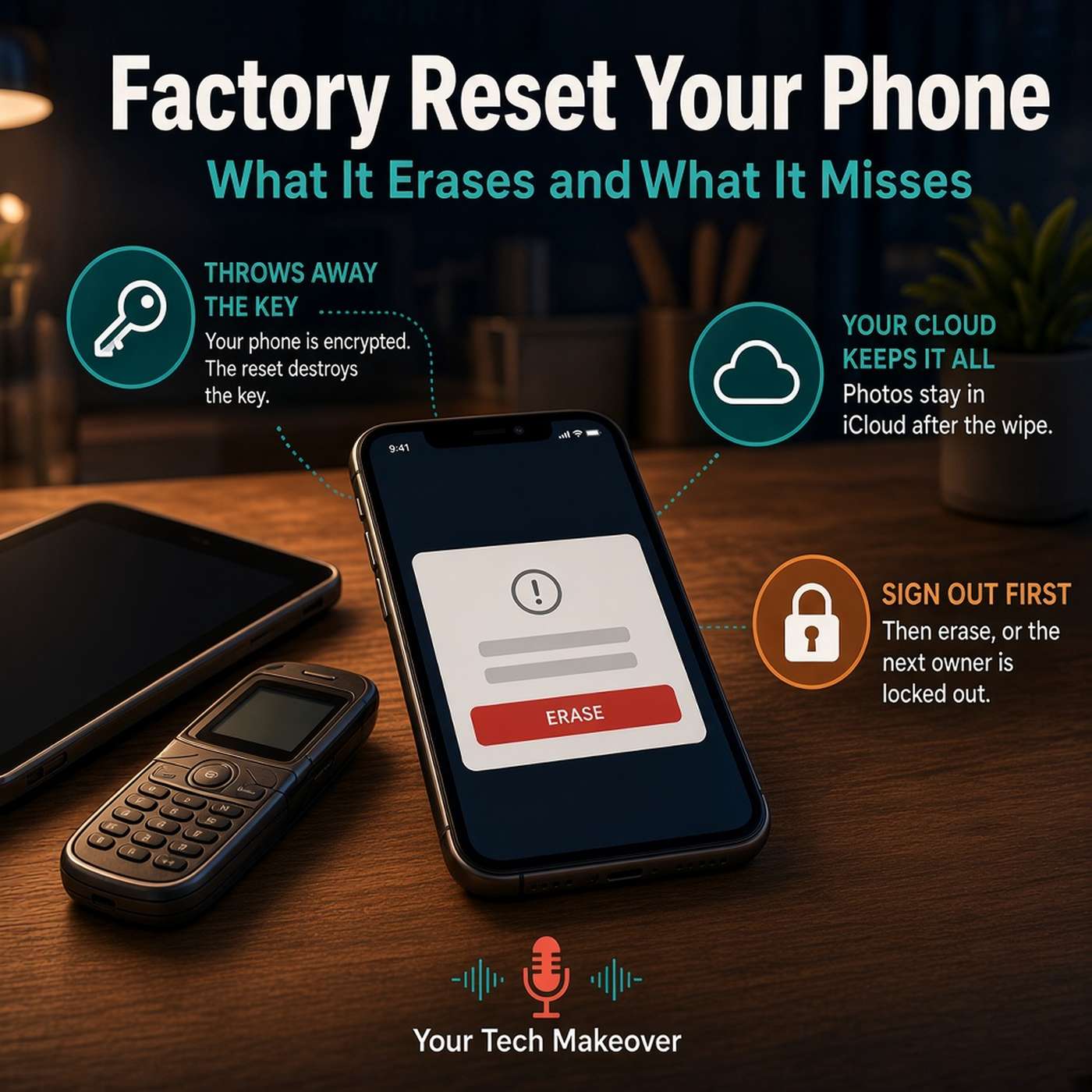
A factory reset is the thing most people feel are standing between the old phone in your drawer and actually selling it, donating it, or handing it down.Frank Bravo corrects the mental picture. A reset does not scrub the drive. Your phone has been encrypted since the day you set it up, and the reset throws away the one key that unscrambles everything, which is why it takes minutes instead of a weekend and why you can genuinely trust it. Then comes the part that catches people: it does not touch your cloud account. Erase an iPhone and your photos are still sitting in iCloud. That is good news if you are upgrading and bad news if you were trying to make your data disappear. Subscriptions keep billing too, because they live with your account rather than the hardware.The step people skip is the order. Sign out of your accounts first, then erase. Activation Lock and Factory Reset Protection are excellent against thieves, but the phone cannot tell a thief from the nephew you handed it to. Frank also covers when a reset is overkill, and how to recycle the old phone properly once it is wiped.In this episode, you will learn:What a factory reset actually does, and why throwing away the encryption key means the data is gone for goodWhy your photos survive in iCloud or Google Photos even after you wipe the phoneWhy subscriptions keep charging after a resetThe one step people skip: sign out of your accounts before you erase, not afterWhen a reset is overkill, and what usually makes a phone feel slow insteadHow to recycle an old device properly, and why the household bin is the wrong place for itResources:Apple Trade In and Apple Recycling, which take back Apple devices even when they have no trade-in valueCheck your local garbage or waste company for an electronics drop-off or transfer station, and most large electronics retailers have a recycling bin near the entranceRelated episodes:💳 How to Cancel Subscriptions and Stop Getting Billed for Good🔒 What to Do If Your Phone Is Stolen: iPhone & Android ChecklistThe Hidden Battery Drains on Your Devices Chapters:(00:00) - Cold open: the old phone in the drawer
(00:41) - Welcome and what we are covering
(01:20) - It does not scrub, it throws away the key
(02:31) - Your cloud account keeps everything
(03:43) - Subscriptions keep billing, and the device list
(04:33) - Support message
(05:12) - The step people skip: sign out first
(05:59) - Why it leaves the next owner stuck
(06:58) - The reset steps on iPhone and Samsung
(07:21) - When a reset is the right call
(07:41) - When it is overkill
(08:27) - How to recycle the device properly
(09:26) - Wrap up and listener question
(10:06) - Outro
★ Support this podcast ★
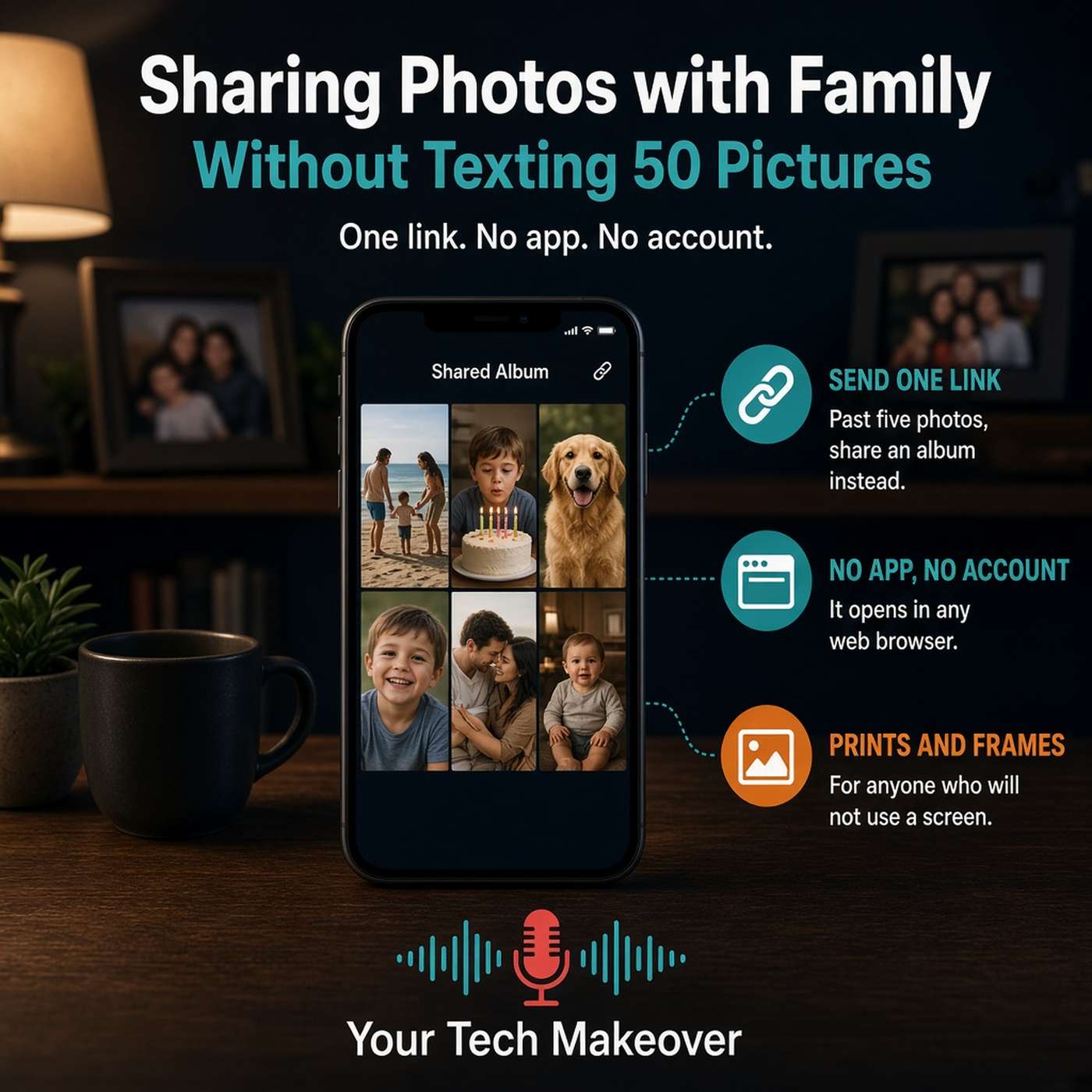
Sharing photos with family should be the easy part, but it usually turns into forty buzzes on somebody's phone during a meeting, a batch of blurry pictures, and a call from your mom asking how to save the one of the cake. This episode is a plain-English guide to how to share photos with family and friends in a way that actually works, whether your relatives are on iPhone, on Android, or not really on a screen at all.Frank Bravo starts with the shift that makes everything else simple. Most of us pick the way to share photos based on what is easiest for us, because we are the ones holding the phone. The better question is what happens when the other person receives it. After years of helping people with this, Frank finds most families come down to three kinds of people: the person who will install an app and sign into an account without blinking, the much larger group who will happily tap a link but are never creating another password, and the person who is not going to look at a screen for this at all. The goal of the episode is to move that third group at least into the second one.From there, Frank explains why texting a big batch gives you the worst-looking version of your own pictures. When there is an Android phone in the group, the connection can fall back to older carrier texting and the photos get squeezed down to fit through a much narrower pipe. That is why they arrive soft. The picture was never bad, it just got compressed on the way. So the answer to the question he gets most, whether to send them one at a time or all at once, is really neither. One or two photos are fine to text. Once you are past five or six, stop texting and use a link.The heart of the episode is the approach that solves the hardest case. Both Apple and Google Photos let you put pictures into an album and create a plain web link to it. Not an app invitation and not an account request, just a link that opens in whatever browser the person already uses. Frank covers how to set that up on iPhone and in Google Photos, an important caution that anyone holding that link can see the photos, why an album beats a text blast when you want to add more pictures later, and how a fully shared album where everyone contributes worked for his own family reunion. He closes with the two options nobody thinks about anymore: printed photos, and smart photo frames, which his parents have used for years and which his mother-in-law got last Christmas.In this episode, you will learn:Why the sharing method should fit the person receiving the photos, not the person sending themThe three kinds of people in almost every family, and what actually works for eachWhy texted photos arrive blurry, and what is really happening to them along the wayWhen texting photos is fine, and the point at which you should switch to a linkHow to create a shared album and share it as a plain web link that needs no app and no accountThe privacy tradeoff of a public album link, and why anyone holding it can see your photosWhy a shared album beats a text blast for anything ongoing, like a new grandchild or a long tripWhy prints and smart photo frames are practical answers rather than nostalgic onesRelated episodes:☁️ Cloud Photo Backup: iCloud vs Google vs Amazon Compared💬 How Group Texts Work: iMessage vs RCS on iPhone & AndroidYou can always find more information at YourTechMakeover.com.
★ Support this podcast ★
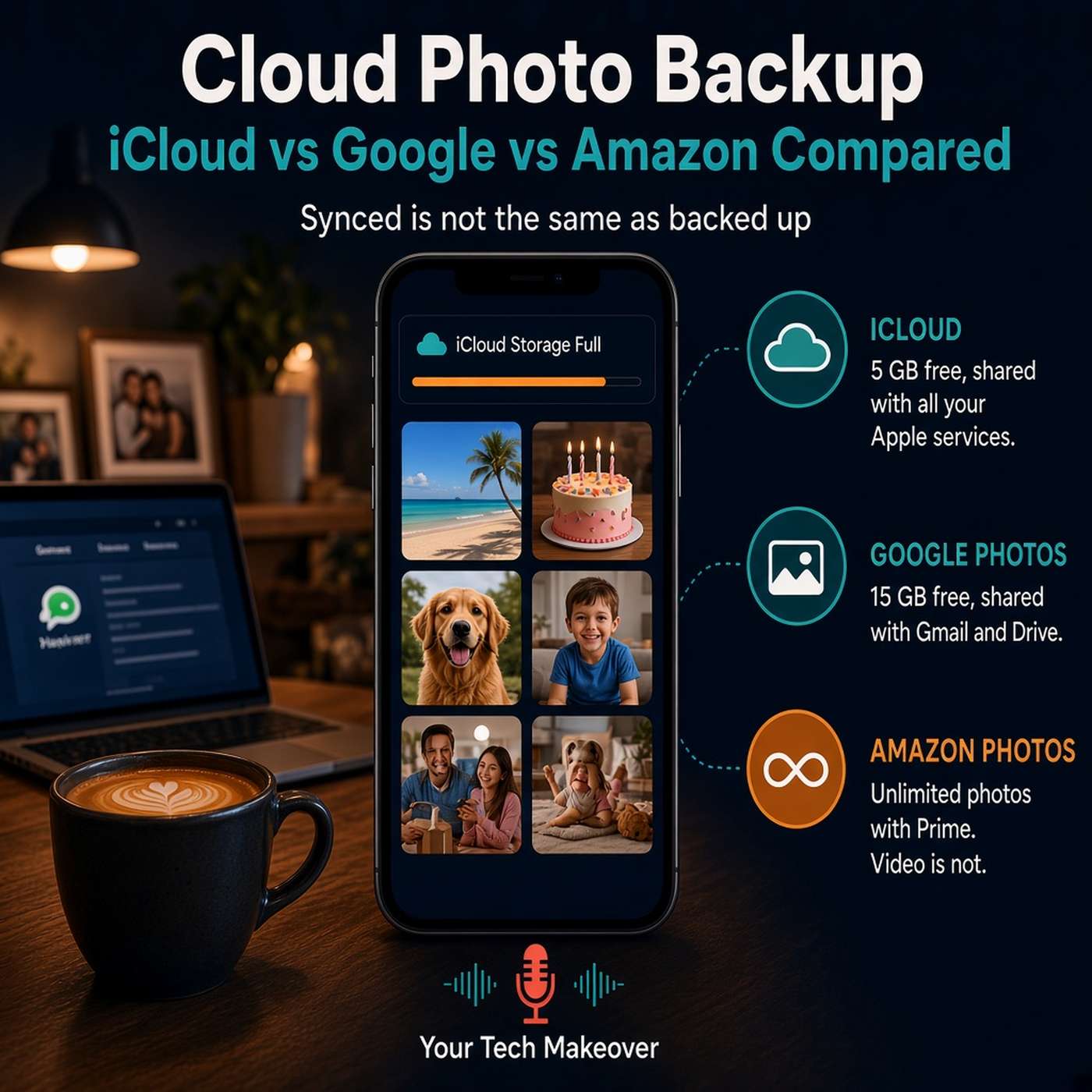
Cloud photo backup is the difference between "my photos are on my phone" and "my photos are safe," and most of us are not in the second group even though we think we are. This episode explains the three states a photo can be in, why every free storage plan seems to fill up at the worst possible moment, and how iCloud, Google Photos, and Amazon Photos really compare when your only goal is to never lose the pictures that matter.The confusion starts with one word. We say "backed up" when we usually mean "synced," and those are not the same thing. Syncing keeps your phone and a service showing a matching set, which is genuinely useful, but it runs in both directions. Delete a photo on your phone and sync does its job and removes it everywhere else. Backed up means there is a second copy that survives the phone going into the lake and survives the accidental delete. Frank is open about being paranoid on this subject, and he walks through the exact setup he uses for his own library of roughly 40,000 images.Then comes the money part. Apple gives you 5 GB free, Google gives you 15 GB but shares it with Gmail and Drive, and Amazon gives you 5 GB with one surprising exception: Prime members get unlimited full-resolution photo storage at no extra cost, though video is still capped. The free tiers are small on purpose, and the paid ones are cheaper than most people expect, around $3 a month for a couple hundred gigabytes and about $10 a month for two terabytes. The episode ends with a five-step checklist to find out what you are actually using today, pick one service based on the devices in your house, pay for the tier that fits, and then verify that your pictures really are somewhere other than your phone.In this episode, you will learn:The three states a photo can be in, and why "on my phone" and "synced" are not the same as "backed up"Why syncing runs both directions, and how a delete on your phone quietly removes a photo everywhere elseWhat each free tier actually gives you: 5 GB on iCloud, 15 GB shared across Google Photos, Gmail, and Drive, and 5 GB on AmazonWhy the free plans are small on purpose, and what the paid plans really costWhen iCloud is the right answer, and the moment one Android phone makes it the wrong oneWhy Google Photos is usually the best pick for a mixed or Android household, even on an iPhoneHow Prime members get unlimited full-resolution photo storage on Amazon Photos, and the video catch that comes with itWhy photo search may now be worth more to you than the storage itselfWhy half-using two or three services is the worst outcome, and how to pick just oneFrank's own setup: full-resolution originals on the Mac, Time Machine, and Backblaze offsiteA five-step checklist to get this settled before the holiday photo seasonWhere to check your settings (quick reference):iPhone: Settings, then your name, then iCloud, then PhotosAndroid: open the Google Photos app, tap your profile picture in the corner, and look for backupStorage left: the same screens show how much room you haveApple Family Sharing: worth a look if several people in the house are each paying for a small planFull-resolution originals on a Mac: Apple Photos setting to download originals to the computerRelated episodes:How to Back Up Your Phone the Easy Way🔒 What to Do If Your Phone Is Stolen: iPhone & Android Checklist📸 How to Share Photos with Family (Without Texting 50 Pictures)(00:00) - Cold open: the photo you would hate to lose
(00:35) - Welcome and what we are covering
(01:20) - Why I am so careful with my own photo library
(01:54) - The three states: on your phone, synced, backed up
(03:50) - Why everyone runs out of space at the same moment
(04:11) - The free tiers, and what they are really sharing
(05:35) - What the paid plans actually cost
(06:05) - Support message
(06:25) - iCloud: the easy answer for an all-Apple house
(07:08) - Google Photos: the pick for mixed or Android families
(07:29) - Amazon Photos: unlimited with Prime, with one big catch
(08:18) - Why search may matter more than storage
(08:47) - What I use, and why you should pick just one
(09:47) - My own setup: originals, Time Machine, and Backblaze
(10:30) - Your action checklist
(12:22) - Next time, and a question for you
(13:26) - Outro
★ Support this podcast ★

Comments

Download from Google Play

Download from App Store
 United States