


 Claim Ownership
Hands-On Apple (Video)
Subscribed: 54Played: 362
Subscribe

© This work is licensed under a Creative Commons License - Attribution-NonCommercial-NoDerivatives 4.0 International - http://creativecommons.org/licenses/by-nc-nd/4.0/
Description
Hands-On Apple explores and explains the Mac — and beyond! From clever Terminal commands to little-known iOS settings, Mikah Sargent shares all the best tips and tricks for your Mac, iPad, iPhone, and Apple Watch. You'll get all the details on Apple's apps and the best apps in the App Store, you'll learn about awesome accessories for your Apple devices, and you'll explore updates to Apple's operating systems — including iOS, macOS, iPadOS, and watchOS. Hands-On Apple is your one-stop shop for Apple know-how. You can join Club TWiT for $10 per month and get ad-free audio and video feeds for all our shows plus everything else the club offers...or get just this podcast ad-free for $5 per month.
New episodes every Thursday.
New episodes every Thursday.
146 Episodes
Reverse

Ever wonder why your iPad keeps popping up surprise notes every time you swipe from the corner? This episode breaks down the Quick Notes feature, why it keeps tripping up users, and the simple settings that put you back in control.
Activating Quick Notes with swipe gestures from screen corners
Quick Notes interface walkthrough: markup, multiple notes, screenshots, sharing
Using Quick Notes while multitasking—making fast notes during other activities
Quick Notes storage and organization in the Notes app
Apple Pencil integration with Quick Notes
How to disable or customize corner swipe gestures in iPadOS settings
Assigning screenshot function to corner swipes instead of Quick Notes
Universal app support for customized corner swipe gestures
Recurring accidental Quick Note activation and practical troubleshooting
Host: Mikah Sargent
Download or subscribe to Hands-On Apple at https://twit.tv/shows/hands-on-apple
Want access to the ad-free audio and video and exclusive features? Become a member of Club TWiT today! https://twit.tv/clubtwit
Club TWiT members can discuss this episode and leave feedback in the Club TWiT Discord.

Tired of scrolling endlessly to find that one hilarious link or important document someone texted you months ago? Mikah Sargent reveals how a simple click unveils every photo, link, and document from your conversations, saving you time and sanity.
Quick access to shared content using the disclosure arrow on macOS
Sorting and previewing photos, videos, and shared media within message threads
Accessing and managing links and documents shared via Messages
Filtering content types like photos, videos, screenshots, and collaborations for faster retrieval
Practical tips for recovering past shared files in Messages
Host: Mikah Sargent
Download or subscribe to Hands-On Apple at https://twit.tv/shows/hands-on-apple
Want access to the ad-free audio and video and exclusive features? Become a member of Club TWiT today! https://twit.tv/clubtwit
Club TWiT members can discuss this episode and leave feedback in the Club TWiT Discord.

Ever wonder why apps suddenly disappear from your iPhone, just when you need them most? This episode reveals the iOS feature quietly sweeping your unused apps off your device and shows you how to take control.
How to find and adjust App Store app settings in iOS
Reviewing app permissions and privacy controls in App Store settings
Managing automatic app downloads, updates, and in-app content
Using cellular data for app downloads: controls and limits
How to handle in-app ratings, reviews, and update prompts
Offload Unused Apps explained: storage, data, and user experience
Personalized recommendations and privacy management in App Store settings
Resetting your App Store identifier for privacy
Host: Mikah Sargent
Download or subscribe to Hands-On Apple at https://twit.tv/shows/hands-on-apple
Want access to the ad-free video and exclusive features? Become a member of Club TWiT today! https://twit.tv/clubtwit
Club TWiT members can discuss this episode and leave feedback in the Club TWiT Discord.

Ever wondered why your iPhone's sound isn't as loud as you expect, or your AirPods seem capped? Mikah Sargent uncovers the hidden settings that could be hindering your listening experience.
Managing silent mode and status bar indicators on newer iPhones
Switching audio input sources, including iPhone mic and AirPods
Fine-tuning ringtone and alert volume controls for less disruption
"Change with buttons" explained: separation of media and alert volumes
Customizing haptic feedback and vibration settings for notifications
Setting default sounds for ringtones, texts, voicemail, and mail alerts
Keyboard feedback: toggling typing sounds and haptics preference
Differences between iPhone and iPad haptics (limitations on iPad)
Controlling speaker volume limits and effects on media playback
Understanding "Reduce Loud Sounds" to avoid abrupt audio spikes
Headphone safety: adjusting reduced loud audio upper limit for AirPods
Headphone usage notifications & protecting hearing over seven days
Managing USB audio accessory settings and privacy tracking
Host: Mikah Sargent
Download or subscribe to Hands-On Apple at https://twit.tv/shows/hands-on-apple
Want access to the ad-free video and exclusive features? Become a member of Club TWiT today! https://twit.tv/clubtwit
Club TWiT members can discuss this episode and leave feedback in the Club TWiT Discord.
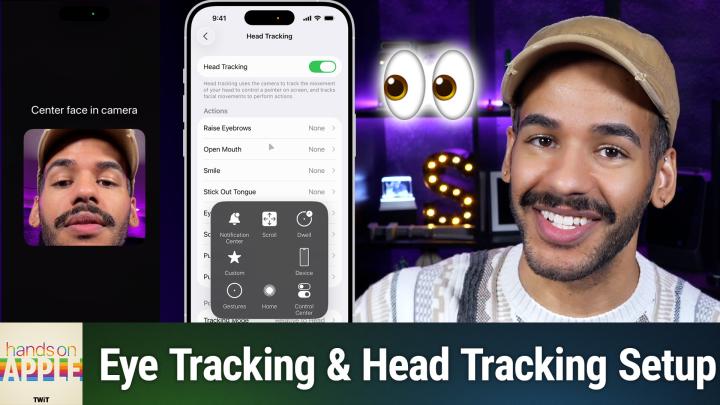
Control your iPhone just by looking at it. Mikah Sargent dives into the eye-tracking (and head tracking) feature on iOS, showing how it contributes to accessibility and reimagines device interaction.
How to set up and use iOS eye tracking controls
Eye tracking customization: smoothing, snap to item, dwell control, and more
Eye tracking training process and device positioning tips
Accuracy challenges and retraining
Head tracking as an alternative: facial gestures trigger iOS actions
Head tracking menu navigation with expressions
Host: Mikah Sargent
Download or subscribe to Hands-On Apple at https://twit.tv/shows/hands-on-apple
Want access to the ad-free video and exclusive features? Become a member of Club TWiT today! https://twit.tv/clubtwit
Club TWiT members can discuss this episode and leave feedback in the Club TWiT Discord.
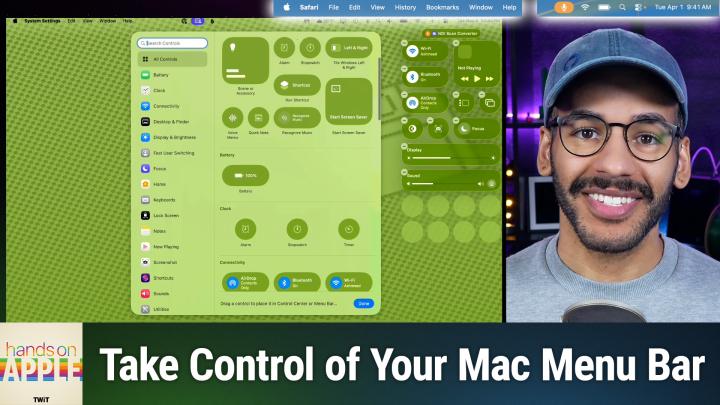
Mac users, forget juggling third-party apps! Apple's macOS Tahoe finally gives you real control over your menu bar and Control Center. Check out how this long-awaited update could change the way you work every day.
Exploring new default transparent menu bar background visuals
Adjusting menu bar visibility and hiding options in System Settings
Toggling menu bar background effects for better personalization
Managing recent documents, apps, and servers through menu bar settings
Adding, removing, and arranging controls in menu bar and Control Center
Detailed walkthrough of menu bar settings like WiFi, Bluetooth, battery, Focus, and display
Granular app icon management—allow or deny permission to show in menu bar
Rearranging menu bar icons using command+drag
Quick reset options and comprehensive clock display tweaks for the menu bar
Host: Mikah Sargent
Download or subscribe to Hands-On Apple at https://twit.tv/shows/hands-on-apple
Want access to the ad-free video and exclusive features? Become a member of Club TWiT today! https://twit.tv/clubtwit
Club TWiT members can discuss this episode and leave feedback in the Club TWiT Discord.

See how AirPods Pro team up with your iPhone to run a personal hearing test and tailor audio just for you. Get a firsthand look at a health tool you may not realize is sitting in your pocket.
Step-by-step guide to starting hearing test and prepping devices
Real-time noise detection and environment checks during test setup
Fit adjustment guidance and sound tests for optimal AirPod positioning
Tone pulses and interactive hearing assessment via iOS Health integration
Saving and reviewing audiogram results in Health app after test completion
AirPods tuning and hearing assistance recommendations based on test results
Host: Mikah Sargent
Download or subscribe to Hands-On Apple at https://twit.tv/shows/hands-on-apple
Want access to the ad-free video and exclusive features? Become a member of Club TWiT today! https://twit.tv/clubtwit
Club TWiT members can discuss this episode and leave feedback in the Club TWiT Discord.
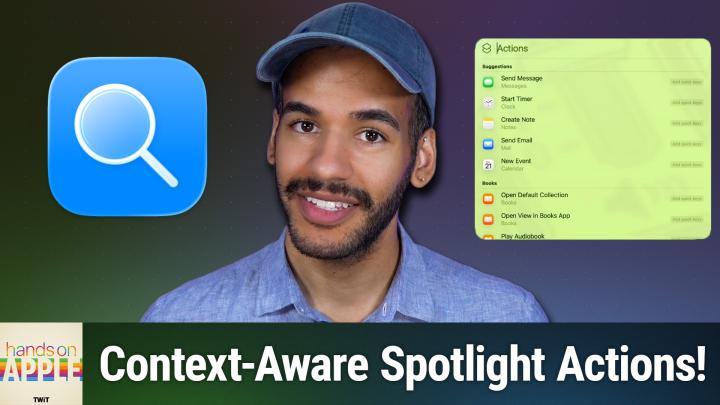
This episode demonstrates how Spotlight's new "actions" feature quietly transforms your workflow, adapting to the app you're using and what you copy, delivering shortcuts you never knew you needed. Discover how to create lightning-fast quick keys in Spotlight, letting you instantly send emails, print documents, or launch commands in your favorite apps.
Spotlight actions get personal—suggestions adapt to your app usage
Third-party apps feed custom actions into Spotlight
Actions adapt to your current app like Photos & Notes
Context-aware Spotlight pulls menu bar commands and clipboard data
Quick Keys for Spotlight actions let you set up fast shortcuts
Real-world examples: creating shortcuts for email, Finder, and printer tasks
Spotlight actions connect workflows—print PDFs and automate simple actions
Host: Mikah Sargent
Download or subscribe to Hands-On Apple at https://twit.tv/shows/hands-on-apple
Want access to the ad-free video and exclusive features? Become a member of Club TWiT today! https://twit.tv/clubtwit
Club TWiT members can discuss this episode and leave feedback in the Club TWiT Discord.
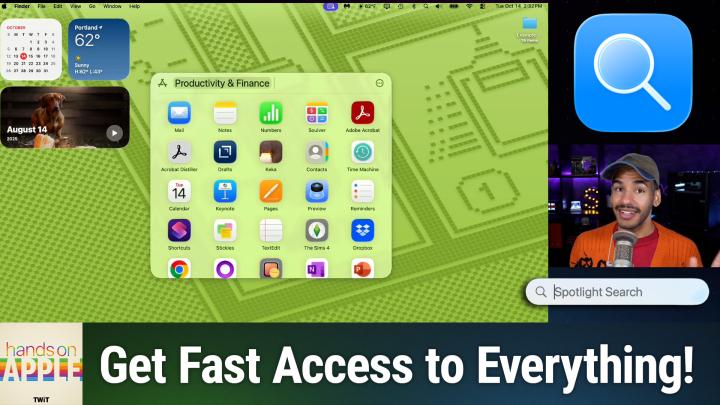
If you think Spotlight is just for searching, think again. Discover how its revamped browsing modes and new smart actions can change the way you interact with your Mac! Instantly access apps, files, actions, and even your clipboard history, all with a few keyboard shortcuts.
Navigating Spotlight Search using menu, keyboard, and mouse shortcuts
Categorized app browsing and launching, including iPhone mirroring integration
File browsing in Spotlight with intelligent suggestions and advanced filtering
Viewing files in grid or list mode, with previews and usage-based organization
Accessing and customizing Spotlight Actions, with hundreds of shortcut possibilities
Clipboard history now searchable and actionable within Spotlight, supports files and text
Privacy controls for Clipboard search and management of sensitive data in Spotlight
Host: Mikah Sargent
Download or subscribe to Hands-On Apple at https://twit.tv/shows/hands-on-apple
Want access to the ad-free video and exclusive features? Become a member of Club TWiT today! https://twit.tv/clubtwit
Club TWiT members can discuss this episode and leave feedback in the Club TWiT Discord.
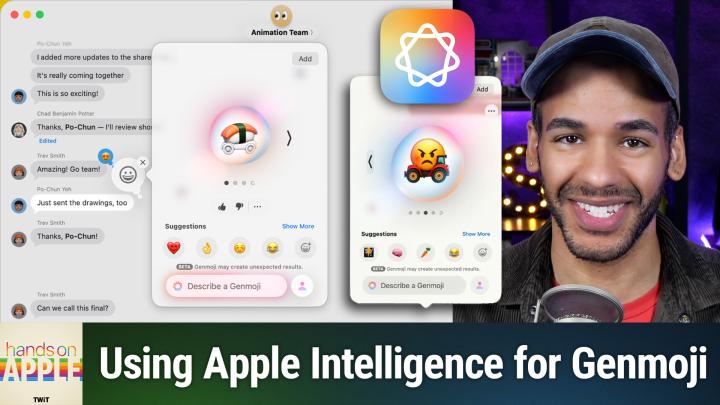
Apple's Genmoji just got smarter, letting you combine emojis, add custom descriptions, and totally personalize your reactions on iOS, iPadOS, and macOS. Find out how this playful AI tweak might just change the way you text.
Apple Genmoji gets updated with new customization features
Demonstrating Genmoji creation and emoji combination in Messages app
Exploring uses of text descriptions to enhance Genmoji results
Mixing emoji and text for unique, personalized Genmoji
Adjusting Genmoji hairstyle and facial hair using Photos library people
Customizing Genmoji with expressive moods and emotions
Genmoji creativity yields odd and surprising results
Host: Mikah Sargent
Download or subscribe to Hands-On Apple at https://twit.tv/shows/hands-on-apple
Want access to the ad-free video and exclusive features? Become a member of Club TWiT today! https://twit.tv/clubtwit
Club TWiT members can discuss this episode and leave feedback in the Club TWiT Discord.
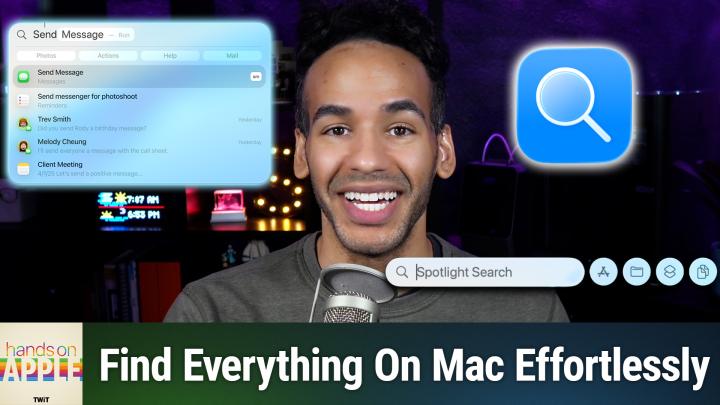
Spotlight is getting a serious upgrade in macOS Tahoe, surfacing your files, windows, and even cloud content with smarter, faster results. Allow Mikah to walk you through the surprising shortcuts and hidden tricks that will change how you find everything on your Mac.
Quick access to Spotlight via keyboard or menu bar
Recentering Spotlight Search bar with control-click shortcut
Enhanced search rankings based on personal use and relevance
Refined filtering by app, file type, provider, or folder
Spotlight displays results from open windows and browser tabs
Cloud storage integration expands search to Dropbox, Google Drive
Website search shortcuts for popular sites like Amazon and YouTube
Direct questions and smart queries supported with Siri and ChatGPT
Spotlight suggests actions and deeper settings directly from search
Performance quirks and indexing delays still present in Spotlight
Host: Mikah Sargent
Download or subscribe to Hands-On Apple at https://twit.tv/shows/hands-on-apple
Want access to the ad-free video and exclusive features? Become a member of Club TWiT today! https://twit.tv/clubtwit
Club TWiT members can discuss this episode and leave feedback in the Club TWiT Discord.
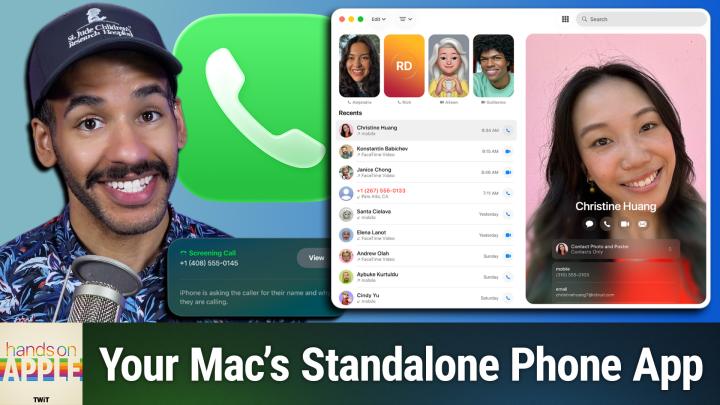
Apple created a dedicated phone app for macOS Tahoe, standing apart from FaceTime and bringing live voicemail transcripts, call screening, and real-time translation to your Mac.
Initial setup steps for using the new Phone app
Key settings and features: ringtones, call routing, and permissions
Hold Assist notifies when support hold time ends
Live Voicemail previews and real-time screening for incoming calls
Options for silencing and filtering unknown callers
Calling experience: dialing, FaceTime audio/video, and call options
In-call features: adding people, call recording, and live transcription
On-call live translation with language downloads and beta limitations
Managing call history, favorites, filtering, and blocked numbers
Host: Mikah Sargent
Download or subscribe to Hands-On Apple at https://twit.tv/shows/hands-on-apple
Want access to the ad-free video and exclusive features? Become a member of Club TWiT today! https://twit.tv/clubtwit
Club TWiT members can discuss this episode and leave feedback in the Club TWiT Discord.
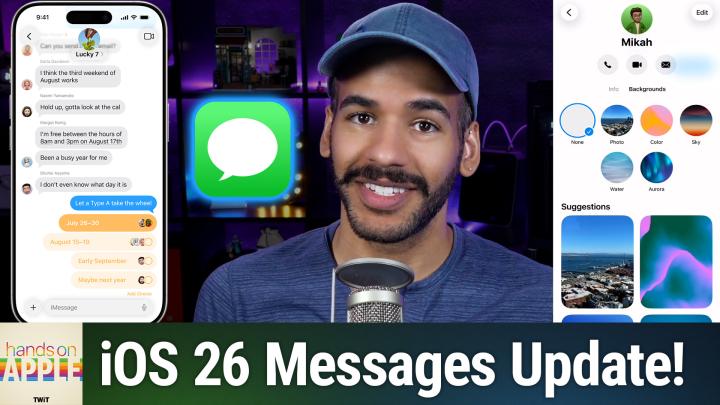
iOS 26 just dropped, and Hands-On Apple reveals the surprising new features you'll notice first, such as custom message backgrounds and built-in polls that change how you chat with friends. Get the scoop on the subtle details and settings that will likely impact how you use your phone every day.
Messages app gets refreshed info page and easier contact editing
Custom conversation backgrounds debut in Messages with photos and colors
Built-in polling feature launches for group decision-making in Messages
New message filtering, unknown sender screening, and notification controls explained
Conversation backgrounds, photo visibility, and contact photo options in Messages settings
Host: Mikah Sargent
Download or subscribe to Hands-On Apple at https://twit.tv/shows/hands-on-apple
Want access to the ad-free video and exclusive features? Become a member of Club TWiT today! https://twit.tv/clubtwit
Club TWiT members can discuss this episode and leave feedback in the Club TWiT Discord.
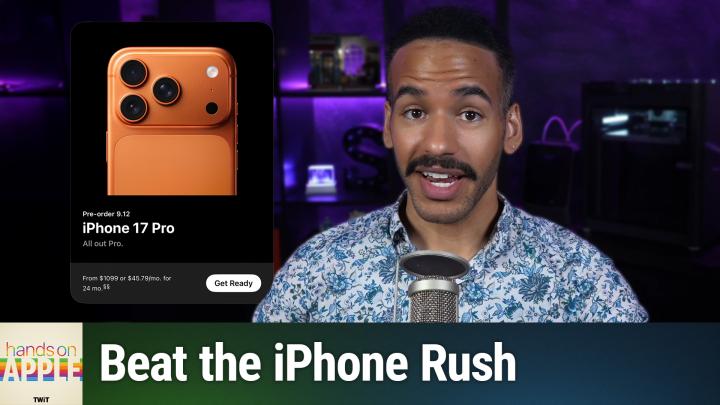
Apple just dropped the iPhone 17 lineup and Mikah Sargent walks you through a smart pre-order setup that could be the difference between snagging your dream device on day one or missing out. Find out the exact steps and tips to avoid the dreaded "sold out" message.
Host: Mikah Sargent
Download or subscribe to Hands-On Apple at https://twit.tv/shows/hands-on-apple
Want access to the ad-free video and exclusive features? Become a member of Club TWiT today! https://twit.tv/clubtwit
Club TWiT members can discuss this episode and leave feedback in the Club TWiT Discord.
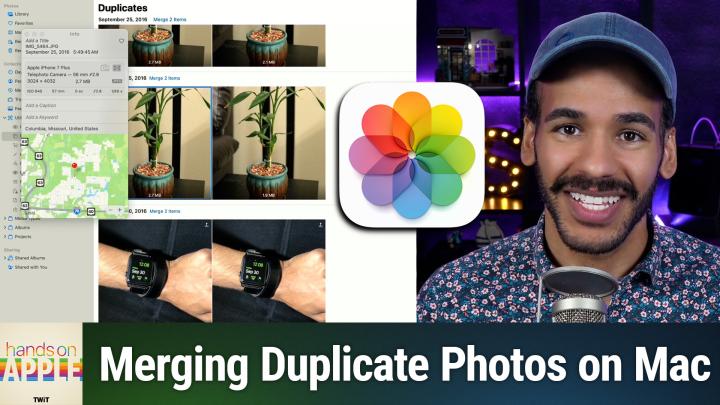
Stop letting duplicate photos clog your Mac. Find out how the merging utility in Apple Photos can help you reclaim storage and sanity with just a few clicks. Mikah Sargent reveals the surprisingly powerful deduplication tool already built into macOS and what it gets right.
Host: Mikah Sargent
Download or subscribe to Hands-On Apple at https://twit.tv/shows/hands-on-apple
Want access to the ad-free video and exclusive features? Become a member of Club TWiT today! https://twit.tv/clubtwit
Club TWiT members can discuss this episode and leave feedback in the Club TWiT Discord.
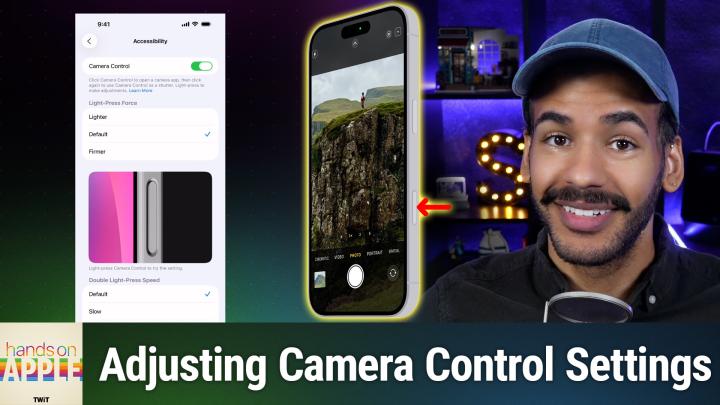
Think your iPhone 16's Camera Control is just another button? Mikah Sargent breaks down its secret shortcuts and customizable tricks that could change how you quickly snap photos in a pinch!
Step-by-step walkthrough of camera control actions and gestures
Deep dive into camera control's adjustable photo and video settings
Using camera control for quick app launches and photo captures
Switching between supported camera apps with camera control
Customizing activation methods and accidental launch prevention
Exploring camera control's accessibility and pressure sensitivity settings
Integrating camera control features into your everyday workflow
Host: Mikah Sargent
Download or subscribe to Hands-On Apple at https://twit.tv/shows/hands-on-apple
Want access to the ad-free video and exclusive features? Become a member of Club TWiT today! https://twit.tv/clubtwit
Club TWiT members can discuss this episode and leave feedback in the Club TWiT Discord.
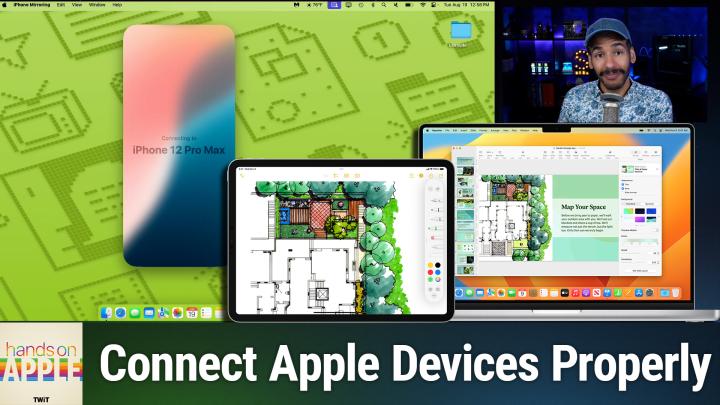
Don't let misbehaving Apple features derail your workflow. This episode explains the settings, strategies, and overlooked requirements that separate smooth users from the frustrated.
Common Universal Control issues: disconnects, lag, and connection failures
Universal Control requirements: hardware, Apple ID, iCloud, and keychain
Network setup tips for reliable Universal Control across devices
Fixing Universal Control with iCloud sign-out, restarts, and patience
Advanced Universal Control troubleshooting: deleting preference files and toggling settings
Resolving conflicts with display options, Stage Manager, Sidecar, and internet sharing
How to use USB connection to kickstart Universal Control
iPhone mirroring basics: behind-the-scenes tech and requirements
Fixing iPhone mirroring: ensure device compatibility, settings, and proximity
Step-by-step network troubleshooting for iPhone mirroring failures
Force quitting and resetting iPhone mirroring and device access
Diagnosing persistent issues with console logs and error messages
Mesh network quirks and system requirement confusion as common culprits
Host: Mikah Sargent
Download or subscribe to Hands-On Apple at https://twit.tv/shows/hands-on-apple
Want access to the ad-free video and exclusive features? Become a member of Club TWiT today! https://twit.tv/clubtwit
Club TWiT members can discuss this episode and leave feedback in the Club TWiT Discord.
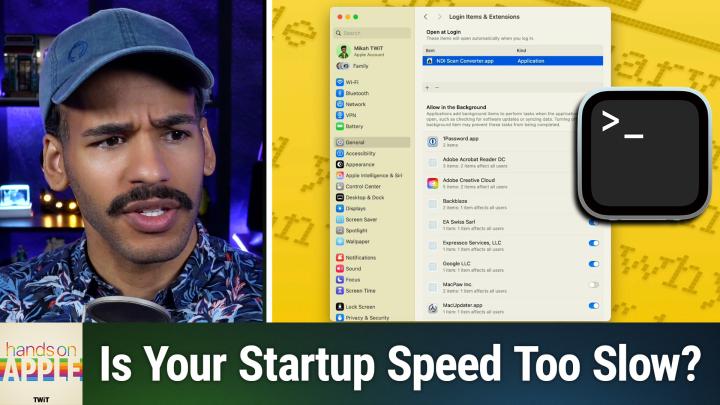
Is your Mac taking forever to start up? Mikah Sargent reveals the hidden culprits slowing down your macOS boot times and walks through proven solutions to get your machine running like new again.
Login Items Management - How to identify and remove unnecessary apps that automatically launch at startup using System Settings - General - Login Items and Extensions
Terminal Commands for Advanced Users - Using "launchctl list" to view all startup processes and "launchctl remove" to eliminate problematic items from the command line
Hidden Launch Agents and Daemons - Navigating to /Library/LaunchAgents and /Library/LaunchDaemons through Finder to manually remove stubborn startup services
Spotlight Re-indexing Fix - Using Terminal command "sudo mdutil -E /" to rebuild corrupted Spotlight indexes that can cause system hangups
Cache Clearing Strategy - Removing cached files from ~/Library/Caches and /Library/Caches to free up system resources
Visual Effects Optimization - Disabling animations, transparency effects, and the genie effect in Accessibility settings to reduce graphics processing load
Stage Manager Performance - Why turning off Stage Manager can help improve startup times on older Macs
Host: Mikah Sargent
Download or subscribe to Hands-On Apple at https://twit.tv/shows/hands-on-apple
Want access to the ad-free video and exclusive features? Become a member of Club TWiT today! https://twit.tv/clubtwit
Club TWiT members can discuss this episode and leave feedback in the Club TWiT Discord.
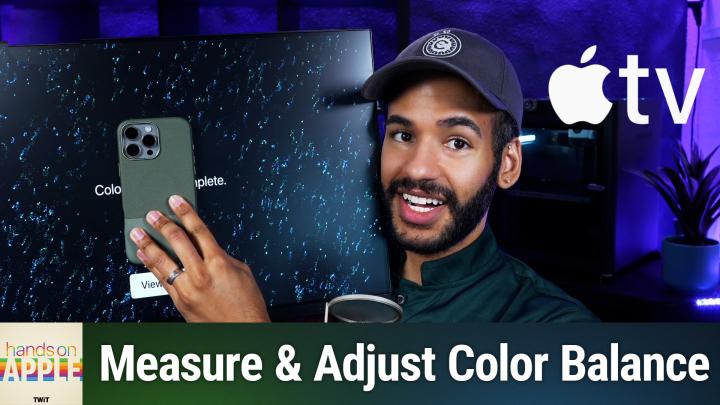
Mikah Sargent reveals a powerful but often overlooked calibration tool that automatically adjusts your TV's color balance for optimal picture quality. This step-by-step demonstration shows exactly how to access and use this game-changing feature that most Apple TV owners never know exists.
Accessing the Settings - Navigate to Settings > Video and Audio > Calibration > Color Balance
Prerequisites and Setup - Requires iPhone with Face ID, iOS 14.5 or later, and avoid vivid or dynamic picture modes during calibration
Step-by-Step Calibration Process - Detailed walkthrough of bringing iPhone close to TV, receiving notification, entering authentication code, and positioning phone against screen
Results and Implementation - Review of "original" vs "balanced" options and selecting the improved color profile for ongoing use
Limitations and Compatibility - Discussion of why this feature won't work with projector setups due to positioning constraints, but works with standard televisions
Host: Mikah Sargent
Download or subscribe to Hands-On Apple at https://twit.tv/shows/hands-on-apple
Want access to the ad-free video and exclusive features? Become a member of Club TWiT today! https://twit.tv/clubtwit
Club TWiT members can discuss this episode and leave feedback in the Club TWiT Discord.
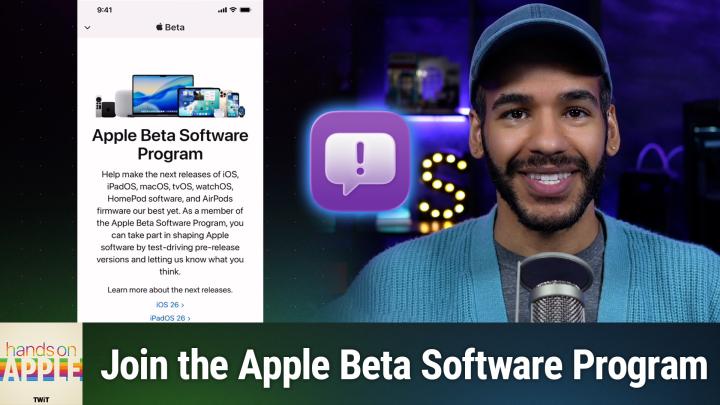
Ready to get your hands on Apple's latest software before everyone else? This episode covers the complete process of enrolling in Apple's public beta program, from signing up to providing valuable feedback that shapes the future of Apple's operating systems.
Getting Started with Beta Enrollment - Navigate to beta.apple.com and sign up for the Apple Beta Software Program using your Apple ID, including agreeing to the terms that remind you this is pre-release software
Device Enrollment Process - Choose "enroll your iOS device" and follow the streamlined process for iOS 16.4 or later, which no longer requires downloading special configuration profiles like earlier versions
Finding Beta Updates in Settings - Access the new "Beta Updates" option under General > Software Update > Automatic Updates, where you'll see iOS 26 Public Beta options (developer betas won't appear unless you're a registered developer)
The Importance of Feedback Assistant - Learn about the dedicated app Apple installs for beta testers to report bugs, capture diagnostic files, and submit screenshots of issues you encounter
Quick Diagnostic Capture Trick - Use the volume up, volume down, side button combination for 1-1.5 seconds to instantly capture diagnostic files when you encounter problems, complete with haptic feedback confirmation
Beta Support Across All Platforms - The same enrollment process works for iPadOS, tvOS (though slightly more complex), and macOS Tahoe, with each platform getting its own enrollment path
Exiting the Beta Program - Turn off beta updates in Settings to stop receiving new beta versions and automatically return to public releases, or completely leave the program through the beta.apple.com unenroll page
Host: Mikah Sargent
Download or subscribe to Hands-On Apple at https://twit.tv/shows/hands-on-apple
Want access to the ad-free video and exclusive features? Become a member of Club TWiT today! https://twit.tv/clubtwit
Club TWiT members can discuss this episode and leave feedback in the Club TWiT Discord.

Comments

Download from Google Play

Download from App Store
 United States