


 Claim Ownership
MQL5 Tutorial
Subscribed: 30Played: 604
Subscribe

© Crowdcompany UG haftungsbeschraenkt
Description
With MQL5 and Metatrader5 you can create your own trading robot to trade 24/7 exactly according to your own rules. Learn MQL5 or start with precoded modules that can be adjusted exactly to your own needs.
288 Episodes
Reverse
Introduction to Enhancing a Simple Expert Advisor (00:00 – 00:07) Introduction to improving a simple expert advisor by allowing user adjustments, following the results of a year-long test. Reviewing the Year-Long Test Results (00:07 – 00:19) Overview of the test results: 73 trades made, with 54 short trades and 19 long trades, and the lack of adjustable inputs. Enabling User Adjustments for Lot Size (00:19 – 00:30) The goal to enable users to adjust the lot size of trades, which is currently hard-coded in the source code. Modifying the Expert Advisor to Include Input Variables (00:30 – 00:43) Steps to modify the expert advisor to include input variables, specifically for adjusting the lot size. Creating a Dynamic Input Variable for Lot Size (00:43 – 00:56) Instructions on creating a dynamic input variable for lot size, allowing it to be changed by the user. Replacing Fixed Lot Size with the New Variable (00:56 – 01:03) Replacing the fixed lot size in the code with the new variable and saving the changes. Compiling the Code and Testing the New Feature (01:03 – 01:17) Compiling the updated code and testing the new feature in Metatrader, with visualization enabled. Observing the Adjustable Lot Size in Action (01:17 – 01:28) Observing the first trade with the new adjustable lot size and stopping the test to change the input. Changing the Lot Size and Testing Again (01:28 – 01:43) Adjusting the lot size to a different value and testing again to demonstrate the flexibility of the new input feature. In one of our other videos we have created a simple buy trade system and this is the result of a whole year. It made seventy three trades, fifty four were short trades and nineteen were long trades. You see under the input tab we have absolutely no values here so we cannot set anything that is not hardcoded in our source code. Now we want the user to be able to adjust the Lot Size of a trade here, to do that we simply click on Simple Buy Trade and click Modify. This is how our short E.A. looks like and this is the Lot Size. To create a dynamic value that can be changed by the user you have to make it an input variable and will be a double variable, and we will call it MyLotSize. Let’s assign ten Micro Lot here, copy the name and exchange the fixed ten Micro Lot Size here with our new variable. I will save it as Simple Buy Trade with input. Let’s compile the code and hit F4 to bring up the Meta Trader. I will select the system here, check the visualization option and start the test. This is our first trade and its ten Micro Lot. Let’s stop the test, go to inputs and change it to 0.2, now it is 20 Micro Lot. If you make something adjustable by the user, you can do it by making it an input. Afterwards the value can be simply changed without recompiling the code.
The post MQL5 Tutorial – How to simply adjust user input with MQL5 appeared first on MQL5 Tutorial.
With MQL5 for Metatrader5 we can use the ICCI function that is built in to create an Expert Advisor that will use the Commodity Channel Index Indicator to create entry signals on our Forex Trading Chart… This video is about the commodity channel index. The commodity channel index is an oscillator and it will tell you if something is overbought or oversold. This is one of the oscillators I like because it is very easy to understand. It has one hundred plus and a one hundred minus line here and whenever the value rises above the upper line, it’s overbought. In the other case if the indicator falls below the lower line, it’s oversold. The commodity channel index can be created with the MQL 5 function ICCI that is built-in into MQL 5. And now we want to create a little Expert Advisor that will tell us when the market is overbought or oversold. To do that please click the little button here or hit the F4 key on your keyboard. That will bring up the Meta Editor, and here we want to select File, New, Expert Advisor from template, continue. And we will call the Expert Advisor Simple Commodity Channel Index. Now click on Continue, Continue, Finish, everything above the Ontick function can be removed and we will also delete the two comment lines here and we will start by creating a little array for our prices. It’s a double array and we will call it my price array. And for the definition of our commodity channel index, we will use the ICCI function of MQL 5. For the current symbol on the chart and the selected period, this might be Euro/U.S. dollar and this might be the minute chart or the hourly chart, and the calculation is done for fourteen candles, because this is the default value of the commodity channel index when you drag it on your chart by using Insert, Indicators, Oscillators, commodity channel index. And it is calculated based on the close prices. In the next step we need to sort the price array from the current candle downwards by using the function arraysetasseries for the price we have created here. And now we use copy buffer for the CCI definition from line here. This is for the first line, it is line zero. And for the current candle that’s candle zero, and we need the values for three candles, that’s the three here, and we want to store the results in my price array. We want to get the CCI value of the current candle in our price array. Okay now we need the chart output depending on the value so if our value is above the upper line we want to put the text “Overbought” on our chart by using the comment function. And if it’s below the lower line we want to output the text “Oversold.” And when it’s between the lines we just use an empty output because we have no signal. Okay that’s it. If you’re ready, please click on the little compile button here or hit the F7 key on your keyboard. That should compile your Expert Advisor without any error or warnings. And in that case we want to bring up the MetaTrader by pressing the F4 key or hitting the little button over here. In Metatrader please click on View, Strategy Tester or hit control and R. That should show you the strategy tester panel, and here we want to select the simple commodity channel index.ex5 file. Please make sure to mark the visualisation option here and click on start. And here is our Expert Advisor at work. Now it’s below the lower line and then it says oversold and when it’s above the upper line it says overbought. Okay, now you know how you can use the Commodity Channel Index Indicator to create entry signals in your own Expert Advisor. And you have done it yourself with a few lines of MQL 5 code.
The post MQL5 Tutorial – Simple Commodity Channel Index appeared first on MQL5 Tutorial.
This time we are going to create a standalone Expert Advisor to trade the Awesome Oscillator, it will output buy and sell signals directly on the chart and whenever the line is crossed here we either get a sell signal when it’s below the dotted line or we would get a buy signal as soon as it crosses the line like right now the bars are above and now we consider that to be a buy signal. Now how can we create an Expert Advisor in MQL5 that is able to not only output the signals on the chart but to automatically trade them? To do that please click on the little icon here or press F4 on your keyboard now you should see the Metaeditor window and here you want to click on: ”File/ New/ Expert Advisor (template)” from template, “ Continue”, I will call this file: “SimpleAwesomeStandaloneEA”, click on “Continue”, “Continue” and “Finish”. Now you can delete everything above the “OnTick” function and the two comment lines here. We start by including the file “Trade.mqh”, this one comes with MQL5 and it makes it possible to create an instance from the class “CTrade” that will be called: “trade” and we are going to use it to open positions later on. Before we do that we calculate the Ask price and the Bid price that is done by using “SymbolInfoDouble” for the current symbol on the chart, “SYMBOL_ASK” will give us the Ask price and “SYMBOL_BID” will give us the Bid price. With “NormalizeDouble” and “_Digits” we automatically calculate the right number of digits because the current currency pair has 5 digits behind the dot but there are also other currency pairs with 3 digits behind the dot. Now we need a signal variable that will be a string variable so it can contain text later on right now we don’t assign any values because we need to calculate them later on. With “MqlRates” we create a price information array (PriceInformation), that function here stores the information about the prices, the volumes and the spread. Now we sort the array from the current candle downwards by using “ArraySetAsSeries” and with “CopyRates” we fill it for the current symbol and the currently selected period on the chart from candle 0 (zero) for 3 candles and we store the data in our price information array (PriceInformation). Let’s create another array called: “PriceArray” that one will hold the data for our Oscillator, so let’s use the integrated “iAO” function of MQL5 to define the Awesome Oscillator Indicator for the current symbol and the current period on the chart. This array (PriceArray) also needs to be sorted from the current candle downwards so we use “ArraySetAsSeries” for this one and now we use “CopyBuffer” to fill our price array (PriceArray) for the first buffer – that’s the line here – from the current candle 0 (zero) for 3 candles and store the information for the Expert Advisor in our price array (PriceArray). And to calculate the Expert Advisor for the current candle we simply look at the value of candle 0 (zero) in our price array (PriceArray), we also use “NormalizeDouble” and a 6 to get six digits behind the dot like here and the result will be stored in the Awesome Oscillator value (AwesomeOscillatorValue) and if that value is above 0 (zero) we consider that to be a buy signal and now we assign the word: “buy” to our signal. Otherwise if the value (AwesomeOscillatorValue) is below 0 (zero), so if the Awesome Oscillator value (AwesomeOscillatorValue) is less than 0 (zero) we assign the word: “sell” to our signal and if the signal equals sell and “PositionsTotal” is below 1 – in other words we don’t have any open position – we use “trade.Sell” to sell 10 micro lot. Otherwise if the signal equals buy and we have no open positions we use “trade.Buy” to buy 10 micro lot. The last thing is to create a chart output by using the “Comment” function to output the text: “The current signal is:” and the calculated “signal” directly on our chart. Okay, if you’re done you can click on the “Compile” button here or press F7, that should work without any errors and in that case you can click on the little button here or press F4 to go back to Metatrader and in Metatrader we click on: “View/ Strategy Tester” or press CTRL and R, please select the new file: “SimpleAwesomeStandaloneEA”, let’s also mark the visualization option here and start a test. …and here we are, our Expert Advisor is working, actually we have opened the first automated trade and now you know how to code the Awesome Oscillator Standalone Expert Advisor and you have coded it yourself with a few lines of MQL5 code.
The post MQL5 TUTORIAL – SIMPLE AWESOME STANDALONE EXPERT ADVISOR appeared first on MQL5 Tutorial.
In this video we are going to create a standalone Expert Advisor that is actually able to trade the Parabolic SAR Indicator. This is a very nice Indicator, you can see the dots above and below the price and whenever the direction changes here you will see that we have a buy or a sell signal. The signal output will be in the left upper corner here; this Expert Advisor will be able to automatically trade the signal. We have already an open position here and now we want to find out how we can code such a standalone Expert Advisor in MQL5. To do that please click on the little button here or press F4 on your keyboard and now you should see the Metaeditor window and here you want to click on: “File/ New/ Expert Advisor (template)” from template, “Continue”, I will call this version: “SimpleSARStandaloneEA” (Expert Advisor), click on: “Continue”, “Continue” and “Finish”. Now we delete everything that is above the “OnTick” function and let’s also remove the two comment lines here. We start by importing the file: “Trade.mqh” that will enable us to create an instance of “CTrade” that will be called: “trade” and we use it later on to open the positions. Inside the “OnTick” function we create a price array (PriceArray) that is done by using the “MqlRates” function that is included in MQL5, now we use “ArraySetAsSeries” to sort our price array (PriceArray) from the current candle downwards and with “CopyRates” we fill it for the current symbol on the chart and a currently selected period, we start with the current candle 0 (zero) and we copy price data for 3 candles and store it in our price array (PriceArray). We also need to create a string for the signal, that variable will be also called: “signal” and we don’t assign a value here because we are going to calculate that later on. First we need to get the Ask and the Bid price, that can be done by using “SymbolInfoDouble” for the current symbol, we use “SYMBOL_ASK” to get the Ask price and “SYMBOL_BID” to get the Bid price, and with “NormalizeDouble” and “_Digits“ we calculate the number of digits behind the dot – you see that this currency pair has 3 digits while other currency pairs may have 5 digits – and if you mark “_Digits“ and press F1 you will see that the “_Digits“ variable stores the number of digits after the decimal point. Let’s create another array for our SAR Indicator that will be called my SAR array (mySARArray), it’s a double array so it can hold floating type values and by using a “iSAR” we create an SAR definition (SARDefinition) for the symbol on the chart and the currently selected period. Now you might ask yourself; what these two parameters are? Well, if you click on “Insert/ Indicators/ Trend/ Parabolic SAR” you will see that we have a step value of: 0.02 and a max value of: 0.2, that’s exactly what we are using here. Now it’s time to sort the SAR array (mySARArray) with “ArraySetAsSeries” and we use “CopyBuffer” one more time to fill our SAR array (mySARArray) for the first buffer – that’s the one that is used for the dots here – from the current candle 0 (zero) for 3 candles and store the values in our SAR array (mySARArray). Now we are able to calculate the value for the last candle, I will call it: “LastSARValue”, I use ”NormalizeDouble” here and a 5 because when you pause the Strategy Tester and hold your mouse above one of these dots you will see that we have 5 digits behind the dot of the value – that’s what “NormalizeDouble” does; if I would use “NormalizeDouble” and a 4 we would have 4 digits behind the dot – and we get the value for the last candle by looking at candle 1 in our SAR array (mySARArray). We actually do the same here, this time for candle 2 – that’s the candle before the last candle – so I call it: “NextToLastSARValue” and whenever the “LastSARValue” is below the lowest price of candle 1 – or in other words; whenever the dots are below the candles – and if the “NextToLastSARValue” was greater than the highest price for the candle before that would be a buy signal so we assign the word: “buy” to our signal. Otherwise if the “LastSARValue” was above candle 1 and the value was below the candles before that would be a sell signal and now we would assign the word: “sell” to our signal. And if our signal equals sell and “PositionsTotal” is below 1 – in other words we have no open positions – we use “trade.Sell” to sell 10 micro lot, otherwise if the signal equals buy and we have no open positions we would use “trade.Buy” to buy 10 micro lot. Finally we create a chart output here, we use the “Comment” function to output the words: “The current signal is:” followed by our calculated “signal”. Okay. That’s it. Please click on the “Compile” button or press F7, you should get no errors and no warnings here and in that case we can click here or press F4 to go back to Metatrader. In Metatrader we click on: “View/ Strategy Tester” or press CTRL and R, please select the file: “SimpleSARStandaloneEA.ex5”, mark the visualization option here and start a test. …and here we are! Our Expert Advisor is actually trading, this is our first position and in this little video you have learned how to create a standalone Expert Advisor that is actually trading the SAR Indicator and you have coded it yourself with a few lines of MQL5 code.
The post MQL5 TUTORIAL – SIMPLE SAR STANDALONE EXPERT ADVISOR appeared first on MQL5 Tutorial.
In this video we are taking a look at the ICCI Indicator, that’s the Commodity Channel Index Indicator. You can see that this signal here is creating buy and sell signals and whenever the blue line here is above the upper dotted line that would be a sell signal, in the other case if the blue line here is below the lower dotted line that would be a buy signal. Now, how can we create an Expert Advisor that is able to calculate the Commodity Channel Index Indicator? To do that please click on the little button here or press F4 on your keyboard and now you should see the Metaeditor window and here you want to click on “File/ New/ Expert Advisor (template)” from template, “Continue”, I will call this one: “SimpleCommodityChannelIndex”, click on “Continue”, “Continue” and “Finish” and now you can delete everything that is above the “OnTick” function and let’s also delete the two comment lines here. Here we need to create a string for the signal that will be also called: “signal” but we don’t assign any value here. We also need to create an array for the price data that will be called: “myPriceArray”, it’s a double array so it can hold floating type values and now we define the ICCI Expert Advisor by using the “iCCI” function that is built in into MQL5, it uses a few parameters; the first one is for the current chart – we use “_Symbol” to get the current currency pair on the chart and “_Period” to get the currently selected period. Right now we are trading the 1-minute chart but another period could be 30 or 60 minutes, the third parameter is the number of the candles. We use 14 candles and if you click on: “Insert/ Indicators/ Custom/ CCI/ Inputs” you would see a period of 14 candles is the default value. When I click on “OK” that’s what we see within the round brackets here, let’s right-click and select “Properties”, go to the “Parameters” tab until you see that we use a typical price and in MQL5 that’s “PRICE_TYPICAL” for the last parameter and now that we have defined the ICCI we want to use “ArraySetAsSeries” to store the price data from the current candle downwards for our price array (myPriceArray) we have created here and with “CopyBuffer” we fill our price array (myPriceArray) according to our “ICCIDefinition” for buffer 0 from the current candle 0 and for 3 candles and to get the ICCI value (ICCIValue) we just need to have a look at candle 0 in our price array (myPriceArray) and we assign the result to the variable ICCI value (ICCIValue) and whenever the ICCI value (ICCIValue) is greater than 100 that would be considered to be a sell signal so we assign the word: “sell” to our signal. In the other case if the ICCI value (ICCIValue) is below -100 that would be a buy signal so we assign the word: “buy” to our signal. Now let’s make that a capital and in the last step we want to create an output on the chart that will output the word “Signal:” followed by the calculated signal. Please don’t forget the closing bracket. I will enable the toolbar so now I can click on the “Compile” button here or press F7 on the keyboard to compile the code. We have one warning here because we used the float value here, usually that would be a double value so let’s correct that, press F7 and now the warning is gone, it doesn’t really make a difference because we use the ICCI value (ICCIValue) to find out if something is above 100 or below -100, you can store a lot of digits behind the dot in double value but that’s not very helpful if you just want to find out if something is above plus or below minus 100. Okay, if you could compile your code without any errors you could now click on the little button here or press F4 on your keyboard to go back to Metatrader. In Metatrader you want to click on “View/ Strategy Tester” or press CTRL and R on your keyboard and here in a Strategy Tester please select the “SimpleCommodityChannelIndex.ex5” file, mark the visualization option here and start your test and here’s our little Expert Advisor at work it creates outputs for buy and sell signals on your chart and now you know how you can code it and you have coded it yourself with a few lines of MQL5 code.
The post MQL5 TUTORIAL – SIMPLE ICCI EXPERT ADVISOR appeared first on MQL5 Tutorial.
Okay, this time we are talking about an Adaptive Moving Average Indicator. It was created (I think) by Perry Kaufman and you can use it to find entries or exits like you could with a simple moving average. Now if that is almost the same, why should we prefer to use an Adaptive Moving Average? Well Perry J. Kaufmann created this fascinating formula here for a reason. The Adaptive Moving Average has less lagging and generates less false signals. Let’s see if that is true. Now how can we create an Adaptive Moving Average Expert Advisor for Meta Trader 5? First please click on the little button here, that should bring up the MetaEditor. And here you want to select File, New, Expert Advisor from template, Continue and we will call that Simple Adaptive Moving Average. Now click on Continue, Continue, finish, and you can remove everything above the Ontick function here and I will also delete the two comment lines. So let’s create an array that will hold our prices, I will call it my price array and it is a double array because double and float variables can hold floating point types. And the adaptive moving average has six digits behind the dot and now we want to use the integrated MQL5 function iAMA for the current symbol on the chart and the current period, we want to calculate our prices based on the last nine candles. The Fast Moving Average has a value of two because if you Insert, Indicators, Trend, Adaptive Moving Average, you will see the values here, these are the nine candles. The fast EMA, that’s an Exponential Moving Average, is calculated for two candles and the slow EMA is calculated for thirty candles. And we do not need any shift, so we will use the exact same values here: nine candles, two candles for the fast EMA, thirty candles for the slow EMA. Zero for no shift and I would like to have the values calculated based on the close prices because the close price is also the default setting here. Okay let’s move on and sort the price array from the current candle downwards by using the array set as Series function for the price array we have created here. And now we want to fill it with data, that is done by using Copy Buffer for the Defined Moving Average, that’s the Adaptive Moving Average Definition we have created in this line. We just need one line, that’s the zero here, and we want to copy values from the current candle that’s candle zero for three candles that’s the three here, and we want to store the results in our price array. And now what we have done that, we want to get the value of the current candle, that’s candles zero of our price array and we use the normalized double function to get six digits behind the dot and the calculated value should be stored in a variable that is called Adaptive Moving Average Value. And the last step is to create a chart output by using the comment function. It will output the text AMA value and the calculated value for the Adaptive Moving Average Value we have extracted here. Okay that’s it, now please click the Compile bottom and you should get no errors and no warnings here so now you can click the button or hit the F4 key to go back to MetaTrader. And in MetaTrader you want to click on View, Strategy Tester, and in the Strategy Test panel you want to select the Simple Adaptive Moving Average.ex5 file. Select any currency pair you like and please make sure to enable the check mark for the visualisation option before you start your test. And here we go! if you move your mouse to the current value here, you’ll see that we have a value of 1.544031, that’s exactly what we have calculated here. And in your Expert Advisor you would now compare the value of the adaptive moving average to the current price. And if the price is above the moving average you would buy, and if the price is below the moving average you would sell. Okay now you can create an Expert Advisor that uses the Adaptive Moving Average Indicator to find out if you want to buy or if you want to sell and you have created it in less than five minutes with a few lines of MQL5 code.
The post MQL5 Tutorial – Simple Adaptive Moving Average Robot appeared first on MQL5 Tutorial.
Okay this time we are talking about the Force Index Indicator. It is a very simple indicator. It’s easy to read and also easy to code. If the indicator crosses the line in the middle from below and stays above the line, that could mean that we are bullish. And when it crosses the line from above and stays below the line like in this case, we have a bearish trend and we would like to sell. According to the website www.traderhq.com, this is also an indicator that was developed by Dr Alexander Elder, the author of the book: Trading for a Living. Okay now that we know how it works how can we create an Expert Advisor to use the indicator? The first step is to click the little button over here or hit the F4 key on your keyboard. That will start the Meter Editor and we want to click on File, New, Expert Advisor from template, Continue. We will call it Simple Force Index Robot. Now click on Continue, Continue, Finish, and delete everything above the Ontick function. These two comment lines are also no longer needed, because here we want to create an array, it shall holds several prices so it’s a double array and I will call it my price array. And now it’s time to define the Force Index definition by using the iForce function that is built-in into MQL 5. It takes some parameters, the first one is the current symbol on the chart, the second one is the period you have selected on your chart. The Force Index is calculated based on the last thirteen candles. You will also see it here in this little brackets. It is using the MODE_SMA that stands for Simple Moving Average and we want to use Tick volume. If you insert the indicator by clicking on Insert indicators, Oscillators, Force Index, you will see the exact same values here: thirteen candles, simple moving average based on the tick volume. Okay, let’s use the array set as series function that will sort the price array from the current candle downwards and now we use Copy Buffer for the Force Index definition we have created here. We need one line for the indicator that’s a zero here and we want to fill our array from the current candle that’s candle zero, for three candles that’s the three and store the result in our price array. And from our price array we are now going to extract the Force Index value for the current candle zero and we will use normalize double for six digits to get the six digits behind the point. And now we want to create a chart outputs depending on the value and if our Force Index value is above zero, we want to output the comment “trending upwards” directly on our chart and in the other case if the Force Index value is below zero, we want to have the text “trending downwards” on our chart. Okay, now please click on the little Compile button here or press the F7 key on your keyboard. That should compile your Expert Advisor without any errors or warnings here. And if that was going well please click on the button here or press F4 to go back to MetaTrader. Now in MetaTrader you want to click on View, Strategy Tester or press control and R. And in the Strategy Tester you want to select the Simple Force Index Robot.ex5 file. Let’s pick a currency pair here, enable the visualisation mode and click on Start and here we go. Now the indicator is below the line so it says trending downwards and as soon as the little indicator crosses the line from below, that changes to trending upwards. Okay, now you know how to create an Expert Advisor for Meta Trader5 that is using the Force Index Indicator and you have created it yourself in five minutes with a few lines of MQL5 code.
The post MQL5 Tutorial – Simple Force Index Trading Robot appeared first on MQL5 Tutorial.
In this video we are going to talk about a simple custom time function that we have created in MQL5. You see the output here on the chart, we have the date and we have the time including the seconds that is the local time that has been traded right here in the Strategy Tester and now we are going to find out how we can do a custom time function that is going to return the time and this readable format and to do that please click on the little button here or press F4 on your keyboard. Now you should see the Metaeditor and here you want to click on: “File/ New/ Expert Advisor (template)” from template, “Continue”, I will call this file: “SimpleCustomTimeFunction”, click on “Continue”, “Continue” and “Finish” and now you can delete everything above the “OnTick” function and the two comment lines here. Okay, that’s it. First we need to create a string variable for our custom time that will be called: “myTime” and it’s of the type string, so it can contain text and to calculate it we just want to call a custom function called: “GetTime” to calculate the time, so the value of “myTime” will be calculated in the function “GetTime” and when we click on the “Compile” button right now we will see that the “GetTime” function is not defined, so that’s what we are going to do now. To create a custom function you can use a return type, in our case we will use the string return type, because we are going to deliver the time as text. The name of the function is: “GetTime” as we are calling it here and we don’t have any parameters so let’s add two brackets here, we use a local string that will be called: time with seconds (TimeWithSeconds). Now we create a string for the time with seconds (TimeWithSeconds) that’s also a string type variable and the name will be: “TimeWithSeconds”. Here comes the interesting part; we calculate the time with seconds (TimeWithSeconds) for the local time and that is done by using “TIME_LOCAL”. If you mark “TIME_LOCAL” and press the F1 key you will see that it returns the local time of a computer where the client terminal is running, but it’s a datetime variable so we use “TimeToStr” to change it to a text and the function: “TimeToStr” (time to string) is converting a value containing time in seconds since the 1st of January in 1970 into a string in this format. We use “TIME_DATE” that will give us the year, the month and the day – that’s the first part here, this is the pipe sign, it separates the first from the second parameter, the second parameter is “TIME_SECONDS” and that will deliver us the local time including the seconds. Okay. In the last step we want to return the calculated time to the main function by using the “return” function for “TimeWithSeconds” so it will return the calculated value here and assign it to “myTime” and to see it on the chart we use the “Comment” function to create a chart output for the time and when you are done you can click on the “Compile” button here, that should work without any errors now and if that is the case you can click on the little button here to go back to Metatrader. In Metatrader you want to click on “View/ Strategy Tester” or press CTRL and R and now you should see the Strategy Tester here, please select the “SimpleCustomTimeFunction.ex5”, mark the visualization option here and start your test. We have the date and the time directly on the Forex Chart and now you know how to create an Expert Advisor to calculate the formatted time output on your chart and you have done it with a few lines of MQL5 code.
The post MQL5 TUTORIAL – SIMPLE CUSTOM TIME FUNCTION appeared first on MQL5 Tutorial.
20240101: DOWNLOAD 28 result videos for this system https://bit.ly/41OIpzK 20240101: README Documentation (updated often): https://bit.ly/41FPceY 20240102: System Download for Demo accounts: https://bit.ly/3H3diqt Okay, let’s start from the beginning. The trading experiment we’re conducting in 2024 is different from anything I’ve done before. A few weeks ago, I was pretty sick and was lying in bed, watching movies on Netflix all day. These included movies with commercials, and one ad I kept being shown was about a woman getting face cream for Christmas. She also demonstrated how to use the cream with pineapple to improve her skin. This didn’t interest me at all, and even if I was shown this ad a thousand times, I would never use face cream with pineapple. Why am I telling you this? It’s about relevance! If I offer something that is irrelevant, nobody will want to buy it. It’s the same with pineapple face cream. It doesn’t matter how hard I try to convince someone if it’s just not relevant. I don’t think it matters what advertising technology is used. If something doesn’t interest me, there’s little anyone can do about it, no matter how appealing the advertising is. As a rule, I look for solutions that bring me more benefit than cost – popularly known as a bargain. In other words, you get something of value for less than you would be prepared to pay. That’s why we’re doing something different this year. I think a lot of companies are at an impasse right now because they’re trying to convince everyone on the planet to buy their products and everyone is trying to get louder and louder. I myself am not a fan of being ripped off and have never made a big show of how and what I do in trading. I know that many people in this field wave big wads of cash from a skyscraper in Dubai or loll around on their Ferrari, but I believe that most potential clients quickly see through such dubious strategies. So I spent a long time looking for a way to offer something that I would buy myself, in an unobtrusive way that could convince people like me. I found Frank Kern, who teaches a strategy that I really like. It is described as the oldest trick in his books and is about really helping someone to convince them that you can help them. When it comes to automated trading, that’s pretty easy and that’s why we’re using a demo account now and will be trading with a demo system to get better results in 2024. I believe that you are interested in better results, and I know from the last ten years that 10 to 15 percent of the people who watch these videos are interested in buying the right solution. That doesn’t mean you have to buy it yourself, but I believe that probabilities are the key to success. Knowing my numbers, it is very likely that 10 to 15 percent of viewers will spend money with me later because they are convinced that what I am offering is exactly the solution they were looking for. That’s why the Robot Trading System is now available as a free download for demo accounts. You can find the link below this video. In the next videos we will look at how to set up this system in Meta Trader to achieve good results in the long term. Anyway, I believe that you should trade the first weeks or months on a demo account, and after that you can use the system on a so-called cent account. So this strategy fits well. And I think it can help you and me to achieve better results in 2024. Okay, that’s it for this video. I’ll see you in the next one, and thank you for watching.
The post MQL5 TUTORIAL – LIVE TRADING EXPERIMENT 2024 – SYSTEM DOWNLOAD AVAILABLE (below) appeared first on MQL5 Tutorial.
Introduction to Counting New Candles on the Chart (00:00 – 00:17) Discussing the usefulness of counting new candles on a chart and showing the output of four candles since the start of the expert advisor. Importance of Candle Counting in Automated Trading (00:17 – 00:36) Explaining why counting candles is important in automated trading, especially when trading multiple positions and currency pairs. Resource Management and Avoiding Computer Crashes (00:36 – 01:17) Highlighting the importance of resource management to avoid computer crashes, especially during fast market movements. Creating a Simple Expert Advisor for New Candle Detection (01:17 – 01:57) Demonstrating how to create a simple expert advisor in MetaTrader to detect new candles. Setting Up Price Array and Sorting for Candle Data (01:57 – 02:20) Instructions on setting up a price array and sorting it to hold price data for candle detection. Filling the Array with Price Data and Counting New Candles (02:20 – 02:59) Steps to fill the array with price data and use it to count the number of new candles since the last start of the expert advisor. Creating Timestamp Variables for Candle Time Tracking (02:59 – 03:42) Creating date/time variables to track the timestamp of the current and last checked candles. Updating Candle Counter and Displaying Output on Chart (03:42 – 04:36) Updating the candle counter when a new candle is detected and displaying the output on the chart. Sometimes it is helpful to count the new candles on the chart. The output in the left upper corner on the chart says we had four candles since we started this Expert Advisor,. One, two, three, four, this is the fifth one. Now you might ask yourself why is this important? Well an Expert Advisor can trade several positions on a chart, and you also can trade several currency pairs and every single candle on the chart can have lots of different price moves. And every time a price changes the OnTick function will be triggered but a lot of trading strategies use close prices. So instead of maybe fifteen calculations within this candle, you would only need one calculation for the close price. Even a high tech computer may have a resource problem, if you try to calculate several dozen trades on several dozen charts because when the market starts to move really fast your computer might be overwhelmed and it may cause a crash. So if you want to avoid computer crashes, it’s a good idea to save resources. To do that you can simply check if a new candle is created and now we will create a simple little Expert Advisor to do that. So let’s click the little button over here or hit the F4 key to bring up the Meta Editor. Select File, new Expert Advisor from template, continue, and we will give it the name Simple New Candle. Now click on continue, continue, finish, and remove everything above the OnTick function. Let’s delete the two comment lines here. Okay now the first thing we need is the price array to hold our price data. So let’s create that, that can be done with MQLRates and we will call a price data. Now we want to sort our array from the current candle downwards with arraysetasseries and in the next step we need to fill it with data. That is done by using copyrates for the current currency pair on the chart and the current selected period. For example I prefer a one minute charts, we want to start with the current candle zero, and copy the price for three candles into our little array price data. To count the number of new candles since the last start of the Expert Advisor, we need a new candle counter. This candle counter will be an integer and it will be static, that means it will never lose its value even if we would like to leave the function. Okay let’s move on, now we are creating datetime variable that will hold a time stamp; this one will hold the time stamp for the last time we checked and it is also static so it will never lose its value. And for the current candle we need another datetime variable and that will be called time stamp current candle and we will fill it by getting the time value of the current candle from our price data array. And if the time stamp for the current candle is different from the timestamp the last time we checked, we want to remember the current timestamp for the next time by assigning it to the timestamp last check variable. Now we want to add the value one to our current candle counter and the last thing we need us the output on the chart. So let’s compile the little Expert Advisor here and we have zero errors and zero warnings. So let’s hit the F4 key or click this button to go back to MetaTrader, select View Strategy Test or hit the control and the R key. Look out for the simple new candle.ex5 file. Mark the visualization option and click on start. And now you should see your candles on the chart being counted and that can be done very fast and you did it in five minutes by creating this little Expert Advisor here.
The post MQL5 Tutorial – Simple MQL5 New Candle Robot appeared first on MQL5 Tutorial.
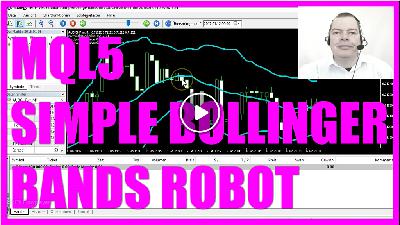
Introduction to Bollinger Bands and Expert Advisor Calculation (00:00 – 01:03) Introduction to using Bollinger Bands in trading and how the expert advisor can calculate all three bands with higher accuracy. Trading Strategy with Bollinger Bands (01:03 – 01:34) Explaining the trading strategy: opening a short trade when the price breaks the upper Bollinger Band and a long trade when it breaks the lower band and returns. Creating an Expert Advisor for Bollinger Bands (01:34 – 02:05) Instructions on creating an expert advisor in MetaTrader to automate trading with Bollinger Bands. Setting Up Arrays and Defining Bollinger Bands in Code (02:05 – 03:21) Coding steps to set up arrays for each Bollinger Band and defining the bands based on the current chart and time period. Outputting Calculated Values on the Chart (03:21 – 03:38) Using the comment function to output the calculated values of the Bollinger Bands on the chart. Compiling the Code and Preparing MetaTrader (03:38 – 04:20) Compiling the expert advisor code and setting up MetaTrader to display the Bollinger Bands on the chart. Testing the Expert Advisor in Strategy Tester (04:20 – 05:39) Running the expert advisor in the strategy tester and comparing the calculated values with the chart’s Bollinger Bands. If you like to use indicators, you might have heard of the Bollinger bands. This little Expert Advisor here can calculate all three bands. If you put your mouse cursor over the middle band here you see a value of 0.712078 and our calculated value for the middle band is 0.7120775, this calculation even is a little bit more accurate. The value for the upper Bollinger band is 0.712457 and here we have 0.712457. And for the lower Ballinger band it’s the same 0711698, 0.7116979. This value is even more accurate because this one is rounded. So what can we do with a Bollinger Bands? Well the idea is as the price breaks the upper Bollinger band we want to get in at the next entry and we would like to open a short trade here, because we expect the price to fall. In the other case if the price breaks the Bollinger band here and it gets back into the bands we would go for a long trade because the price might rise. So if you can create an automated Expert Advisor that is able to compare these values over here with the current price, you can fully automate this. Your computer can trade the Bollinger bands automatically and you don’t have to sit in front of your screen all the time. So let’s create a little Expert Advisor! To do that please hit the F4 key or click this little button over here and that will open the Meta Editor. Here we click on new Expert Advisor from template, continue, we will call it simple Bollinger bands, click on continue, continue, finish. Remove everything above the OnTick function, remove the comments and the first thing we need is an array for each of the Bollinger bands one, two, three times a double array. Now we need to sort our three arrays to hold prices from the current candle downwards and we do that with the function arraysetasseries. In the next step we need to define the Bollinger bands. We want our Expert Advisor to use the current chart for the current time period used on the chart. It should calculate the Bollinger bands for twenty candles without any shift and with a standard deviation of two, that all should be calculated for the closed price of the candle. Afterwards we need to copy the price information into three arrays and now it’s time to calculate the actual value for the current candle and to store it in a variable for each of the three bands. That’s it for the calculation. Now we want to output our calculated values on the chart, we do that with the comment function and it will output the name of the variable and the value we have calculated in this block. Okay let’s compile the code. We have no errors and no warnings. So let’s click the little button over here or hit the F4 key to bring up the Meta Trader, to make the Bollinger band visible on the screen we will use a little trick. Please click on insert, indicators, Bollinger bands, select the period of twenty candles with a shift value of zero and the deviation value of two, we want to apply all this to the closed price of the candles and now you can pick a color and style for the line. I prefer these thicker lines. Let’s click on okay and you will see the visual representation of the Bollinger bands on the chart. Now right click the chart select templates, save template and save it as Tester.tpl to make it the default chart for strategy tester. And if you save it as default.tpl it will also become the default template if you open a new chart in life trading. So let’s bring up the Strategy Tester by clicking on View Strategy Tester or hitting the control and the R key and select the simple Bollinger bands.ex5 file, make sure to and enable visualization here and start the test. And this is what you should see now, let’s stop it here and check the values. This is 0.706251, 0.7062505, thats okay. The upper Bollinger band is 0.706916, 0.706916, that’s also okay and the lower Bollinger band is 0.705585, and that’s exactly what’s calculated here, so it works. In this video you learned to calculate all the Bollinger bands by creating this little Expert Advisor here.
The post MQL5 Tutorial – Simple MQL5 Bollinger Bands Robot appeared first on MQL5 Tutorial.
Introduction to Creating Simple Chart Objects in MQL5 (00:00 – 00:34) Introduction to the tutorial on creating simple objects like arrows on the chart each time a tick comes in, using MQL5. Opening MetaEditor and Creating a New File (00:34 – 01:05) Instructions on opening MetaEditor, creating a new Expert Advisor file named “Simple Chart Objects”. Setting Up the Code Structure and Creating Price Array (01:05 – 01:39) Deleting unnecessary code and creating an array for price information using MQL rates. Sorting the Array and Filling with Price Data (01:39 – 01:52) Sorting the array downwards and filling it with price information for the current chart and period. Creating a Static Counter and Drawing Arrows (01:52 – 02:25) Creating a static counter and using it to draw arrows on the chart with ‘ObjectCreate’. Configuring the Arrow’s Appearance and Position (02:25 – 03:08) Setting the arrow’s type, color, and width, and positioning it at the highest point of the current candle. Changing Arrow Appearance with Counter Value (03:08 – 03:42) Changing the arrow’s appearance based on the value of the static counter. Setting Arrow Color and Size (03:42 – 04:23) Configuring the arrow’s color to green and increasing its size. Moving the Arrow and Displaying Counter Value (04:23 – 04:57) Moving the arrow to the highest price of the current candle and displaying the counter value on the chart. Incrementing the Counter for New Symbols (04:57 – 05:17) Increasing the counter by one for each new tick, resulting in different symbols on the chart. Compiling the Code and Testing in MetaTrader (05:17 – 05:51) Compiling the code and testing the Expert Advisor in MetaTrader using the Strategy Tester. Observing Dynamic Symbols on the Chart (05:51 – 06:11) Watching the changing symbols on the chart during the test and understanding how to print dynamic symbols using MQL5. This time we are going to create simple objects. Each time a tick comes in, one of these objects will be painted here. Usually you will see things like arrows up and down, but actually there are a lot of more possibilities for such an arrow symbol. Everything you see here is called an arrow even if it doesn’t look like one. Now how can we create an Expert Advisor in MQL5 that is going to draw objects like these? To do that, please click on the little button here or press the F4 key on your keyboard. And that will bring up your MetaEditor window and here you want to select File, New, Expert Advisor from Template, Continue. I will call it SimpleChartObjects here, Continue, Continue and finish. And now you can delete everything above the OnTick function and the two comment lines here. And first we need an array for prices, we can create one by using MQLrates and it will have the name Price Information, now we are going to sort the array downwards from the current candle by using arraysetasseries and by using copyrates we are going to fill the price information array for the current chart and the period selected on the chart from the current candle zero for all the bars on the chart and store the values in our array. And now we are going to create a static counter, it will be an integer with the name i, and we will use that value to actually create an arrow with the name MyArrow. Please remember in MQL 5 an arrow can look like a circle or a square or anything else. So we use ObjectCreate for the current chart and our object will have the name MyArrow and we use OBJ_Arrow to create it. The next parameter would be a sub window; we will use a zero here because we are going to create the arrow here in the main window. You might have seen indicators that use a sub window below. We will use the current time and the arrow should be placed on the highest point of the current candle in our price information array we have created here. And with object set integer for the current chart, and the object, my arrow, we use OB J Prop_Arrow Code, and the value of the static counter to change how our object looks. Currently we have the value 179 and as soon as that changes to 180 the arrow code changes and so does the way our arrow looks. And for 181 our arrow would look like this; let’s select a color here, that is done by using objects set integer for the current chart for the object with the name My Arrow and we use OBJ_Prop_Color and we would like to have the color green. If you press F1 on your keyboard you will see a lot of other colors that you can use. To make our object a little bit bigger we’re using object set integer for the current chart for the object with the name MyArrow and we use the OBJProp_Width to set the size to 20. And now we move the object by using ObjectMove for the current symbol and for the object with the name MyArrow on the main window we used, for the current time and we move it to the highest prize of the current candle. I would actually like to have a chart output for the current counter value so we use comment to output the text “i has the value” followed by the current value of the static integer variable i. And in the last step we are going to increase our counter by one, that is done with I++ and now the next time a tick comes in we should see another symbol on the chart. Okay that’s it; let’s compile the code here and that worked without any errors. So please click on the little button here or press F4 on your keyboard to go back to MetaTrader. And in MetaTrader click on View, Strategy Tester or press control and R to bring
The post MQL5 Tutorial – Simple Chart Objects appeared first on MQL5 Tutorial.
In this video we are going to create an Expert Advisor for this signal here; it’s the Commodity Channel Index, and you see that we have already opened a position, it produces buy and sell signals here on the chart. Whenever the signal is below the lower line we are going to buy and when it’s above we are going to sell. Now how can we create an Expert Advisor in MQL5 that is actually able to trade the Commodity Channel Index? To do that please click on the little button here or press F4 on your keyboard, now you should see the Metaeditor window and here you want to click on: “File/ New/ Expert Advisor (template)” from template, “Continue”, I will call this one: “SimpleICCIStandaloneEA”, click on “Continue”, “Continue” and “Finish”, now you can remove everything that is above the “OnTick” function and let’s also delete the two comment lines here. First we want to include the file: “Trade.mqh”, it comes with MQL5 and it will help us to create an instance of the class “CTrade” that will be called: “trade” and we are going to use it to actually open positions later on but before we can do that we need to calculate a few things. For example the Ask price. We get that by using “SymbolInfoDouble” for the current symbol and with “SYMBOL_ASK” we will get the Ask price. “NormalizeDouble” and “_Digits” will help us to get the price with either 3 or 5 digits behind the dot depending on the currency pair. Let’s do the same for the Bid price, it’s almost exactly the same but this time we use “SYMBOL_BID”. Now we use “MqlRates” to create an array for the prices, we will call that:”PriceInfo” and we sort the array from the current candle downwards by using “ArraySetAsSeries” and we use “CopyRates” to fill our “PriceInfo” array with price data for the last candles. We will use the current symbol on the chart, the currently selected period and we will start with the prices for candle 0 (zero) – that’s the current candle – and we only need prices for 3 candles and store that result in the “PriceInfo” array. We also need to create a string for the signal that will be called: “signal” and it has no value right now because we are going to calculate that later on. We need to create another array, this time we will call it: “myPriceArray”. Well, this one was for the candle prices (PriceInfo) and the second one will be for the Expert Advisor (myPriceArray). Let’s define the Commodity Channel Index here (CCIDefinition), we are going to use the built-in: “iCCI” function for the current symbol and the current period on the chart, it will be calculated based on 14 candles – that’s also what you see if you click on: “Insert/ Indicators/ Oscillators/ Commodity Channel Index”, you see 14 candles – and our result will be calculated based on the close prices. Let’s sort the price array (myPriceArray) from the current candle downwards by using “ArraySetAsSeries” and with “CopyBuffer” we fill our price array (myPriceArray) according to the Commodity Channel Index definition (CCIDefinition) that we have created here for the first signal buffer, – that’s the line here – we start with candle 0 (zero) – that’s the current candle – and we copy the values of 3 candles and store it in our price array (myPriceArray). Finally we are able to get the value of the current candle by looking at candle 0 (zero) in our price array (myPriceArray) and the result will be stored in the variable called: ”CCIValue” and if the “CCIValue” is bigger than 100 – that would be the case whenever the blue line is above the upper dotted line, you see the 100 mark here – and if that is the case we want to sell so we assign the word: “sell” to our signal. Otherwise if the “CCIValue” is below the -100 (minus 100) line – that is the lower dotted line here – we want to buy so we assign the word: “buy” to our signal. And if the signal equals sell and “PositionsTotal” is less than 1 – with other words we wouldn’t have any open positions on the chart – we want to sell so we use “trade.Sell” to sell 10 micro lot. Otherwise if the signal equals buy and we have no open positions we want to buy so we use “trade.Buy” to buy 10 micro lot. Finally we create an output on the chart by using the “Comment” function, it will output the words: “The current signal is:” followed by the “signal” that we have calculated. Okay, that’s it so far, please click on the “Compile” button or press F7. We don’t see any errors here so now we can click on the little button here or press F4 to go back to Metatrader. In Metatrader we click on: “View/ Strategy Tester” or press CTRL and R, please select the “SimpleICCIStandaloneEA”, mark the visualization option here and click on start. Here we are! This is our first position, we can speed up the process a little bit and you see that it is creating buy and sell signals, we already have opened a position here and now you know how to create an Expert Advisor that is able to trade the Commodity Channel Index in MQL5 and you have coded it yourself with a few lines of MQL5 code.
The post MQL5 TUTORIAL- SIMPLE ICCI STANDALONE EA appeared first on MQL5 Tutorial.
Introduction to Shifted Moving Average Indicator (00:00 – 00:11) Introduction to the concept of a shifted moving average, which projects one moving average into the future. Setting Up the MQL5 Code (00:11 – 00:18) Overview of the MQL5 code setup, including the creation of a string variable named ‘signal’ for storing trading signals. Declaring Moving Average Arrays (00:18 – 00:27) Declaring two arrays, ‘my moving average array’ and ‘my shifted average array,’ to store values of moving averages. Defining Two Moving Averages (00:27 – 00:46) Using the ‘IMA’ function to define two moving averages: a 50-period simple moving average and another 50-period SMA with a 20-period shift. Sorting Arrays and Copying Values (00:46 – 01:08) Sorting the arrays in descending order and using ‘CopyBuffer’ to copy the last three values of both moving averages into their respective arrays. Calculating Moving Average Values (01:08 – 01:15) Calculating and storing the values of the current candle for both moving averages. Generating Trading Signals (01:15 – 01:32) Generating buy or sell signals based on the comparison of the moving average values. Displaying Trading Signal on Chart (01:32 – 01:43) Using the ‘Comment’ function to display the current trading signal on the chart. Conclusion and Further Learning Resources (01:43 – 02:18) Concluding remarks on the functionality of the code and suggestions for further learning through other videos or a premium course. In this video, we are going to take a look at this indicator here. It’s a shifted moving average, which means that we use one moving average and project the results into the future. Let’s see how we can do something like this with MQL5. In this MQL5 code, a string variable named signal is created to store the trading signal. This signal will be either buy or sell. Two arrays, my moving average array and my shifted average array are declared. These arrays will store values of moving averages. Two moving averages are defined using the IMA function. Moving average definition calculates a 50-period simple moving average using the closing prices of the current symbol and period. Shifted average definition calculates another 50-period SMA, but with a 20-period shift applied. The array set as series function is used to sort the my moving average array and my shifted average array in descending order. The copy buffer function is used to copy the last three values of both moving averages into their respective arrays. The values of the current candle for both moving averages are calculated and stored in my moving average value and my shifted average value. Trading signals are generated based on the comparison of these moving average values. If my moving average value is greater than my shifted average value, it sets signal to buy. If my moving average value is less than my shifted average value, it sets signal to sell. The current trading signal, buy or sell, is displayed on the chart using the comment function. This code calculates two moving averages, compares their values, and generates a buy or sell signal based on the comparison. It then displays the current trading signal on the trading chart for reference. Okay, by now you should have a working version of this indicator on your chart. I hope everything went well. If it was too fast for you or if you have no idea what all the code does, you maybe want to watch one of the other videos or maybe even the premium course on our website might be interesting for you. For now, I say thank you for watching and I will see you in the next video.
The post MQL5 TUTORIAL – HOW TO CREATE A SHIFTED MOVING AVERAGE appeared first on MQL5 Tutorial.
Introduction to Real World Trading System (00:00 – 00:14) Introduction to the robot trading system used by the presenter. Overview of the system’s performance and purpose. Analyzing Trading System Performance (00:14 – 00:29) Detailed look at the trading system’s results and trades. Discussion on the balance and equity of the system. Understanding Trade Impact and Emotions (00:29 – 01:06) Exploring the emotional impact of trade results. Difference between small and large losses. Trade History Analysis (01:06 – 01:20) Examination of the system’s trade history, including profits and losses. System Strategy and Position Series (01:20 – 01:39) Description of the trading strategy using position series. Explanation of closing positions at once. Decision Making in Trading (01:39 – 02:14) Criteria for deciding between single or multiple positions. Rules-based approach to trading decisions. Trend Analysis with Moving Averages (02:14 – 02:31) Using simple moving averages to identify market trends. Explanation of downtrend indicators. Trading With and Against Trends (02:31 – 02:58) Strategies for trading with the trend and handling corrections. Examples of trades that didn’t work out and why. Analyzing Correction Phases and Trends (02:58 – 03:29) Understanding correction phases in stable trends. Strategies for closing positions profitably. Future Decision Making in Trading (03:29 – 03:47) Challenges in predicting future market movements. Importance of decision making in trading. Using FXBlue for Detailed Statistics (03:47 – 04:17) Utilizing FXBlue for better trading statistics. Accessing detailed system performance data. System Performance and Statistics Overview (04:17 – 04:53) Comprehensive review of the trading system’s performance. Analysis of winners, losers, and total trades. Trade Analysis and Currency Focus (04:53 – 05:10) Breakdown of trade types and currency pairs used. Emphasis on trading in a downtrend. Scaling Up the Trading System (05:10 – 05:28) Considering increasing the trading volume. Evaluating the system’s readiness for scaling. Average Trade Duration and Profitability (05:28 – 06:05) Analysis of average trade duration and profitability. Importance of balancing profitable trades with losses. Understanding Trading Costs and Spreads (06:05 – 06:36) Discussion on swap fees and spread costs in trading. Impact of broker charges on trading profitability. Market Trend Analysis and Moving Averages (06:36 – 07:04) Using moving averages to analyze market trends. Indicators of trend changes and their implications. Automating Trading Logic with MQL5 (07:04 – 07:33) Simplifying trading decisions through automation. Using MQL5 for implementing trading strategies. Backtesting and Real-Time Testing (07:33 – 08:04) Importance of backtesting and real-time demo account testing. Evaluating system performance in different market phases. Scaling Up and Risk Management (08:04 – 08:21) Strategies for scaling up the trading system. Adjusting risk percentage and position size. Training and Analyzing Trading Systems (08:21 – 08:51) Training a system for real-world conditions. Using external tools for performance analysis. Conclusion and Future Plans (08:51 – 09:22) Summary of the video and insights on scaling up the system. Invitation to analyze detailed stats on the website. In this video we are going to talk about one of my real world examples. This is the robot trading system which actually use myself and one of my premium course members wanted to know how something like this works. So let’s have a look at the details. Well, if you have a look at the robot trading system, you can see this is Version 2023 from June. Right now we have the 20 first of October and here we have results and trades all in all we made a profit of 159 dollars and if we look at the overall view here we see that the balance currently is almost equal to the equity which means we only one open trade that is currently and open loss of 99 cents. So what is actually the difference between this trade and one that would be an open loss of 99 dollars? The difference is emotional because it’s not actually the number here that counts if a system is working or not, it’s what the difference means for us. So let’s have a look at the history and here we see that we have losses and we have profits, so not every trade was a success, but all in all the system result is stable, at least right now. If we zoom into the system, we can see these lines here which look like a fan and each of those is a series of positions that we have opened. And at this point here all positions have been closed at once. Let’s zoom in a little more and you will also see parts where we don’t see a fan, for example like here. And these are simple positions that made a profit without the need to start a series. So how do we decide if we just take one position or if we want to open multiple positions? Well in my case I have rules. And currently we are in a down trend, and we can see that because we have two simple moving averages here is for 1100 candles and the other one is for a thousand candles. And a long as the green one is below the red one, we have a downtrend and that looks pretty stable right now. And you can see that the last trades that we made have been sell trades, so we have been trading with the trend. But still we have some positions that didn’t work out. How was that possible? Well that’s because even in a stable trend we have some corrections. That’s when we open a position like here and then suddenly in a correction the price goes up. And if you take a closer look, this is the case for all these fans here. The price went down, than we made a trade here. Suddenly a correction happened and it went against us. But actually we have been able to still close all the positions from here to there in a profit at this point here. Because finally the short time trend again started to go with the main trend and the price went
The post MQL5 TUTORIAL – HOW TO TRAIN AND SCALE A WORKING REAL WORLD TRADING SYSTEM appeared first on MQL5 Tutorial.
Introduction to Calculating Historical Profit (00:00 – 00:09) Introduction to creating an expert advisor for calculating historical profit for a specific currency pair. Overview of displaying the calculated profit on the chart. Starting with MetaEditor (00:09 – 00:16) Instructions on how to start the MetaEditor for coding the expert advisor. Brief mention of using the icon or pressing F4 on the keyboard. Including Trade Library and Creating CTrade Instance (00:16 – 00:31) Explanation of including the Trade.mqh library for trade operations. Creation of an instance of the CTrade class named ‘trade’ for executing buy and sell operations. Calculating Current Ask and Bid Prices (00:31 – 00:38) Description of calculating the current Ask and Bid prices within the OnTick function. Importance of these prices for executing buy and sell orders. Executing Buy and Sell Orders (00:38 – 00:46) Checking for less than two open positions before executing orders. Execution of both buy and sell orders for demonstration purposes. Calculating and Displaying Historical Profit (00:46 – 01:01) Use of the GetCurrencyPairHistoryProfit function to calculate historical profit. Displaying the calculated profit on the chart. Functioning of GetCurrencyPairHistoryProfit Function (01:01 – 01:09) Detailed explanation of how the function calculates total historical profit for a specific currency pair. Initializing Variables and Fetching Historical Data (01:09 – 01:17) Initialization of variables for storing deal information. Use of the HistorySelect function to fetch historical deal data. Iterating Through Historical Deals (01:17 – 01:25) Iteration through historical deals using a for loop. Obtaining profit, swap, and order type for each deal. Ensuring Matching Currency Pair for Deals (01:25 – 01:34) Checking the currency pair for each deal to match the current symbol. Compiling the Code and Further Learning Resources (01:34 – 01:49) Instructions on compiling the code in MetaEditor. Recommendation for the premium course or basic videos for further learning. Testing the Expert Advisor in MetaTrader (01:49 – 02:04) Returning to MetaTrader and starting the strategy tester. Selection of the created expert advisor and enabling visual mode for testing. Invitation for Premium Course Members (02:04 – 02:09) Invitation for premium course members to suggest ideas for new videos. Conclusion and Summary (02:09 – 02:24) Conclusion on how to calculate and display historical profit for a currency pair using MQL5. Emphasis on the functionality of the created expert advisor with minimal MQL code. In this video, we are going to create an expert advisor that calculates the historical profit for a specific currency pair and displays it on the chart. Let’s see how we can do that. To begin, start the MetaEditor by clicking on the little icon or pressing F4 on your keyboard. The code starts by including the Trade.mqh library, which provides functions and methods for performing trade operations. We then create an instance of the CTrade class called trade to execute trade operations like buying and selling. Inside the OnTick function, we calculate the current Ask and Bid prices for the symbol. These prices are essential for executing buy and sell orders. The code checks if there are less than two open positions. If true, it executes both a buy and a sell order. This is just for demonstration purposes. The historical profit for the currency pair is calculated using the GetCurrencyPairHistoryProfit function and then displayed on the chart. The GetCurrencyPairHistoryProfit function calculates the total historical profit for the specific currency pair. Several variables are initialized to store information like the total number of deals, ticket numbers, order types, and profits. The HistorySelect function is used to fetch historical deal data. A for loop iterates through all the historical deals. For each deal, the profit and swap for the deal are obtained, the type of order (buy or sell) is determined, and the currency pair for the deal is checked to ensure it matches the current symbol. Once you’ve written the code, press F7 to compile it. If this was too fast for you or if you don’t understand what all the code is doing, you may want to check out the premium course on our website or watch one of the basic videos first. After compiling, go back to MetaTrader by pressing F4 or clicking on the icon. In MetaTrader, press control and R to start the strategy tester. Pick the expert advisor that we have just created, enable the visual mode, and start a strategy test. You should then see the expert advisor on the chart. If you’re already a premium course member and have an idea for a video like this one, please send us an email. In conclusion, you’ve now learned how to calculate and display the historical profit for a specific currency pair using MQL5. With just a few lines of MQL code, you’ve created a functional expert advisor. Thanks for watching, and I’ll see you in the next video!
The post MQL5 TUTORIAL – HOW TO CALCULATE THE HISTORY PROFIT appeared first on MQL5 Tutorial.
Introduction to Order Cancels Order (OCO) System (00:00 – 00:09) Introduction to the concept of OCO, where one order’s execution cancels the other. Visualization of sell stop and buy stop orders on the chart. Understanding Orders and Positions (00:09 – 00:30) Explanation of the difference between an order and a position. How orders become positions when triggered by price movements. Creating an Expert Advisor in MetaEditor (00:30 – 01:01) Instructions on opening MetaEditor and starting a new Expert Advisor project. Naming the project ‘Simple Cancel Order.’ Setting Up the Expert Advisor (01:01 – 01:30) Removing unnecessary lines and importing the ‘trade.mqh’ file. Creating an instance of the CTrade class. Initializing Trading Parameters (01:30 – 02:05) Getting account balance, equity, ask, and bid prices. Normalizing prices for different currency pairs. Creating Buy Stop and Sell Stop Orders (02:05 – 03:28) Conditions for opening pending orders when no positions or orders exist. Setting up buy stop and sell stop orders with defined take profit points. Implementing Order Cancellation Logic (03:28 – 04:49) Checking for active trading and differing balance and equity values. Creating a function to cancel open orders. Compiling and Testing the Expert Advisor (04:49 – 05:32) Compiling the code in MetaEditor. Instructions for testing the Expert Advisor in MetaTrader. Visualizing the Expert Advisor’s Functionality (05:32 – 06:06) Observing the behavior of the Expert Advisor with pending orders in MetaTrader. Explanation of how the Expert Advisor cancels one order when the other is triggered. Conclusion and Summary (06:06 – 06:06) Recap of how to create a simple OCO Expert Advisor in MQL5. Emphasis on the ease of coding this functionality with a few lines of MQL5 code. Today we want to talk about a system that is called OCO that is the short term for Order Cancels Order. If you look on our chart we have a sell stop here and we have a buy stop there and here is where the price is and if the price moves to the sell stop that would trigger a short position. And if the price rises and hits the buy stop we would have a long position. Now what’s the difference between an order and a position? You use an order if you want to open a position so you can place your orders in the market and if the price moves and hits your pending order it will become a position. You see that we have cancelled the other order now. It’s no longer here, so let’s find out how to create an Expert Advisor that can cancel pending orders. To do that please click on the little button here or press the F4 key and once you have done that piece click on File, New, Expert Advisor from Template, Continue. I will call it Simple Cancel Order, Continue, continue and finish and now you want to remove everything above the OnTick function and the two comment lines here. And to have anything to close we first need to import the file trade mqh by using the include function. We want to create an instance of the Class Ctrade and that will have the name trade. In the first step we need to get the account balance that is done by using account info double, Account_Balance. Now we need to get the equity by using account info double, Account_Equity and we also need the ask prize here we use symbol info Double_Symbol for the current chart and the constant Symbol_Ask. We also use normalized Double_Digits because we have currency pairs with five digits and other currency pairs with three digits and now we do exactly the same to get the bid price, but this time we use Symbol_Bid. Now if we have no open position and no order, so if positions total equals zero and if orders total also equals zero, we need to open a pending order for a buy stop and another one for the sell stop, the position size is ten micro lot. In both cases the buy stop order will be placed one hundred points above the ask price and the sell stop order will be placed one hundred points below the bid price. For the current symbol we have not defined a stop loss, the take profit is three hundred points above the ask price and two hundred, no let’s also use three hundred points below the bid price. We use other time GTC that means the order will stay until we cancel it, so we have no expiration time here. If we would use an expiration time we would use this parameter to define it and the last parameter here is for a comment but we don’t need that. If we are trading right now – that would mean that the balance has different value than our equity. We want to cancel the open orders so let’s create a function called cancel order. It’s a void type because it doesn’t need to return any kind of value and here we use For Loop. It starts by using orders total minus one and until the value for the counter is zero that means as long as we have open orders it will go through all the open orders. We use order get ticket for the current order to find out the ticket number and it now will delete the pending orders by using Trade.OrderDelete for the order ticket that we have calculated here. And the last thing we need to do is to close the For Loop and the cancel order function. Now let’s compile the code by clicking the little button here or pressing the F7 and that did actually work without any errors. So now please click here or press F4 to go back into Meta Trader. And in MetaTrader you want to click on View, Strategy Tester or press control and R, and here you want to select the Simple Cancel Order.ex5 file, select any currency pair and enable the visualisation mode.
The post MQL5 Tutorial – Simple Order Cancel Order EA appeared first on MQL5 Tutorial.
Introduction to Expert Advisor with Self-Defined Functions (00:00 – 00:14) Introduction to an expert advisor that opens buy stops and calculates profit on a chart. Explanation of using self-defined functions compiled in a library. Understanding Libraries in MQL5 (00:14 – 00:27) Explanation of what a library is in MQL5 and its purpose. How to create a library for reusable functions. Opening MetaEditor and Creating a Library (00:27 – 00:41) Instructions on opening MetaEditor from MetaTrader. Steps to create a new library in MQL5. Setting Up the Library File (00:41 – 01:01) Explanation of import statements and the structure of the library file. Introduction to the functions ‘getProfitCurrencyPair’ and ‘openBuyStop.’ Defining Functions in the Library (01:01 – 01:30) How to define custom functions in the library. Example of creating functions for opening buy stops and calculating profit. Initializing Variables and Importing Trade Functions (01:30 – 02:05) Setting up initial variables and importing necessary trade functions. Explanation of the ‘property library’ directive. Creating Self-Defined Functions (02:05 – 03:28) Detailed steps to create self-defined functions in the library. Example of a function to calculate profit for a currency pair. Implementing the Buy Stop Function (03:28 – 04:49) Creating a function to open buy stop orders. Explanation of parameters and conditions for the buy stop. Compiling and Testing the Library (04:49 – 05:32) Instructions on compiling the library in MetaEditor. How to test the library’s functionality in MetaTrader. Using the Library in an Expert Advisor (05:32 – 06:06) Demonstrating how to use the created library in an expert advisor. Visualizing the expert advisor’s behavior in MetaTrader. Conclusion and Summary (06:06 – 06:25) Recap of how to create and use a custom library in MQL5. Emphasis on the efficiency of using libraries for reusable code. What you see here is an Expert Advisor that is opening buy stops and we have a calculated profit on the chart and it uses two self defined functions that we have compiled in a so called library. You can think of a library as a file that contains self defined functions that you can use again and again. Now how can we create such a library in MQL5? To do that please click on the little button here in your Meta Trader and now you should see the MetaEditor and this is our main module and we use these import statements here to import the file MyLibrary.ex5 and in that file we have a function called GetProfitCurrencyPair and another function called OpenBuyStop. And in the OnTick function we check if we have no open orders and if that is the case we want to OpenBuyStop so we call the self defined function OpeBuyStop from our library. And to calculate the profit we use the function GetProfitCurrencyPair and that’s also self defined in our library. And to create your own library please click on File, New, Library, Continue, this one is called myLibrary and now you can click on Finish. And the first thing we need is property library, without that you cannot compile the file and to be able to open the buy stops we need to import the trade functions from the built in trade.mqh file. And to get the profit of the current currency pair we need to create our self defined function and this extension 2export” is used because only a function with such a modifier is accessible for our MQL 5 programs. And in the function we declare a variable called ProfitThisCurrencyPair; it contains no value here and now we go through all the positions using this For Loop and we use PositionGetSymbol for the current counter and if the symbol on the chart equals the symbol of the currency pair from our position, we use PositionGetDouble, position_profit to calculate the position profit and position get double, position_swap to calculate the swap. Just add the two values up to get the profit of the currency pair. Let’s end the For Loop and we use normalize double and two digits to calculate the profit for the currency pair and format it for two digits behind the dot, and afterwards we use return to return the profit for the currency pair back to the main module. Let’s add another function for the buy stop, it’s called OpenBuyStop and it also has the export extension and to open the buy stop we want to know the ask price, the balance and the equity. You can get the ask price by using SymbolInfoDouble for the current symbol and you use symbol_ask and with NormalizeDouble and _Digits we make sure that we have three digits for this currency pair or five digits for other currency pairs and to get the balance of the equity we use AccountInfoDouble, Account_Balance or AccountInfoDouble, Account_Equity. And if equity and balance are equal, we want to open a buy stop by using trade.buystop for 10 micro lots. The buy stop will be one hundred points above the ask price of the current symbol. We haven’t defined a stop loss, the take profit will be three hundred points above the ask price and we use Order_Time GTC because that is good until the order is cancelled so it will not expire and because of that we use a zero for the date/time and the last parameter would be for the comment, we don’t need that so we also use zero here. Let’s add the last bracket to close the function and press this little button or F7 on your keyboard to compile your library. I made a mistake here, of course I need to create an instance of Ctrade now that’s done and I recompile and this time it worked without any errors. So let’s click on the button here our press F4 to go back to MetaTrader. And in MetaTrader you want to click on View, Strategy Tester or press control and R, and in the Strategy Tester please select the file simpleLibraryMainModule.ex5 and please remember that you also have to
The post MQL5 Tutorial – Advanced Library Expert Advisor appeared first on MQL5 Tutorial.
Introduction to SAR Stochastic Standalone Expert Advisor (00:00 – 00:10) Introduction to creating an Expert Advisor in MQL5 that uses the Parabolic SAR and Stochastic Oscillator indicators for buy and sell signals. Starting with MetaEditor (00:10 – 00:25) Instructions on opening the MetaEditor from MetaTrader and the initial setup, including importing the ‘Trade.mqh’ library. Setting Up Price Calculation (00:25 – 01:12) Explanation of calculating the asking and bid prices using the ‘SymbolInfoDouble’ function and normalizing these prices. Preparing Price Data Array (01:12 – 01:29) Setting up an array named ‘PriceInfo’ to store price data and sorting it to prioritize the latest data. Implementing Parabolic SAR Indicator (01:29 – 02:17) Using the Parabolic SAR indicator within the ‘CheckEntry’ function to identify potential buy or sell signals. Refining Signals with Stochastic Oscillator (02:17 – 02:45) Utilizing the ‘CheckEntryStochastic’ function to refine trading signals based on the Stochastic Oscillator values. Executing Trades Based on Signals (02:45 – 03:09) Decision-making process for executing buy or sell trades based on the combined signals from SAR and Stochastic indicators. Compilation and Testing in MetaTrader (03:09 – 03:38) Instructions for compiling the code and testing the Expert Advisor in MetaTrader using the strategy tester. Conclusion and Additional Resources (03:38 – 03:53) Recap of the tutorial and an invitation to explore more advanced courses or send ideas for new videos. In this video, we are going to create an Expert Advisor that uses the Parabolic SAR and Stochastic Oscillator indicators to generate buy and sell signals in MetaTrader. Let’s see how we can do that. First, start the MetaEditor. You can do this by clicking on its icon or simply pressing the F4 key. We begin with the #include directive to import the Trade.mqh library. This library provides us with essential trading functions. Following this, we create an instance of the CTrade class named trade. This instance will be our primary tool for executing buy and sell orders. Next, we calculate the current asking price using the Symbol Info Double function with the parameters Symbol and SYMBOL ASK. This gives us the price at which we can buy. To ensure precision, we use the Normalize Double function, inputting the price and Digits to adjust the number of decimal places. Similarly, we determine the bid price using the Symbol Info Double function with the parameters Symbol and SYMBOL BID. This is the price at which we can sell. This price is also normalized using the Normalize Double function. We then set up an array named Price Info of type Mql Rates. This array will store our price data for specific time periods on the chart. Within the On Tick function, we sort our Price Info array using the Array Set As Series function to prioritize the latest data. We then fill this array with price data for the current symbol and time frame using the Copy Rates function. Here, we’re copying data for three candles, giving us a snapshot of recent price movements. The closing price of the most recent candle is then determined using the Price Info[0].close reference. We then call the Check Entry function. Inside this function, we use the Parabolic SAR indicator to check the current and previous values to determine if there’s a buy or sell signal. If the current SAR value is below the current price and the previous SAR value was above the previous price, it suggests a buy signal. Conversely, if the current SAR value is above the current price and the previous SAR value was below the previous price, it suggests a sell signal. Additionally, the Check Entry Stochastic function is used to refine our signals. This function checks the Stochastic Oscillator values. If the K line crosses the D line from below in an oversold area, it suggests a buy signal. If the K line crosses the D line from above in an overbought area, it suggests a sell signal. With these signals in hand, the code decides whether to execute a buy or sell trade. If both the trading signal and the filter signal return a buy and there are no open positions, the trade.Buy function is used to buy 0.10, equivalent to 10 Micro Lot. If both signals return a sell, the trade.Sell function is used to sell 0.10 Microlot. Once you’ve input all the code, press F7 to compile it. If this was too fast for you or if you don’t understand what all the code is doing, you might want to check out the Premium course on our website or watch one of the basic videos first. After a successful compilation, return to MetaTrader by pressing the F4 key or clicking on its icon. Once in MetaTrader, press Control and R to start the strategy tester. Select the Expert Advisor you’ve just created, enable the visual mode, and start a strategy test. You should then see the Expert Advisor in action on the chart. If you’re already a Premium course member and have an idea for a video like this one, please send us an email. By the end, you’ll have a deeper understanding of what you’ve learned and the Expert Advisor you’ve coded yourself with just a few lines of MQL code. Thanks for watching, and I’ll see you in the next video!
The post MQL5 TUTORIAL – SIMPLE SAR STOCHASTIC STANDALONE EXPERT ADVISOR appeared first on MQL5 Tutorial.
Introduction to IVIDYA Standalone Expert Advisor (00:00 – 00:26) Introduction to creating an Expert Advisor in MQL5 for the Variable Index Dynamic Average (IVIDYA) indicator. Explanation of buy and sell signals based on the indicator’s position relative to price candles. Setting Up in MetaEditor (00:26 – 01:01) Instructions on opening MetaEditor from MetaTrader and creating a new Expert Advisor file named ‘SimpleIVIDYAStandaloneEA’. Initial code setup including removing unnecessary lines. Including Trade.mqh and Initializing CTrade (01:01 – 01:30) Explanation of including the ‘Trade.mqh’ file and creating an instance of the ‘CTrade’ class for opening positions later in the code. Calculating Ask and Bid Prices (01:30 – 01:49) Details on calculating the Ask and Bid prices using ‘SymbolInfoDouble’ and normalizing these prices with ‘NormalizeDouble’ and ‘_Digits’. Setting Up Price and EA Data Arrays (01:49 – 02:47) Creating and sorting a price array (PriceArray) using ‘MqlRates’ and ‘ArraySetAsSeries’. Also, setting up an array for the Expert Advisor data (EAArray) and sorting it. Implementing IVIDYA Indicator (02:47 – 04:10) Using the ‘iVIDyA’ function to define the Expert Advisor based on the Variable Index Dynamic Average Indicator. Filling the EAArray with data using ‘CopyBuffer’. Calculating and Assigning Signals (04:10 – 05:02) Determining the current IVIDYA value and assigning ‘sell’ or ‘buy’ signals based on its comparison with the close price of the last candle. Executing Trades Based on Signals (05:02 – 05:29) Executing sell or buy trades using ‘trade.Sell’ or ‘trade.Buy’ based on the calculated signal and the absence of open positions. Displaying Signal on Chart and Testing (05:29 – 06:01) Using the ‘Comment’ function to display the current signal on the chart. Instructions for compiling the code and testing the Expert Advisor in MetaTrader. Conclusion and Demonstration (06:01 – 06:41) Conclusion of the tutorial with a demonstration of the Expert Advisor in action, showing a buy signal and the opening of a position. In this video we are going to create an Expert Advisor to calculate this Indicator; it’s the Variable Index Dynamic Average, whenever the red line is above the price that would be a sell signal and in the other case when the red line is below the candles – like here – that would be a buy signal. Now how can we create an Expert Advisor that is going to actually trade our signal and output our buy and sell signals directly on the chart? To do that please click on the little button here or press F4 on your keyboard and now you should see the Metaeditor window and here you want to click on: “File/ New/ Expert Advisor (template)” from template, I will call this file: “SimpleIVIDYAStandaloneEA”, click on “Continue”, “Continue” and “Finish”. Now we can remove everything that is above the “OnTick” function and let’s also delete the two comment lines here. We start by including the file: “Trade.mqh”. Sometimes people ask me where the file is? Well, it’s included in MQL5 and we can create an instance of the class: “CTrade” that will be called: “trade” and we are going to use it later on to open positions. Inside of the “OnTick” function we are going to calculate the Ask price and the Bid price. We get the prices by using “SymbolInfoDouble”, we use “SYMBOL_ASK” to calculate the Ask price and “SYMBOL_BID” to calculate the Bid price. With “NormalizeDouble” and “_Digits” we calculate the number of digits behind the dot. Let’s create a string variable that will be called: “signal” and we are going to calculate the signal value later on so we don’t assign a value right now. We also need to create a price array (PriceArray) that is done by using “MqlRates”, lets sort the array from the current candle downwards by using “ArraySetAsSeries” and with “CopyRates” we fill our array (PriceArray) with price data for the current symbol on the chart and the currently selected period, we are going to start from the current candle 0 (zero) and we need the price for 3 candles – that’s for the prices. Now we need to create an array for the Expert Advisor data that will be called: “EAArray”, let’s also sort that one by using “ArraySetAsSeries”. Now we actually can define the Expert Advisor by using the integrated “iVIDyA” function. If you mark that one and hit F1 you will see all the parameters for the Variable Index Dynamic Average Indicator, it has only one buffer and the parameters are: the current symbol on the chart, the currently selected period on the chart, here we have a 9, a 12 and a 0 (zero) – so let’s click on: “Insert/ Indicators/ Trend/ Variable Index Dynamic Average” and you will see that we have a “Period CMO:” that is 9, the “Period EMA:” that is 12 and the “Shift:” value of 0 (zero) and that’s exactly what we use here and the value will be calculated based on the close price (PRICE_CLOSE). So let’s use “CopyBuffer” to fill our array (EAArray) with data according to the IVIDYA definition (iVIDyADefinition) we have created here, it’s for only one buffer – the first buffer is buffer 0 (zero) – the current candle is also candle 0 (zero), we need data for 3 candles so we use a 3 here and save it in our “EAArray”. So far so good; to get the current value we just look into our “EAArray” and we need the value for the current candle – that’s candle 0 (zero) – now we can actually calculate the signal. Whenever the current iVIDyA value (iVIDyAVALUE) is bigger than the close price of the last candle in our price array (PriceArray) that would be a sell signal and that’s when we want to assign the word: “sell” to our signal. In the other case if the iVIDyA value (iVIDyAVALUE) is smaller than the price array 1 close price for candle 1 (PriceArray[1].close) that would be a buy signal and now we assign the word: ”buy” to our signal. Whenever our signal equals sell and
The post MQL5 TUTORIAL – SIMPLE IVIDYA STANDALONE EXPERT ADVISOR appeared first on MQL5 Tutorial.

Comments

Download from Google Play

Download from App Store
 United States