



12 hidden iPhone features it’s time to finally start using in 2026
Description
These days, iPhones can do a lot. And we mean a lot. From photography and navigation to gaming and AI, it’s enough to make you forget they can also, you know, make phone calls and send text messages.
With all these clever features on offer, it’s inevitable that a few will be overlooked. Whether you’re a power user or an iOS beginner, we bet there are scores of interesting and useful functions that you never knew existed–and which could help you get even more out of that expensive device.
In this article, updated for 2026, we round up some of the best iPhone features and settings you’re probably not using. (For each one we list the version of iOS you’ll need to be running; if you’re not sure, you can check this by opening the Settings app and going to General > About and checking the iOS Version field.) With our help, you’ll be an iPhone master in no time.
1. NameDrop: Easily share contacts
Works on iOS 17 and later
NameDrop, which lets you touch two iPhones together to exchange contact details, is a great example of Apple’s seamless and intelligent integration between hardware and software, and it’s something that few other phone makers could pull off.
Just bring the top ends of two iPhones close to each other and hold them there until you see a bubble-like animation show on their displays. Once that happens, NameDrop will link the two users like magic, and you can then choose the fields you want to share before exchanging your details or tap Receive Only to get their info without sending your own.
And here’s a bonus: The feature also works for sending Apple Cash to another iPhone user.
Why you should use this feature: It’s a huge time-saver. Instead of laboriously dictating your number, or opening the right app to text your details, do it easily in a flash.
2. Back Tap: Add a button to the back of your iPhone
Works on iOS 14 and later
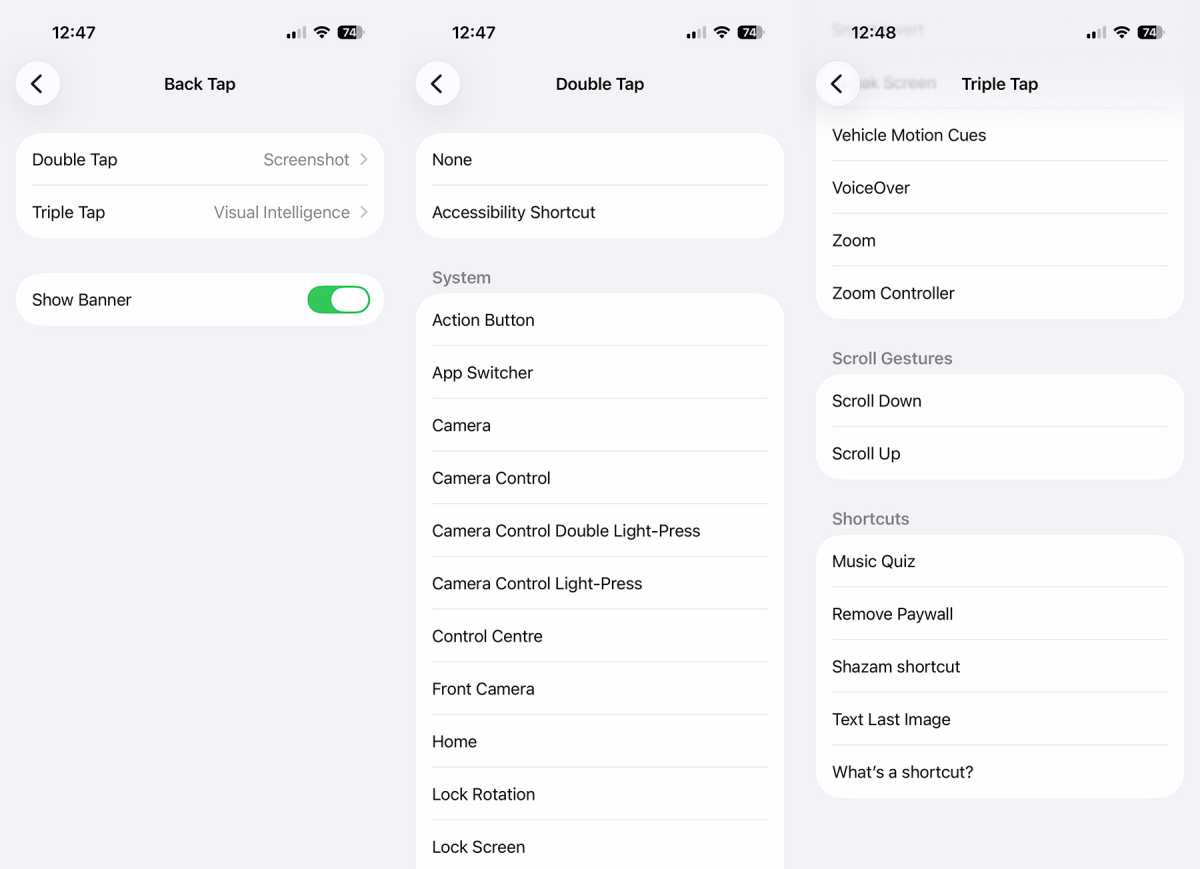
Some iPhone features feel so natural that you wonder why you didn’t know about them before, and Back Tap certainly qualifies. With a quick double or triple tap on the back of your phone, you can open your camera app, turn on the flashlight, switch apps, and more.
To get started, open the Settings app on your iPhone and head to Accessibility > Touch > Back Tap. Select either Double Tap or Triple Tap, then pick an option from the extensive list. You can run system functions, activate accessibility controls, and even launch a shortcut, which is a clever way to kickstart a powerful workflow with minimal effort.
Why you should use this feature: What could be more convenient than having instant access to your most commonly used action? Having instant access to two of them.
 <button class="lightbox-trigger" type="button">
<svg fill="none" height="12" viewBox="0 0 12 12" width="12" xmlns="http://www.w3.org/2000/svg">
<path d="M2 0a2 2 0 0 0-2 2v2h1.5V2a.5.5 0 0 1 .5-.5h2V0H2Zm2 10.5H2a.5.5 0 0 1-.5-.5V8H0v2a2 2 0 0 0 2 2h2v-1.5ZM8 12v-1.5h2a.5.5 0 0 0 .5-.5V8H12v2a2 2 0 0 1-2 2H8Zm2-12a2 2 0 0 1 2 2v2h-1.5V2a.5.5 0 0 0-.5-.5H8V0h2Z" fill="#fff"></path>
</svg>
</button><figcaption class="wp-element-caption">Back Tap is like having a secret Action button on the back of your phone.</figcaption></figure>
David Price / Foundry
3. Visual Look Up: Use the camera to learn about nature
Works on iOS 15 and later, although newer software (and hardware) will unlock more features
How many times have you seen an animal or plant and found yourself scratching your head over what it was? With your iPhone, there’s no need to be left in doubt. Just use Visual Look Up.
Simply snap a photo of the animal or plant in question, open the image in the Photos app, then swipe up. You’ll see an option to Look Up Plant or Look Up Animal, which will show likely matches and similar images. Since the feature debuted in 2022, Apple has expanded its scope, and swiping up on other photos may give you the option to Look Up Food, Look Up Artwork and so on, while living creatures gain more specific searches such as Look Up Mammal. Who knows what Apple will add in iOS 27?
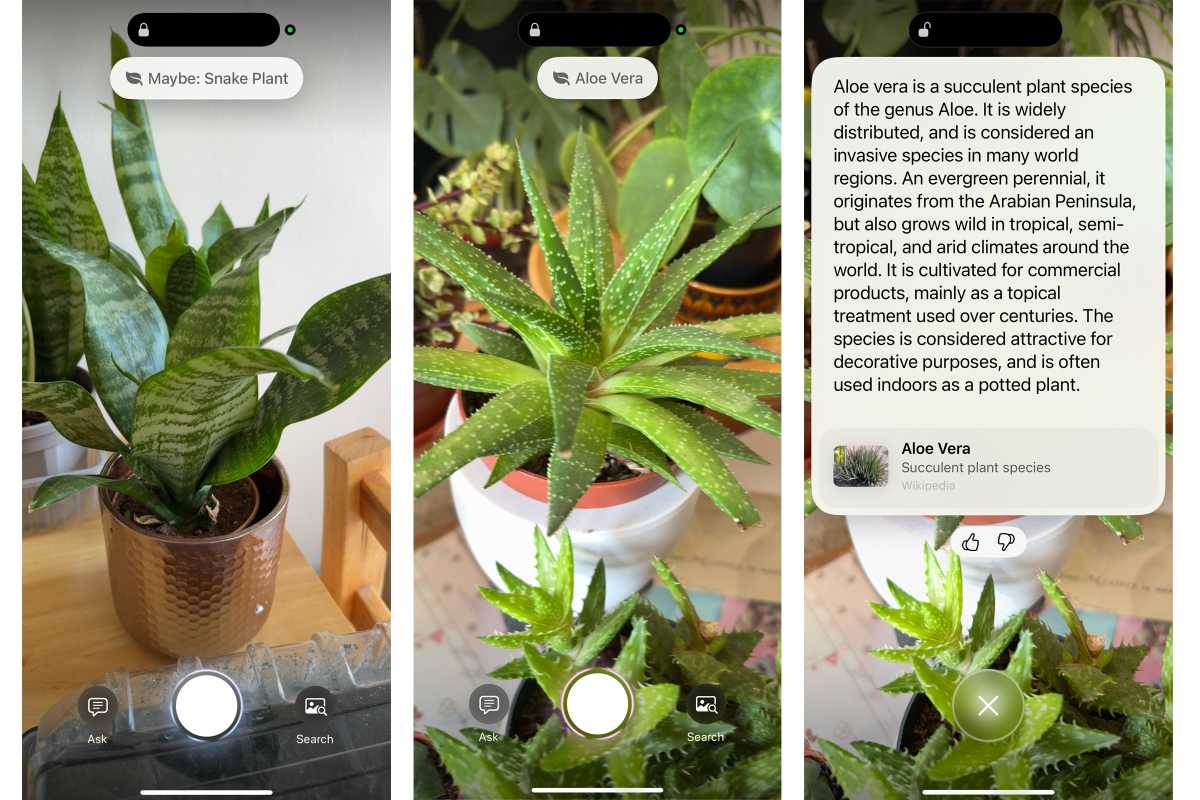
If you have an AI-compatible iPhone, you can use the Visual Intelligence feature to tap into Apple Intelligence or ChatGPT to get similar assistance. By default this feature is activated by tapping and holding the Camera Control for a couple of seconds until a new camera window bursts onto your screen. (If you haven’t got a Camera Control you can open Control Center and add it there.) Point your camera at the object in question, and an animal or plant name will appear at the top.
If it says “Maybe,” tap the name to see a few theories. If ChatGPT is more certain, it will show the name of what it thinks it is, and you can tap it to get some information.
Why you should use this feature: Knowledge is power. And learning is fun!
 <button class="lightbox-trigger" type="button">
<svg fill="none" height="12" viewBox="0 0 12 12" width="12" xmlns="http://www.w3.org/2000/svg">
<path d="M2 0a2 2 0 0 0-2 2v2h1.5V2a.5.5 0 0 1 .5-.5h2V0H2Zm2 10.5H2a.5.5 0 0 1-.5-.5V8H0v2a2 2 0 0 0 2 2h2v-1.5ZM8 12v-1.5h2a.5.5 0 0 0 .5-.5V8H12v2a2 2 0 0 1-2 2H8Zm2-12a2 2 0 0 1 2 2v2h-1.5V2a.5.5 0 0 0-.5-.5H8V0h2Z" fill="#fff"></path>
</svg>
</button><figcaption class="wp-element-caption">Now you know a little bit more about the humble aloe vera.</figcaption></figure>
Foundry
4. Song Recognition: Identify music
Works on iOS 14.2 and later
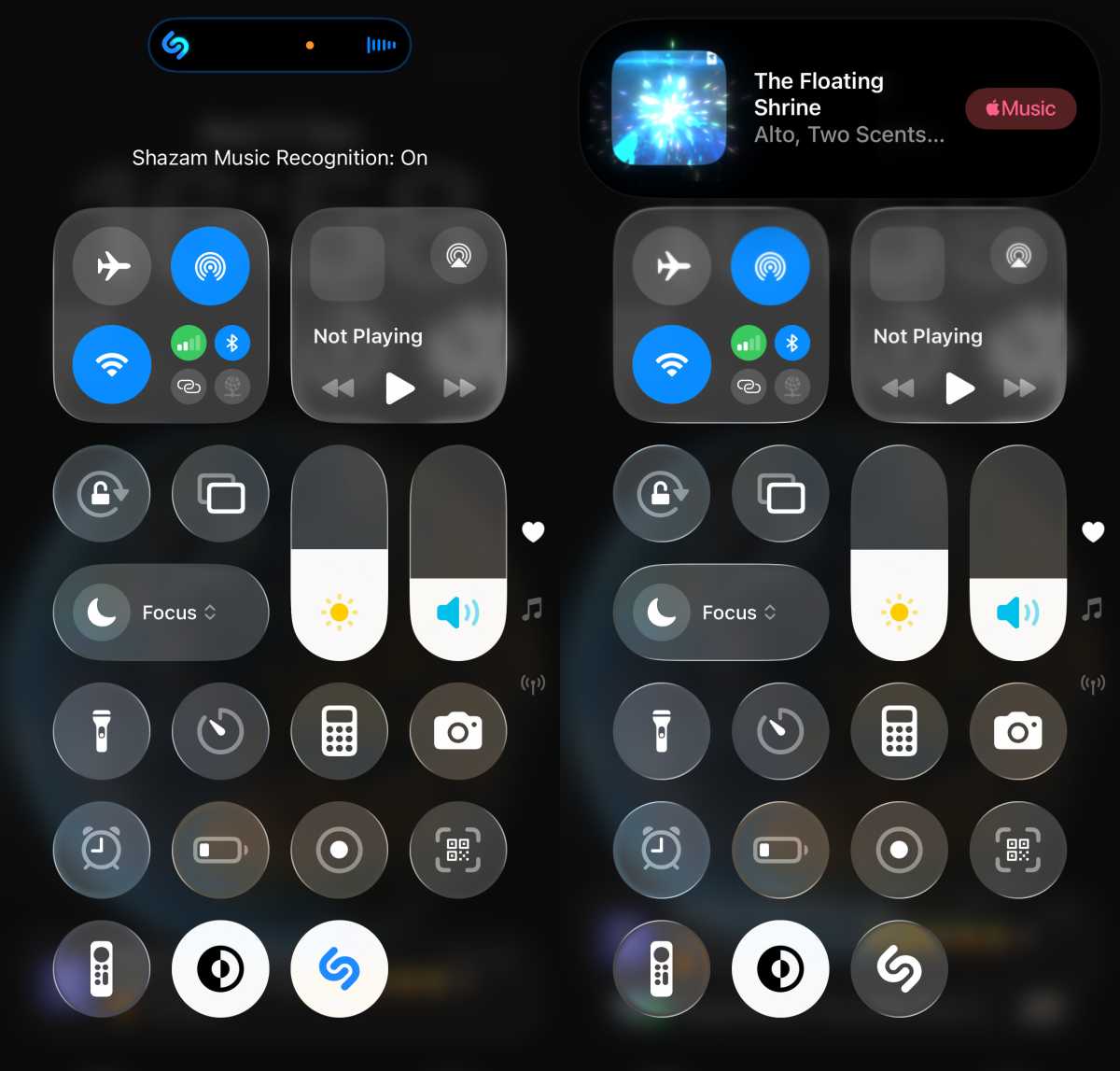
Shazam is a fantastic way to discover a new song or identify those earworms whose names you can’t quite remember—but you don’t need to open the Shazam app each time, or even install it. Shazam Music Recognition is now built into iOS, and you can put a handy Shazam button right into the Control Center for quick access.
Open the Control Center by swiping down from your iPhone’s top-right corner. From here, tap the + in the top-left corner, tap Add a Control, then tap the Recognize Music button (or use the search bar if you can’t spot it). The next time you hear a song you can’t identify, open the Control Center and hit the Shazam button, and it’ll identify the song within seconds.
Why you should use this feature: There’s no time to waste when a mystery song is playing.
 <button class="lightbox-trigger" type="button">
<svg fill="none" height="12" viewBox="0 0 12 12" width="12" xmlns="http:


 United States
