



Adobe Premiere Elements review: 360º edits & everything else new for 2026
Description
At a Glance
Expert's Rating
Pros
- Extensive range of video-editing tools
- Quick mode and Guided Edits for beginners
- Powerful colour correction tools
- Good tools for creating text and titles
Cons
- Even Quick mode is pretty complex
- Now sold with only three-year license
- Dense, unhelpful documentation
Our Verdict
It’s certainly a powerful video-editing tool, with advanced features for creating titles and artistic effects. However, Premiere Elements isn’t easy to master, and may be too complex for people who just want to post on Instagram.
Price When Reviewed
This value will show the geolocated pricing text for product undefined
Best Pricing Today
Premiere Elements is the companion product to Photoshop Elements (see our review), and is designed to provide powerful video-editing tools at a competitive price. There are less expensive video-editing apps available for the Mac, but many of these simply focus on relatively simple tools for trimming video clips and applying filters and effects for use on social media.
In contrast, Premiere Elements provides powerful and precise editing tools that allow you to create complex video projects using multiple video and audio clips. It also includes a variety of text tools for creating titles, and a very wide range of creative filters and effects that can create just the right look and mood for your videos.
However, that extra power means that Premiere Elements is more complex than some of its rivals – and also more complex than Photoshop Elements too, despite the similarities between the two programs.
Premiere Elements – Editing Tools
Like Photoshop Elements, Premiere Elements provides three different editing modes, with three tabs at the top of the main editing window – Quick, Guided and Advanced – which are designed to cater to users with different levels of experience.
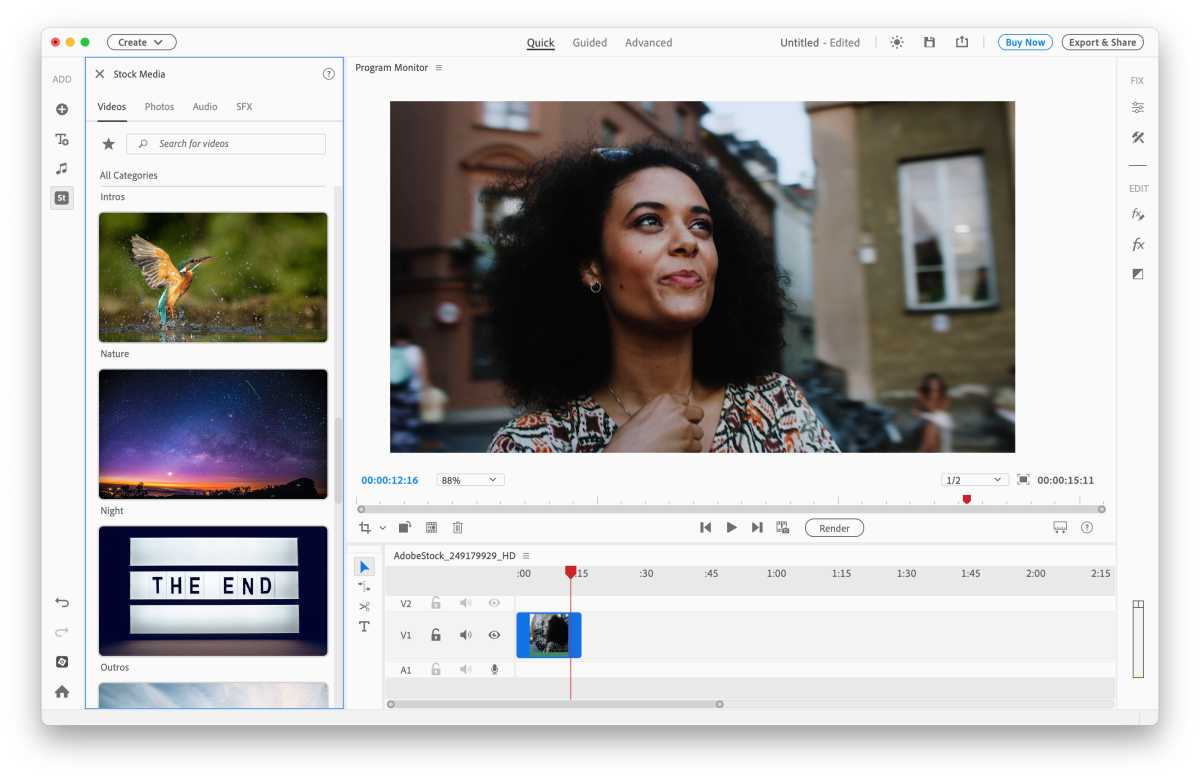
The Quick mode is designed for beginners, and provides a simple workspace with a horizontal sceneline running across the bottom of the screen where you can drag and drop video clips and quickly arrange them in the required sequence. Above the sceneline is the Program Monitor window, which provides a larger view of individual video clips so that you can view each clip with frame-by-frame precision and decide where to make cuts or other changes. There’s also a palette on the right of the window that provides several additional tools, including a series of artistic effects, such as oil paintings, lens flare and black-and-white effects. However, even in Quick mode some of these tools are quite complex, with multiple slider controls for adjusting settings and timings that may confuse less experienced users.
Fortunately, like Photoshop Elements, Premiere Elements also has a Guided mode that provides step-by-step help with some of these more complex tools. There are Guided Edits that show you how to create time-lapse effects, lighting adjustments, titles and other effects. And, for real beginners, there are two options that can do all the work for you and automatically create a Highlight Reel, or a Video Collage. All you have to do here is import a few video clips and Premiere Elements will edit the clips together, add transitions, and even offer a selection of music clips for the soundtrack.
Premiere Elements 2026 – What is new
 <button class="lightbox-trigger" type="button">
<svg fill="none" height="12" viewBox="0 0 12 12" width="12" xmlns="http://www.w3.org/2000/svg">
<path d="M2 0a2 2 0 0 0-2 2v2h1.5V2a.5.5 0 0 1 .5-.5h2V0H2Zm2 10.5H2a.5.5 0 0 1-.5-.5V8H0v2a2 2 0 0 0 2 2h2v-1.5ZM8 12v-1.5h2a.5.5 0 0 0 .5-.5V8H12v2a2 2 0 0 1-2 2H8Zm2-12a2 2 0 0 1 2 2v2h-1.5V2a.5.5 0 0 0-.5-.5H8V0h2Z" fill="#fff"></path>
</svg>
</button><figcaption class="wp-element-caption">
Premiere Elements can download free photos, sounds and video clips from Adobe Stock
.</figcaption></figure>
The 2026 update for Premiere Elements kicks off with one really eye-catching new feature, with the ability to import and edit 360º panoramic video files, which you can use on social media, or even to create professional-level interactive VR scenes for headsets such as Apple’s Vision Pro.
The editing process is relatively easy, as Premiere Elements provides a Hand tool that allows you to click on a point within the 3D scene and then rotate and tilt your viewpoint within the scene. You can then use Premiere Elements’ filters, titling tools and other effects to edit your 360º scene just like any other video clip.
The problem, though, is that the initial process of creating and importing these 360º video files is no easy task. Adobe’s Help files are rather vague, but they do explain that you require specialised dual-lens cameras manufactured by companies such as Kodak or Ricoh (with no mention as yet of the iPhone or Apple’s Immersive Video format for the Vision Pro).
You’ll need a fair degree of technical knowledge in order to work with these cameras in the first place, so while this is an impressive and powerful new tool it’s one that will most likely appeal to professional film-makers or content creators who have the time, money and equipment needed to create suitable 360º videos.
Premiere Elements 2026 does have some new features for more humble video hobbyists, though.
The program’s text and titling tools have been improved, with new style templates and a new browser to help you find just the right style for your projects.
There are new templates for creating motion titles, and new colour fonts and emojis to liven things up.
The app also provides access to Adobe Stock, which is a huge library of video clips, photos and sound effects that you can use in your video projects, or just use to experiment while you’re getting to grips with the program.
And, like Photoshop Elements, Premiere Elements has updated its Crop tool, with a new Freehand Crop option, and improved tool tips that provide helpful information when you hover the mouse over the toolbar.
Premiere Elements 2025 – What was new
 <button class="lightbox-trigger" type="button">
<svg fill="none" height="12" viewBox="0 0 12 12" width="12" xmlns="http://www.w3.org/2000/svg">
<path d="M2 0a2 2 0 0 0-2 2v2h1.5V2a.5.5 0 0 1 .5-.5h2V0H2Zm2 10.5H2a.5.5 0 0 1-.5-.5V8H0v2a2 2 0 0 0 2 2h2v-1.5ZM8 12v-1.5h2a.5.5 0 0 0 .5-.5V8H12v2a2 2 0 0 1-2 2H8Zm2-12a2 2 0 0 1 2 2v2h-1.5V2a.5.5 0 0 0-.5-.5H8V0h2Z" fill="#fff"></path>
</svg>
</button></figure>
Foundry
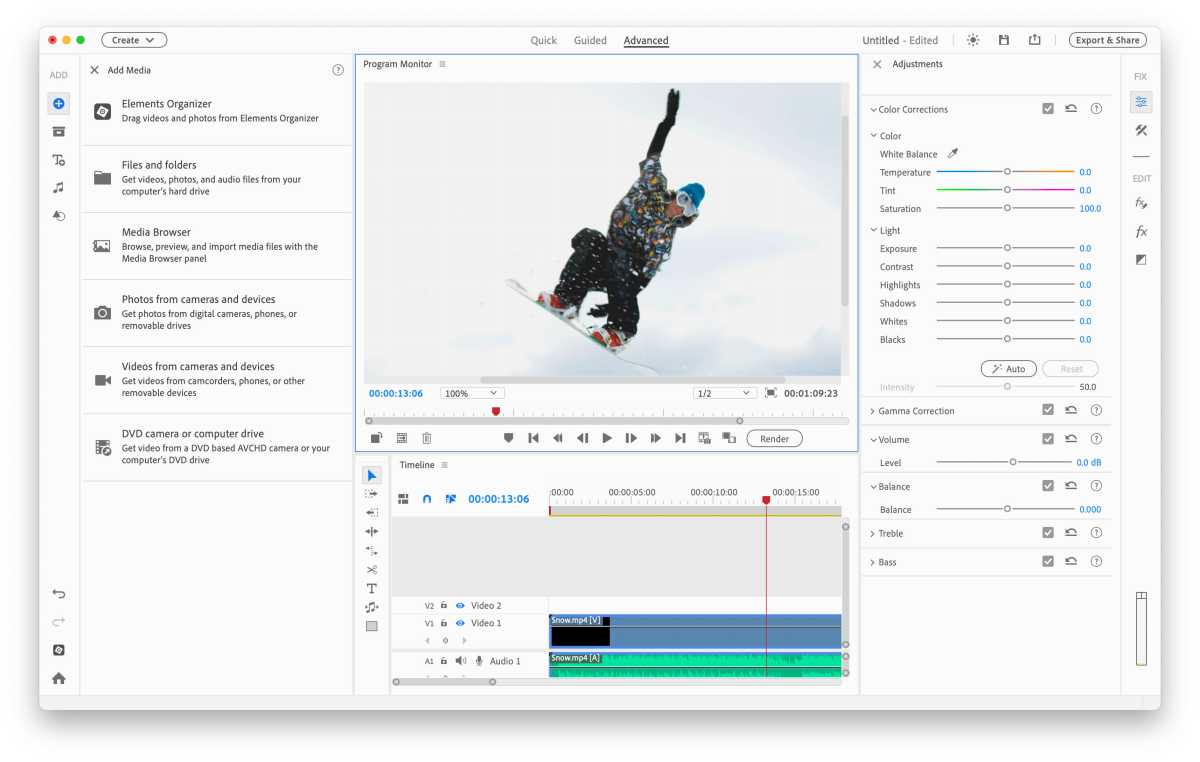
Many of the new features introduced for the 2025 edition are found in the Advanced Mode, which provides full access to the program’s extensive range of editing tools, audio features, filters and effects.
At first glance, Advanced Mode looks similar to Quick Mode – although the sceneline of Quick Mode is now called the timeline, indicating that more advanced features are available in this mode. The ti


 United States
