



I’m a Mac power user. These five tips will turn you into one too
Description
One of the great aspects of the Mac is that it’s just about ready to go right out of the box. Yes, macOS takes you through a few steps to set up your new machine, but after that, you can get to work. And that’s probably what most people do, only adjusting macOS settings when absolutely necessary and using whatever accessories that came with the Mac.
However, if you don’t spend some time getting to know it, you’re not taking full advantage of your Mac. From the vital points of contact such as your mouse and keyboard, to pulling the curtain of macOS’s polished exterior to adjust settings and make hidden tweaks, you’re not far from being a serious power user.
Here are five things you can do that will make your Mac experience immediately better. These range from accessories to settings and tweaks that will improve usability. You’ll also find that you’re working more efficiently, saving time, and being more productive.
Ditch Apple’s accessories
The only Macs that include a keyboard and mouse are the iMac and Mac Pro. Regardless of what Mac you are buying, when you buy directly from Apple, the only choices you have are Apple’s own Magic Mouse and Magic Keyboard.
 <button class="lightbox-trigger" type="button">
<svg fill="none" height="12" viewBox="0 0 12 12" width="12" xmlns="http://www.w3.org/2000/svg">
<path d="M2 0a2 2 0 0 0-2 2v2h1.5V2a.5.5 0 0 1 .5-.5h2V0H2Zm2 10.5H2a.5.5 0 0 1-.5-.5V8H0v2a2 2 0 0 0 2 2h2v-1.5ZM8 12v-1.5h2a.5.5 0 0 0 .5-.5V8H12v2a2 2 0 0 1-2 2H8Zm2-12a2 2 0 0 1 2 2v2h-1.5V2a.5.5 0 0 0-.5-.5H8V0h2Z" fill="#fff"></path>
</svg>
</button><figcaption class="wp-element-caption">
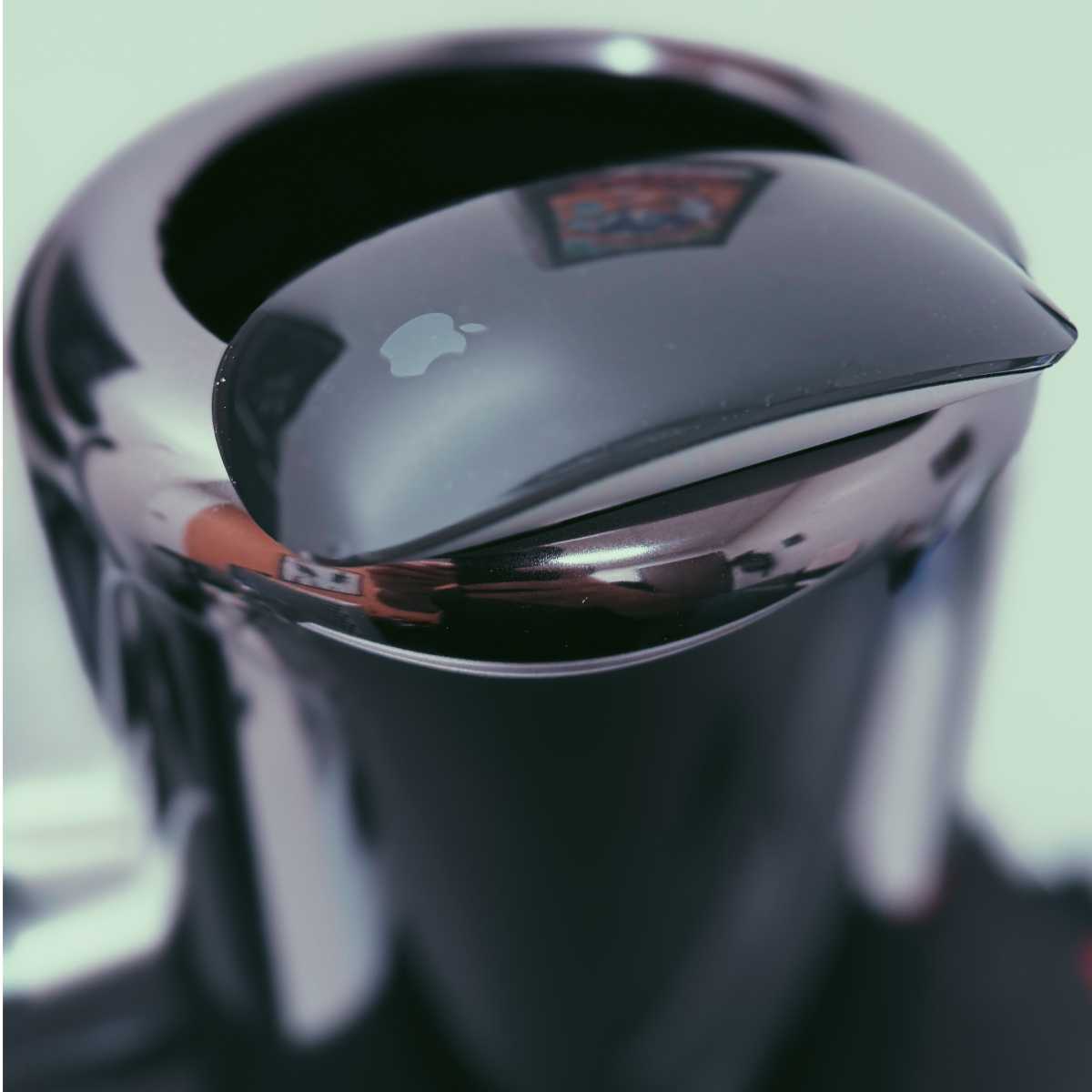
The Magic Mouse looks nice, but you can find a third-party mouse that’s more useful.
</figcaption></figure>Thiago Trevisan
The Magic Mouse itself has a series of unfortunate attributes that make it less than ideal. Its charging port is on the bottom so you can’t use it while it charges. Furthermore, it is not the best ergonomically or most responsive technically. It lags and other quirky behaviors can often be experienced.
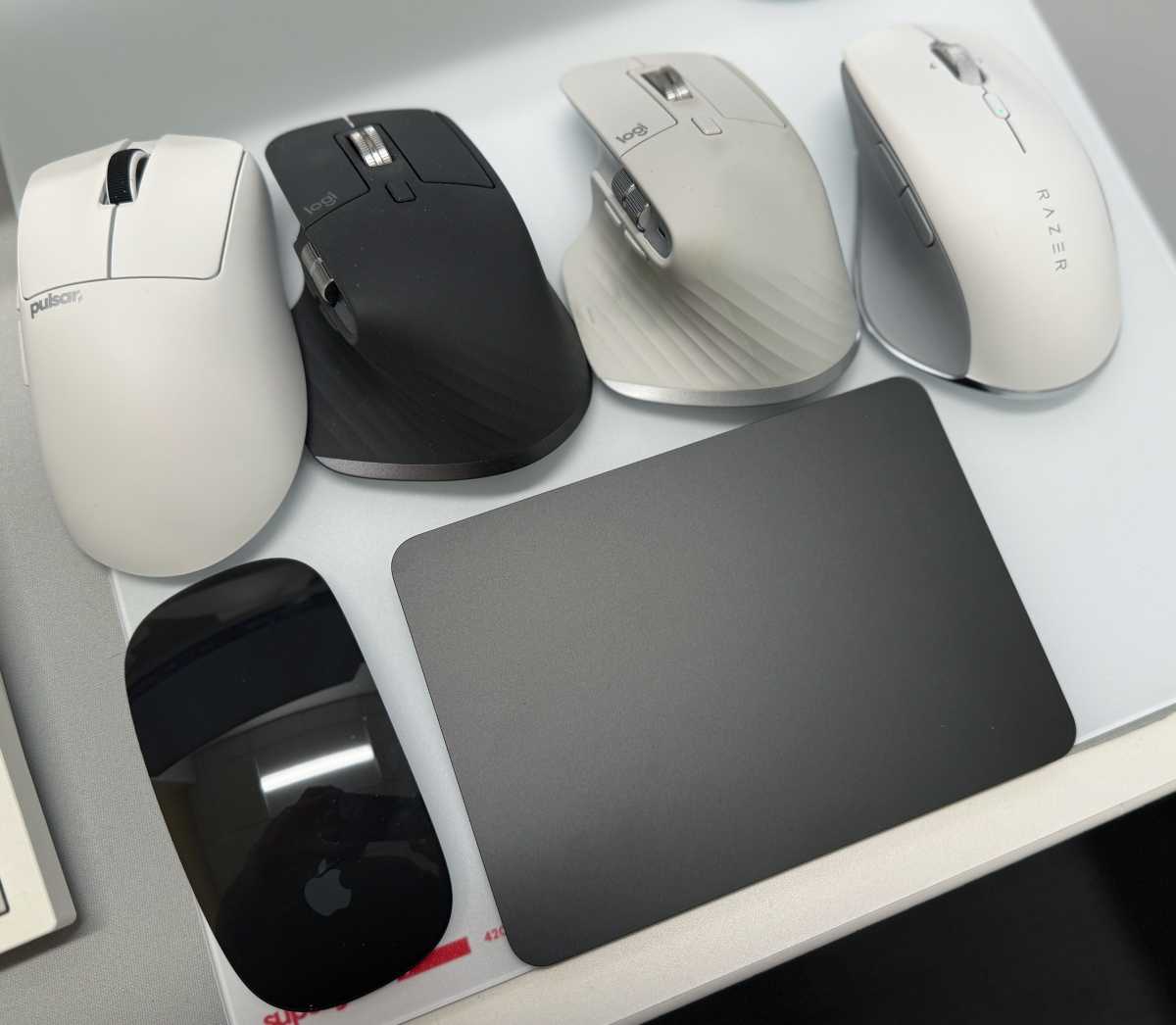
You’re better off going with a third-party mouse. (See our reviews of the best mouse for Macs). A popular favorite is the Logitech MX Master 3S, which comes in both grey and white. It works via Bluetooth, but the wireless USB dongle offers better connectivity (if you can spare a USB port). Keep in mind the Mac-branded version does not include this dongle, so look for the PC version that does. It works perfectly fine on a Mac since it is the same mouse.
The world of mice is vast, and you’ll find plenty of other options. Mice meant for gaming often work wonderfully on the Mac and have terrific ergonomics. They are often fine-tuned for precision, tactility, and responsiveness. Some, such as Logitech, even offer software for the Mac so that you can configure your mouse as you’d like.
Some brands, like Razer, work out of the box but don’t allow further tweaking since they do not offer Mac software for customization. Third-party apps, such as Mac Mouse Fix, can help you regain some of that control. Mapping key buttons such as back, forward, and even Mission Control can make for a more fluid workflow. We also have some tips on getting the most out of the second button on a mouse.
 <button class="lightbox-trigger" type="button">
<svg fill="none" height="12" viewBox="0 0 12 12" width="12" xmlns="http://www.w3.org/2000/svg">
<path d="M2 0a2 2 0 0 0-2 2v2h1.5V2a.5.5 0 0 1 .5-.5h2V0H2Zm2 10.5H2a.5.5 0 0 1-.5-.5V8H0v2a2 2 0 0 0 2 2h2v-1.5ZM8 12v-1.5h2a.5.5 0 0 0 .5-.5V8H12v2a2 2 0 0 1-2 2H8Zm2-12a2 2 0 0 1 2 2v2h-1.5V2a.5.5 0 0 0-.5-.5H8V0h2Z" fill="#fff"></path>
</svg>
</button><figcaption class="wp-element-caption">
Don’t limit yourself to the Magic Mouse.
</figcaption></figure>Thiago Trevisan
If you are a MacBook Pro user and love the trackpad, consider picking up a Magic Trackpad for desktop use. You can even use it alongside any mouse. Video editors often use both to maximize the flexibility of mouse accuracy and the scrolling capabilities of the Magic Trackpad.
Keyboards are a similar story to mice–choice is abundant; see our favorite best Mac keyboards. Apple’s Magic Keyboard has Touch ID and works seamlessly with the Mac, but its shallow typing touch is lacking. You give up some convenience with third-party keyboards, but you gain a more satisfying typing experience.
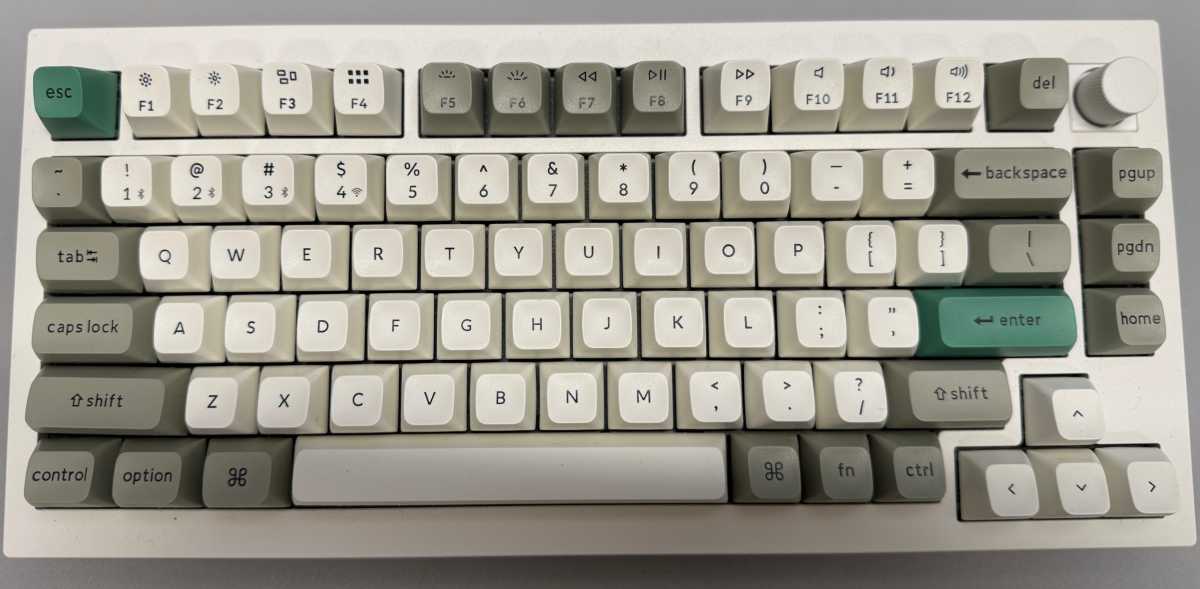
Mechanical keyboards have been all the rage lately, and many work wonderfully with the Mac. The Keychron Q5 Max, for example, offers Mac keys, Bluetooth, and a buttery smooth tactile feel. Glorious offers products such as the GMMK Pro, which has Mac keys and a customizable experience. Logitech also makes the MX Keys S for the Mac, which pairs nicely with its MX 3S mouse. Many keyboards will have a toggle switch to go from PC to Mac, for keys to function as you’d expect. For more options, check out our roundup of the Best Mac keyboards we’ve reviewed.
Other accessories to jazz up your setup include a good pair of speakers. While some displays will have them built-in, separate external speakers offer a much better audio experience. The Harman Kardon Sound Sticks, famously designed by Jony Ive, are still around and sound great. The Creative Pebble X can upgrade your sound without much wire clutter.
 <button class="lightbox-trigger" type="button">
<svg fill="none" height="12" viewBox="0 0 12 12" width="12" xmlns="http://www.w3.org/2000/svg">
<path d="M2 0a2 2 0 0 0-2 2v2h1.5V2a.5.5 0 0 1 .5-.5h2V0H2Zm2 10.5H2a.5.5 0 0 1-.5-.5V8H0v2a2 2 0 0 0 2 2h2v-1.5ZM8 12v-1.5h2a.5.5 0 0 0 .5-.5V8H12v2a2 2 0 0 1-2 2H8Zm2-12a2 2 0 0 1 2 2v2h-1.5V2a.5.5 0 0 0-.5-.5H8V0h2Z" fill="#fff"></path>
</svg>
</button><figcaption class="wp-element-caption">
Mechanical keyboards like the Keychron Q5 Max are popular.
</figcaption></figure>Thiago Trevisan
Add a second display
The MacBook Pro has a gorgeous Retina display, but it still tops out at only 16 inches. An iMac is 24 inches, but in a production workflow, the screen can feel restrictive. A larger display or multiple displays can significantly improve your workflow.
The Apple Studio Display pairs wonderfully with the Mac and slots in significantly cheaper than the Apple Pro Display XDR. It also adds the capability to both charge the MacBook and connect the display via a single Thunderbolt cable. The Apple Studio Display has an excellent speaker system, and with its built-in camera, it can also minimize the number of devices that you’d need for a teleconferencing setup.
If you are thinking about getting a display, it doesn’t have to be one by Apple. Macs can support high-refresh-rate monitors at 4K and even 6K resolutions at 60Hz. The increased resolution alone of some options can be beneficial to your workflow, opening more on-screen pixels for your desktop.
If going from a 16-inch to, say, a 27-inch display isn’t enough to turbocharge your workflow, consider upping the monitor count. With a two-monitor setup, the main display can serve the function of activities that you need to do directly. This will be writing, browsing the web, working with Final Cut Pro, etc. The second monitor can serve the purpose of displaying more static information


 United States
