



These 13 tips will help you get your new Mac set up right
Description
Got a new Mac? If this is the first one you’ve ever owned, a hearty congratulations! Your new Mac is easy to use and more powerful than it’s ever been. As easy as the Mac is to use, doing some things may not be instantly obvious (especially if you are coming from Windows). You owe it to yourself to make sure you’re getting the most out of your new investment.
Here are a few things that you should do right away that will help you get started down the path toward being a Mac power user. Most of these will cost you absolutely nothing except a bit of time to set up.
We have a separate guide to how to set up your Mac, we also explain how to move everything from your old Mac to your new Mac. And if you are moving to Mac from a PC read: How to move from PC to Mac.
Enter your Apple Account and password
 <button class="lightbox-trigger" type="button">
<svg fill="none" height="12" viewBox="0 0 12 12" width="12" xmlns="http://www.w3.org/2000/svg">
<path d="M2 0a2 2 0 0 0-2 2v2h1.5V2a.5.5 0 0 1 .5-.5h2V0H2Zm2 10.5H2a.5.5 0 0 1-.5-.5V8H0v2a2 2 0 0 0 2 2h2v-1.5ZM8 12v-1.5h2a.5.5 0 0 0 .5-.5V8H12v2a2 2 0 0 1-2 2H8Zm2-12a2 2 0 0 1 2 2v2h-1.5V2a.5.5 0 0 0-.5-.5H8V0h2Z" fill="#fff"></path>
</svg>
</button></figure>
Foundry
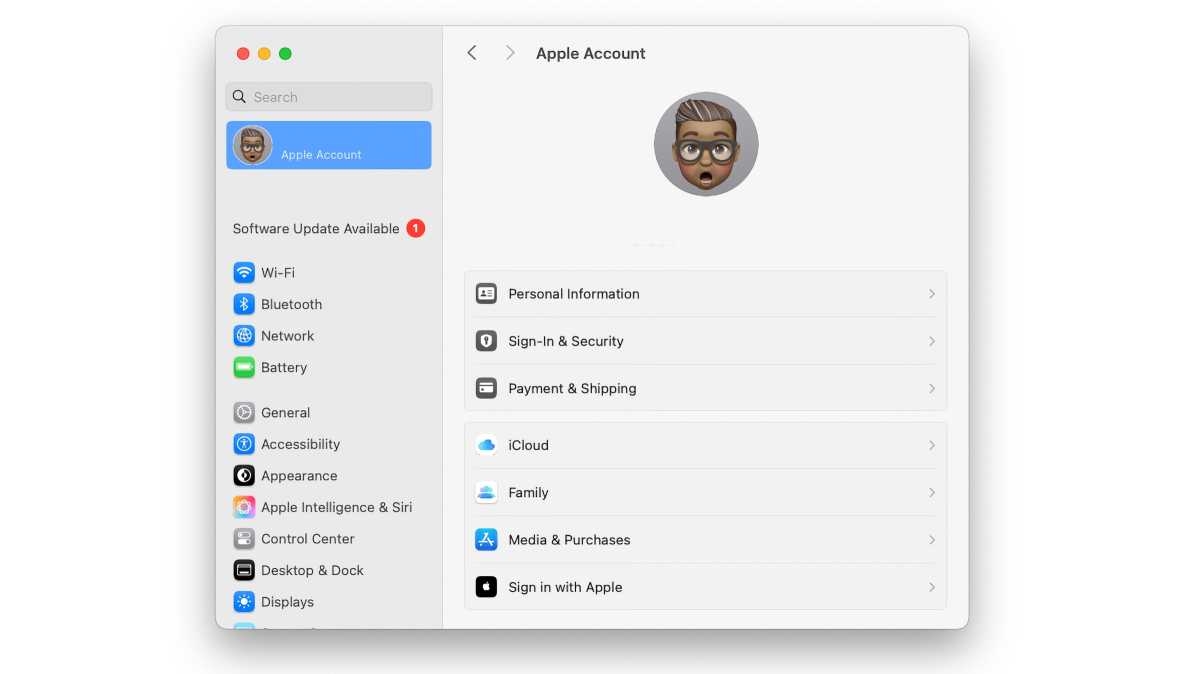
There’s a good chance that even if this is your first Mac, you already use an iPhone or an iPad. Just like those other devices, your Mac wants you to enter your Apple Account and Apple Account password. Enter your Apple Account and password to connect to iCloud on your Mac when you first set it up or later through the Apple Account system settings.
By connecting to iCloud with your Apple Account, you can access all your photos, contacts, calendars, and much more on all your Apple devices without ever having to physically tether or sync them. Once all your Apple devices are linked this way, you’ll also be able to take advantage of features like being able to cut and paste between devices, use a mouse and keyboard to control more than one Mac, and make purchases on the Mac App Store.
Depending on whether you are an iCloud subscriber, you will also be able to sync files to the cloud, including documents and everything you save to your Desktop. Because you can access everything in iCloud on any Apple device you own, you won’t need to have your Mac handy to edit a Pages document you are working on, for example. Find out about iCloud here: How to use iCloud and What is iCloud Private Relay. To find out how much iCloud costs, read iCloud storage plans and prices.
If you haven’t created an Apple Account yet, now is the time to do so. Think of your Apple Account as your keys to the kingdom. For help, read How to create an Apple ID.
You can get to your Apple Account by going to System Settings and clicking Apple Account at the top.
Use the Help menu
 <button class="lightbox-trigger" type="button">
<svg fill="none" height="12" viewBox="0 0 12 12" width="12" xmlns="http://www.w3.org/2000/svg">
<path d="M2 0a2 2 0 0 0-2 2v2h1.5V2a.5.5 0 0 1 .5-.5h2V0H2Zm2 10.5H2a.5.5 0 0 1-.5-.5V8H0v2a2 2 0 0 0 2 2h2v-1.5ZM8 12v-1.5h2a.5.5 0 0 0 .5-.5V8H12v2a2 2 0 0 1-2 2H8Zm2-12a2 2 0 0 1 2 2v2h-1.5V2a.5.5 0 0 0-.5-.5H8V0h2Z" fill="#fff"></path>
</svg>
</button></figure>
Foundry
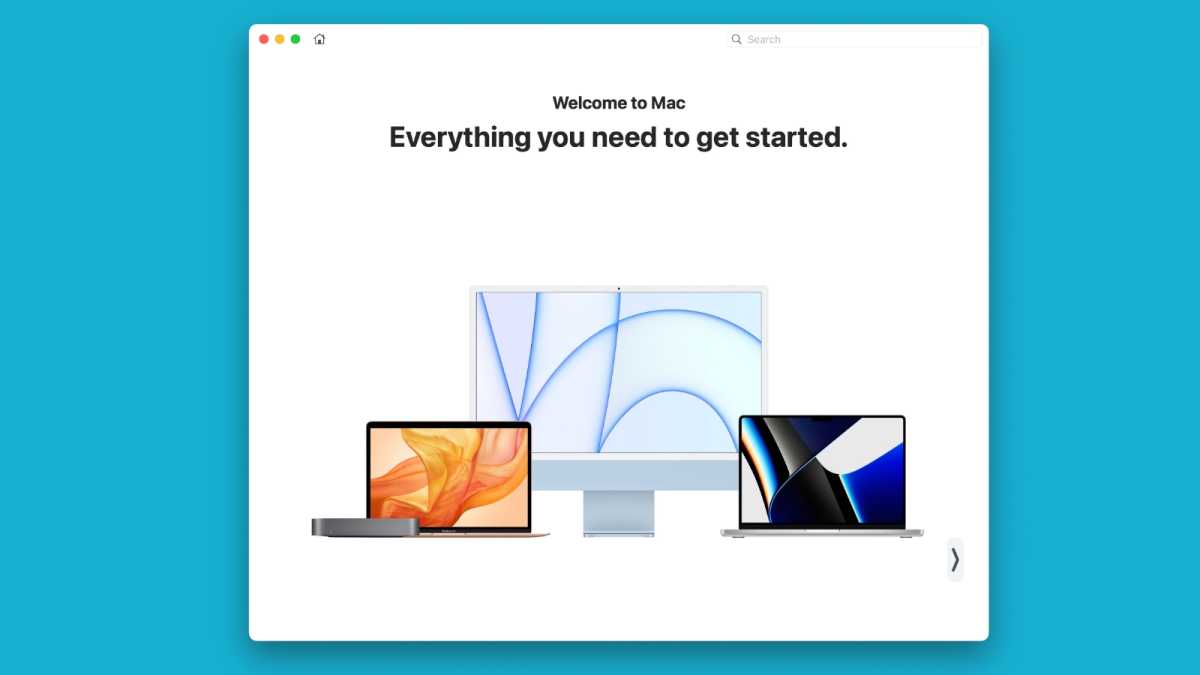
If you’ve ever wondered why the Mac doesn’t come with a thick owner’s manual explaining how it works and how all the apps work, wonder no more: that manual is actually built right into the computer.
The Help menu is so obvious that most of us overlook it altogether. But we do so at our peril because it can be a huge help. The Help menu sits right there in the menu bar, and it’s contextual: Its contents will change depending on which app is open.
Clicking on the Help menu will bring up a search field, table of contents, lists of shortcuts, and other helpful tips and step-by-step instructions, often with visual cues to show you which menus to click on and what menu items to select. Any time you get stuck in an app and don’t know what to do next, click on the Help menu to get out of a jam.
Get familiar with the Apple Menu
 <button class="lightbox-trigger" type="button">
<svg fill="none" height="12" viewBox="0 0 12 12" width="12" xmlns="http://www.w3.org/2000/svg">
<path d="M2 0a2 2 0 0 0-2 2v2h1.5V2a.5.5 0 0 1 .5-.5h2V0H2Zm2 10.5H2a.5.5 0 0 1-.5-.5V8H0v2a2 2 0 0 0 2 2h2v-1.5ZM8 12v-1.5h2a.5.5 0 0 0 .5-.5V8H12v2a2 2 0 0 1-2 2H8Zm2-12a2 2 0 0 1 2 2v2h-1.5V2a.5.5 0 0 0-.5-.5H8V0h2Z" fill="#fff"></path>
</svg>
</button></figure>
Foundry
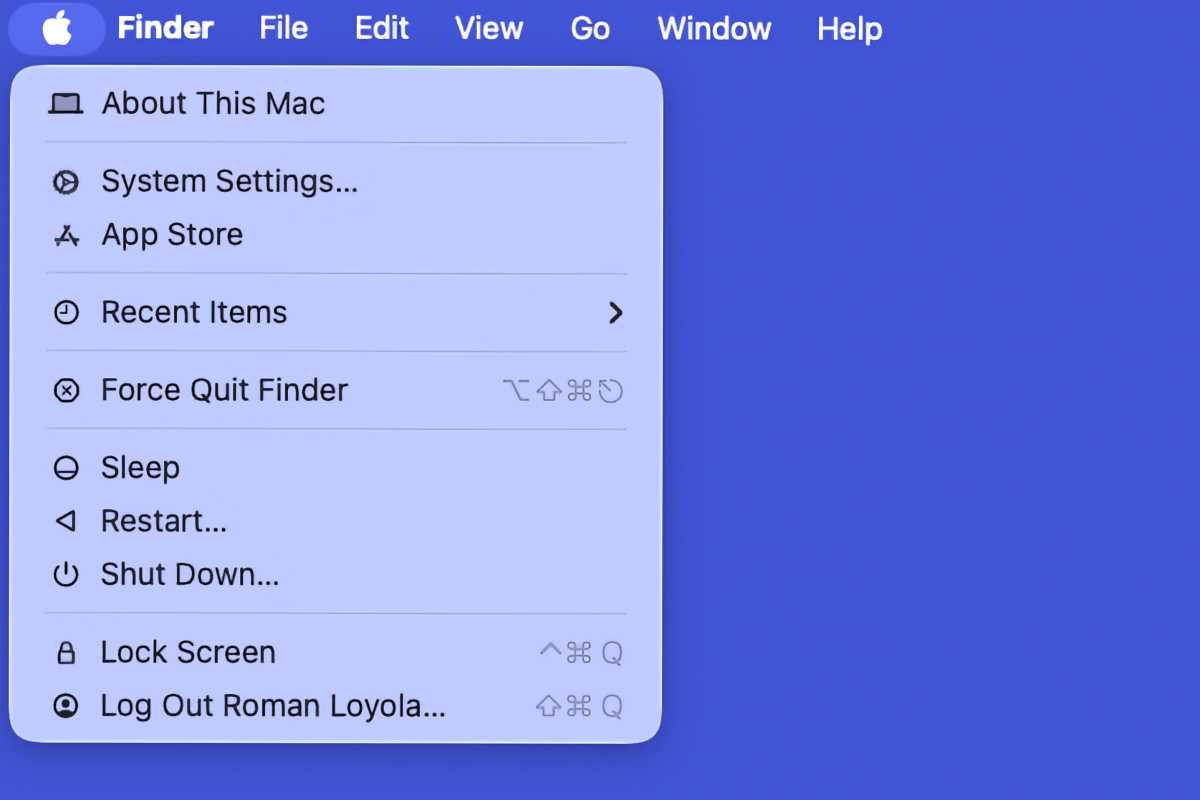
The Apple menu is in the upper left corner of your Mac’s screen.
Clicking on the Apple icon gives you instant access to your Mac’s System Settings, the Mac App Store, and apps and documents you’ve recently opened (see Recent Items). You can also use the Apple menu to restart your Mac and shut it down.
If an app misbehaves and stops working, the Apple menu also sports a special function that’s worth knowing: Force Quit. Force quit will immediately quit a stubborn application, so you can restart your computer and get back to business.
Get to know Spotlight
 <button class="lightbox-trigger" type="button">
<svg fill="none" height="12" viewBox="0 0 12 12" width="12" xmlns="http://www.w3.org/2000/svg">
<path d="M2 0a2 2 0 0 0-2 2v2h1.5V2a.5.5 0 0 1 .5-.5h2V0H2Zm2 10.5H2a.5.5 0 0 1-.5-.5V8H0v2a2 2 0 0 0 2 2h2v-1.5ZM8 12v-1.5h2a.5.5 0 0 0 .5-.5V8H12v2a2 2 0 0 1-2 2H8Zm2-12a2 2 0 0 1 2 2v2h-1.5V2a.5.5 0 0 0-.5-.5H8V0h2Z" fill="#fff"></path>
</svg>
</button></figure>
Foundry
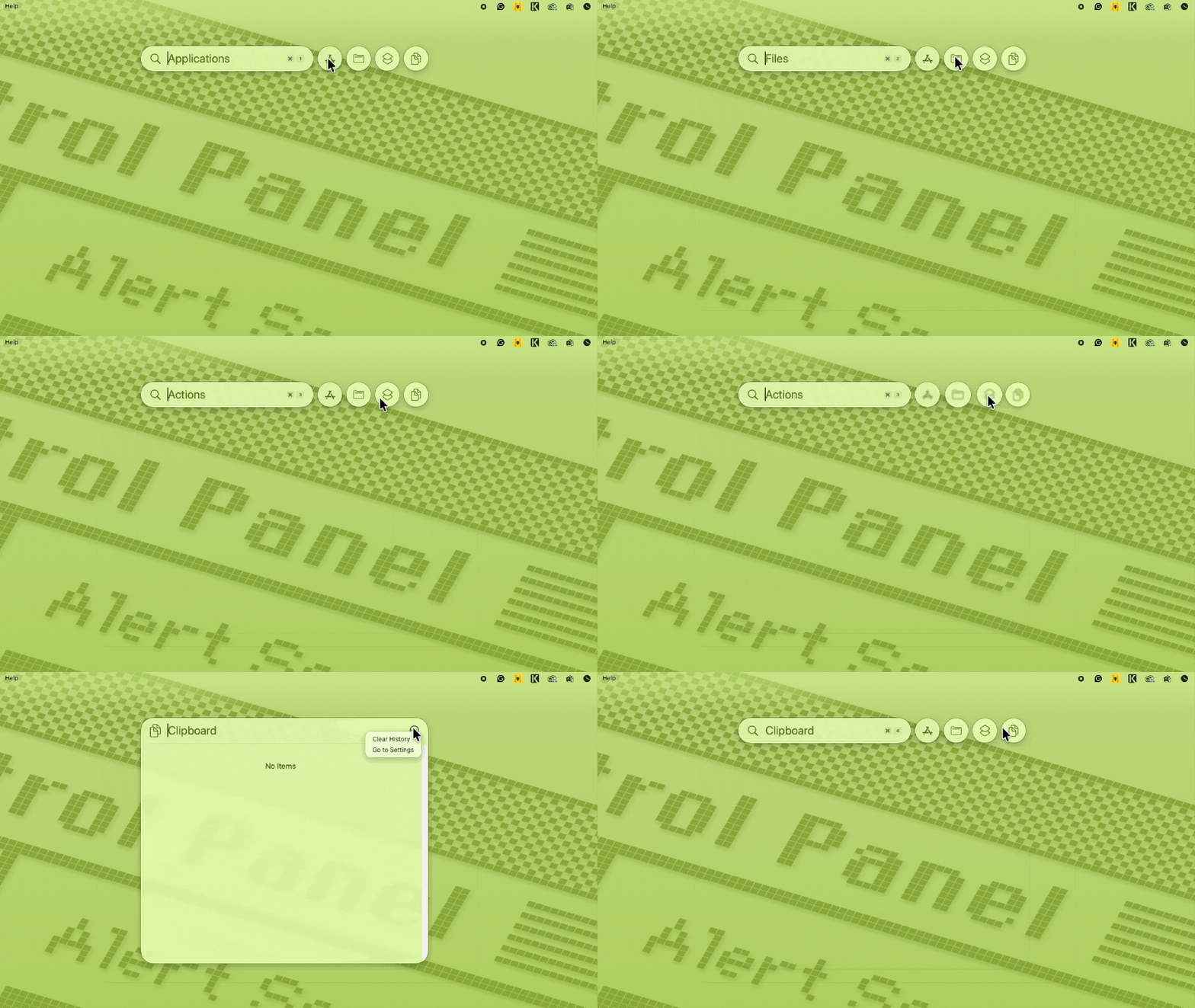
Built right into macOS, Spotlight helps you quickly find things on your computer: documents, apps, images, contacts, maps, and files. What’s more, it can connect to the internet to search places like Wikipedia, news sites, movie listings, and much more. You can even use Spotlight to do calculations, like converting feet to meters or any sort of simple arithmetic you’d rather trust to the computer.


 United States
