


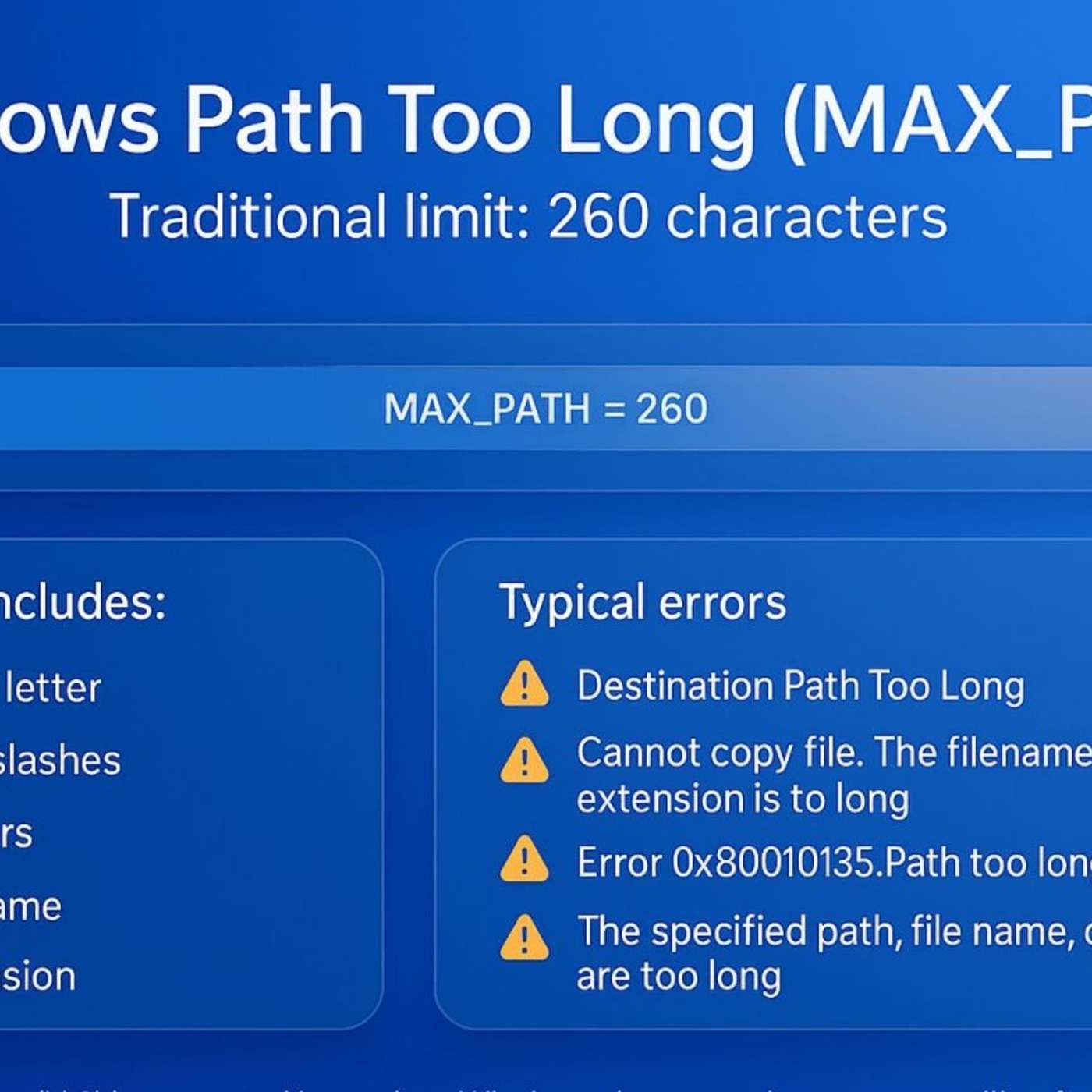
How to Enable Long Paths on Windows 11 and Fix Error 0x80010135
Description
This story was originally published on HackerNoon at: https://hackernoon.com/how-to-enable-long-paths-on-windows-11-and-fix-error-0x80010135.
Enable long file paths in Windows 11 and fix error 0x80010135 with simple steps using Settings or Registry Editor.
Check more stories related to tech-stories at: https://hackernoon.com/c/tech-stories.
You can also check exclusive content about #windows-11-troubleshooting, #enable-long-paths-windows-11, #fix-error-0x80010135, #windows-11-long-paths, #windows-path-length-limit, #windows-registry-editor, #max_path-windows-fix, #windows-long-path-error, and more.
This story was written by: @vigneshwaran. Learn more about this writer by checking @vigneshwaran's about page,
and for more stories, please visit hackernoon.com.
Windows 11 can bypass the legacy 260-character file path limit by enabling Long Paths through either the Settings menu or the Registry Editor. This guide walks through both methods, explains common errors like 0x80010135, and covers how to troubleshoot apps or cloud services that still enforce old path restrictions.





















 United States
