



How to remove the macOS Tahoe beta
Description
<body>
If you are a developer, or just curious about what the next version of macOS will be like to use, you may have installed the beta of macOS Tahoe on your Mac. But what do you do when you no longer want to run the beta?
If the beta is causing havoc with your Mac, you are fed up with having to set aside time each week while the latest update is installed, or you just want to go back to the way things were then it’s time to remove the macOS beta.
Once the full version of macOS 26 Tahoe arrives later in 2025 the process for downgrading from the beta will be simpler. Right now, unfortunately, it’s a lot harder to revert from the beta to the last full version of macOS.
We’ll run through the complex process for reverting from the macOS Tahoe beta to macOS Sequoia. We also cover the simpler process for reverting from the macOS Sequoia beta to the full macOS Sequoia (which will apply when Tahoe is released later in the 2025).
If it’s the iOS beta program you wish to leave read: How to remove an iOS beta from your iPhone.
How to revert from macOS Tahoe beta to macOS Sequoia
If you are running the beta of macOS Tahoe and want to downgrade back to Sequoia, try the following steps:
You will need to wipe your Mac first. You won’t be able to install the old macOS over the top of the new macOS, unfortunately. This is why we always recommend making a backup before you install a beta, or any newer version of macOS.
Leave the beta program
 <button class="lightbox-trigger" type="button" aria-haspopup="dialog" aria-label="Enlarge image: Stop Beta Updates in macOS" data-wp-init="callbacks.initTriggerButton" data-wp-on-async--click="actions.showLightbox" data-wp-style--right="context.imageButtonRight" data-wp-style--top="context.imageButtonTop">
<svg xmlns="http://www.w3.org/2000/svg" width="12" height="12" fill="none" viewbox="0 0 12 12">
<path fill="#fff" d="M2 0a2 2 0 0 0-2 2v2h1.5V2a.5.5 0 0 1 .5-.5h2V0H2Zm2 10.5H2a.5.5 0 0 1-.5-.5V8H0v2a2 2 0 0 0 2 2h2v-1.5ZM8 12v-1.5h2a.5.5 0 0 0 .5-.5V8H12v2a2 2 0 0 1-2 2H8Zm2-12a2 2 0 0 1 2 2v2h-1.5V2a.5.5 0 0 0-.5-.5H8V0h2Z"></path>
</svg>
</button></figure>
Foundry
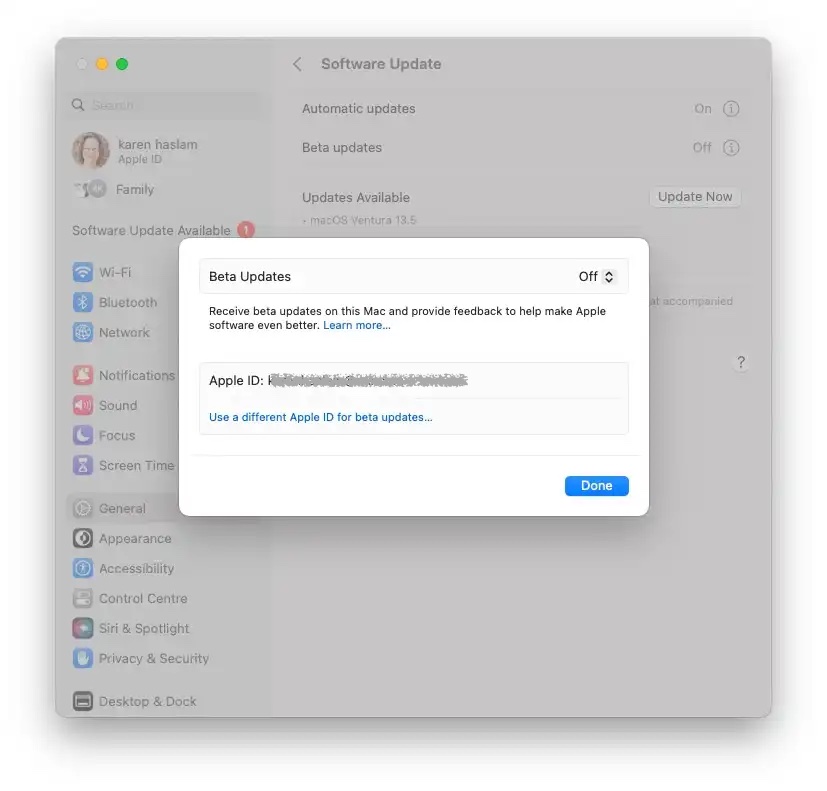
The first thing to do is remove yourself from Apple’s macOS Tahoe beta program as this will stop the beta updates from arriving on your Mac.
- Open System Settings.
- Click on General.
- Click on Software Update.
- Click the i beside Beta updates and make sure it is set to off.
This will stop any further Tahoe updates being installed on your Mac, but if you want to revert back to Sequoia you will need to wipe your Mac, as per the instructions below.
Wipe your Mac
 <button class="lightbox-trigger" type="button" aria-haspopup="dialog" aria-label="Enlarge image: Erase Mac with M or T2 chip" data-wp-init="callbacks.initTriggerButton" data-wp-on-async--click="actions.showLightbox" data-wp-style--right="context.imageButtonRight" data-wp-style--top="context.imageButtonTop">
<svg xmlns="http://www.w3.org/2000/svg" width="12" height="12" fill="none" viewbox="0 0 12 12">
<path fill="#fff" d="M2 0a2 2 0 0 0-2 2v2h1.5V2a.5.5 0 0 1 .5-.5h2V0H2Zm2 10.5H2a.5.5 0 0 1-.5-.5V8H0v2a2 2 0 0 0 2 2h2v-1.5ZM8 12v-1.5h2a.5.5 0 0 0 .5-.5V8H12v2a2 2 0 0 1-2 2H8Zm2-12a2 2 0 0 1 2 2v2h-1.5V2a.5.5 0 0 0-.5-.5H8V0h2Z"></path>
</svg>
</button></figure>
Foundry
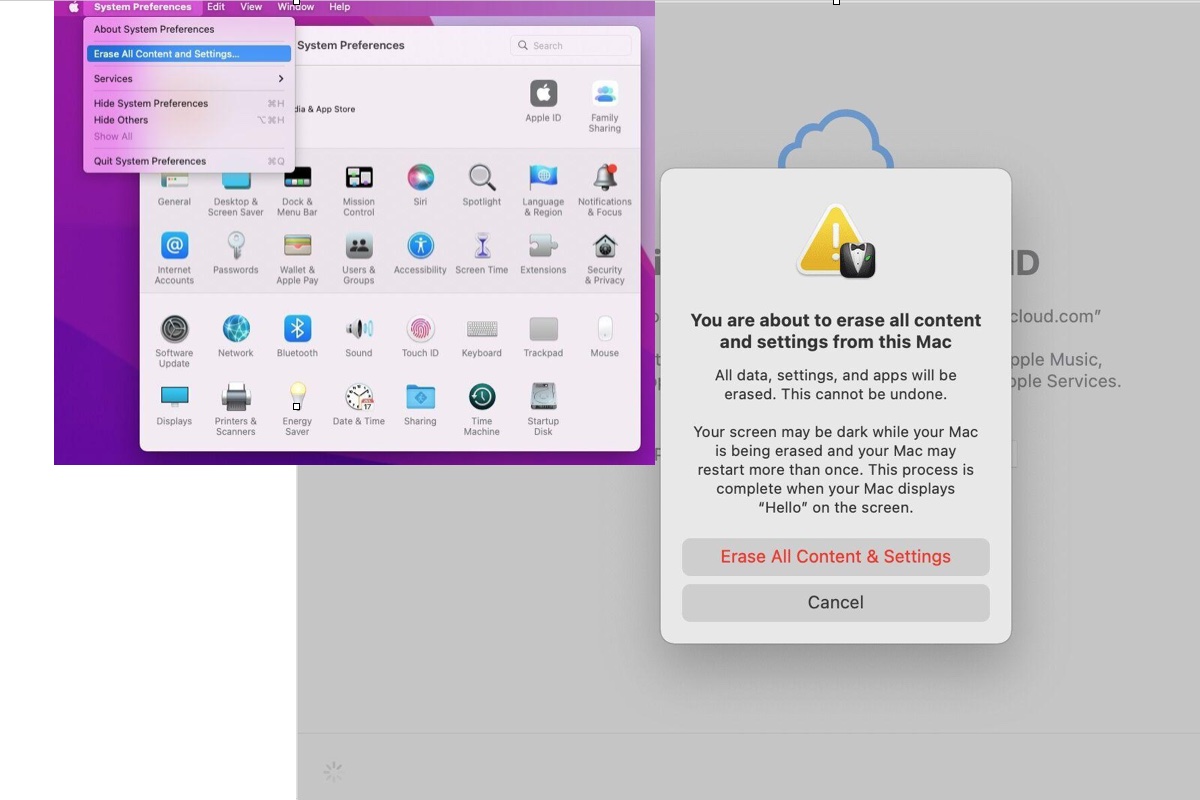
Unfortunately, if you are moving from macOS Tahoe back to Sequoia you will need to erase all the data from your Mac first. You cannot install Sequoia on top of Tahoe.
Luckily there is an Erase All Content and Settings option in System Settings that makes it easy to return your Mac to factory settings.
To find the Erase All Content and Settings option open System Settings > General > click on Reset > click Erase All Contents and Settings.
Once you click on Erase All Content and Settings everything will be taken care of. We run through the process in more detail here: How to factory reset a MacBook or Mac.
Just note that during the process any Bluetooth keyboards or mice will be disconnected, so if you have wired options they will be helpful. If you don’t have a wired mouse or keyboard you should get an option to connect your Bluetooth peripherals when the Mac restarts.
If your Mac doesn’t have an M-series chip or a T2 chip the process to wipe it is a bit different (and described in the story linked to above).
Reinstall macOS
 <button class="lightbox-trigger" type="button" aria-haspopup="dialog" aria-label="Enlarge image: Set up a New Mac" data-wp-init="callbacks.initTriggerButton" data-wp-on-async--click="actions.showLightbox" data-wp-style--right="context.imageButtonRight" data-wp-style--top="context.imageButtonTop">


 United States
