



TP-Link BE3600 Wi-Fi 7 Travel Router review: Versatile, portable Wi-Fi router
Description
At a glance
Expert's Rating
Pros
- Lightweight, portable design
- Versatile connectivity features
- Easy to use
Cons
- No carrying case
- More expensive than a conventional router
- Modest, dual-band performance
Our Verdict
It’s a little more expensive than a conventional router, but the TP-Link Travel Router is one of the few that can actually join you on your travels. It also provides versatile connectivity features that make it a great option for anyone that travels a lot and needs a reliable Internet connection when they’re away from home or the office.
Price When Reviewed
This value will show the geolocated pricing text for product undefined
Best Pricing Today
Best Prices Today: TP-Link BE3600 Wi-Fi 7 Travel Router

Product
Price
Price comparison from Backmarket
Most Wi-Fi routers are designed to simply sit indoors in your home or office, and are rarely even moved into a different room, let alone carried with you when you’re travelling. There are mobile hotspots that have a more portable design, but these are quite expensive and are primarily designed for business travellers who need to use mobile broadband when they’re on the road.
The BE3600 Wi-Fi 7 Travel Router (model number TL-WR3602BE) from TP-Link is something of an odd man out, as it sits somewhere between these two types of devices. It’s a little more expensive than a conventional router that provides similar Wi-Fi performance, but its portable design and versatile connectivity features will earn their keep when you’re away from home or your office.
 <button class="lightbox-trigger" type="button">
<svg fill="none" height="12" viewBox="0 0 12 12" width="12" xmlns="http://www.w3.org/2000/svg">
<path d="M2 0a2 2 0 0 0-2 2v2h1.5V2a.5.5 0 0 1 .5-.5h2V0H2Zm2 10.5H2a.5.5 0 0 1-.5-.5V8H0v2a2 2 0 0 0 2 2h2v-1.5ZM8 12v-1.5h2a.5.5 0 0 0 .5-.5V8H12v2a2 2 0 0 1-2 2H8Zm2-12a2 2 0 0 1 2 2v2h-1.5V2a.5.5 0 0 0-.5-.5H8V0h2Z" fill="#fff"></path>
</svg>
</button><figcaption class="wp-element-caption">
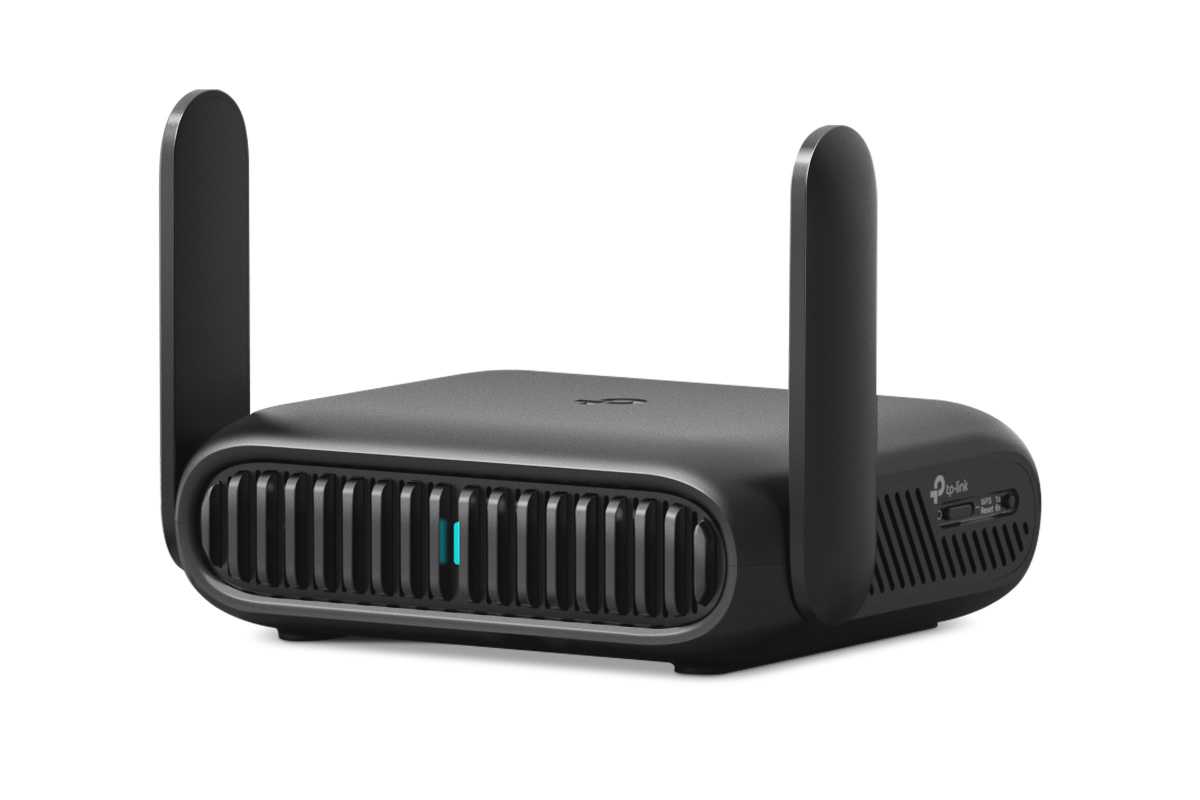
The Travel Router’s portable design makes it easy to carry with you when you leave home or your office.
</figcaption></figure>TP-Link
At first glance, the Travel Router does look like a conventional router, consisting of a simple rectangular case with two antennae at the back to transmit the Wi-Fi signal. It’s much smaller than an ordinary router though, and the antennae can be folded flat to reduce the size to just 36mm high, 126mm wide and 93.5mm deep. It’s not quite pocket-size but you can easily slip it into a backpack or briefcase alongside your laptop when you’re travelling.
The Travel Router packs a lot into that compact design, though. It supports dual-band Wi-Fi 7, running on the 2.4GHz and 5.0GHz frequency bands, with a top speed of 3.6Gbps. It doesn’t support the faster 6.0GHz band that is available with Wi-Fi 7 or 6E, but it will be more than adequate for use with most home or office broadband services, or for a spot of email and web browsing when you’re on the road. Admittedly, Apple has been a bit slow in adopting Wi-Fi 7 – even the latest M5 MacBook Pro models are still using Wi-Fi 6E – so if your Apple devices are mostly using Wi-Fi 5 or 6 then there is a less expensive version of the Travel Router that uses Wi-Fi 6 and costs just $99.99/£89.99.
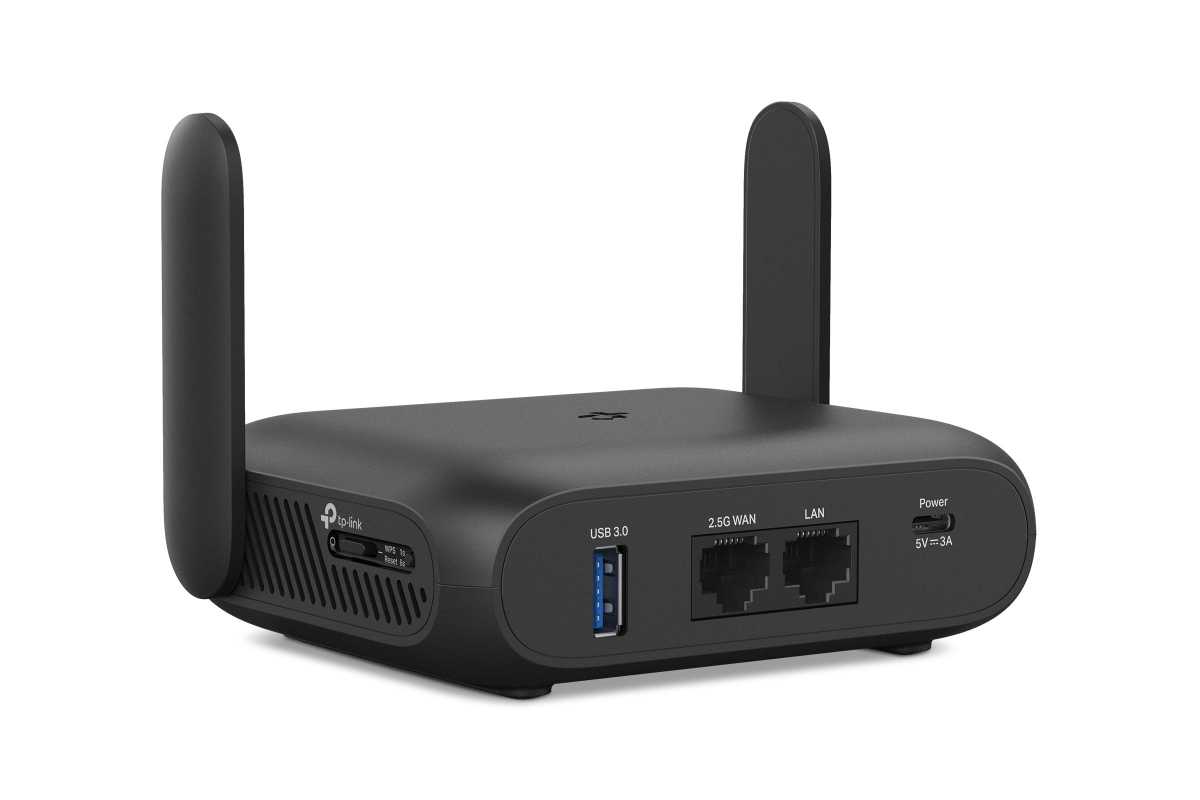
The Travel Router can work in a number of different modes, depending on how to want to connect it to the Internet. There’s a 2.5 Gigabit Ethernet port on the back of the router – with Ethernet cable included – that allows you to connect it to your normal broadband router at home, or perhaps to an Ethernet port in a hotel room, vacation apartment, or conference centre when you’re travelling, which will result in a better connection than joining the local Wi-Fi.
There’s a Gigabit Ethernet port as well, to provide a wired connection for a Mac or PC. If there’s no wired network available then you can also connect the Travel Router to an existing Wi-Fi network, such as the public Wi-Fi in a hotel or airport lounge, and then use it to create a separate private network that has its own password to keep your devices secure.
 <button class="lightbox-trigger" type="button">
<svg fill="none" height="12" viewBox="0 0 12 12" width="12" xmlns="http://www.w3.org/2000/svg">
<path d="M2 0a2 2 0 0 0-2 2v2h1.5V2a.5.5 0 0 1 .5-.5h2V0H2Zm2 10.5H2a.5.5 0 0 1-.5-.5V8H0v2a2 2 0 0 0 2 2h2v-1.5ZM8 12v-1.5h2a.5.5 0 0 0 .5-.5V8H12v2a2 2 0 0 1-2 2H8Zm2-12a2 2 0 0 1 2 2v2h-1.5V2a.5.5 0 0 0-.5-.5H8V0h2Z" fill="#fff"></path>
</svg>
</button><figcaption class="wp-element-caption">
Mulitple ports on the back of the Travel Router allow you to connect to the Internet using wi-fi, Ethernet or USB tethering.
</figcaption></figure>TP-Link
If there’s no Wi-Fi or Ethernet network available then you can use the USB-A (3.0) port on the back of the Travel Router to connect – or ‘tether’ – it to an iPhone or other mobile device so that it can use your mobile broadband to set up a private network that you can share with friends, family or colleagues. This USB-A port has another use as well – one that will particularly appeal to business users. If you’re using Ethernet or Wi-Fi to connect the Travel Router to an existing network, then you can use the USB-A port to connect an external hard drive or solid-state drive, and share it on your own network like a kind of portable NAS drive.
There’s a USB-C port on the back panel as well although, somewhat oddly, this can only be used to power the Travel Router. There’s a mains power adaptor in the box – with U.S., U.K. and E.U. plugs also included – but you can also power the Travel Router with a portable battery pack or even from a USB port on a laptop. Using a laptop will drain the laptop’s battery of course, but it’s a useful option to have in an emergency, and we had no problems using our MacBook Pro to power the Travel Router.
Getting started is very straightforward, thanks to TP-Link’s well-designed Tether app. The app


 United States
