



Why Mac power users should rush to upgrade to macOS 26 Tahoe this fall
Description
<body>
When Apple announced macOS 26 Tahoe at WWDC this week, much of the attention rightly went to its Liquid Glass user interface redesign. It’s a massive change to the look and feel of the Mac operating system, and it’s the first time in years that anything this significant has happened to the visual style of macOS.
But macOS Tahoe isn’t just a pretty face – it’s packed with beefy features aimed squarely at power users. From incredibly capable new shortcuts to intelligent suggestions in the Reminders app, there’s a lot for demanding pros to sink their teeth into. Here are five of the best power user features in macOS Tahoe, so you know exactly where to find them once it arrives on your Mac.
Smart Shortcuts
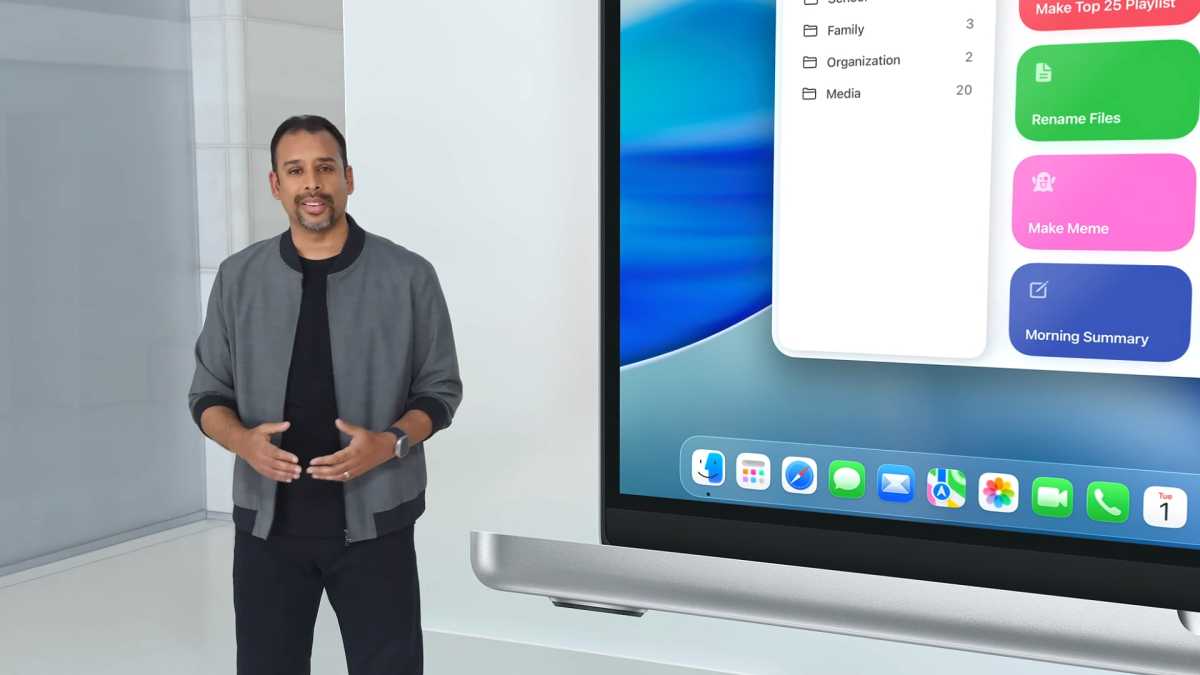
Shortcuts has always been a power user app par excellence, but with macOS Tahoe, it’s been tuned up with a healthy dose of Apple Intelligence that takes the form of much smarter shortcut actions that can tap into Apple’s AI to give you more options for powerful workflows.
For example, Apple says that “Users will see dedicated actions for features like summarizing text with Writing Tools or creating images with Image Playground.” You’re no longer required to manually activate these features to use their toolsets – you can instead create a shortcut that does it all for you.
And you don’t have to rely on Apple’s tools that are built upon AI – you can go straight to the source and craft shortcuts that utilize the large language models that power these tools. That can include Apple’s on-device Apple Intelligence, Private Cloud Compute, or OpenAI’s ChatGPT. And what’s more, you can feed the AI’s response right back into your shortcut, giving you a bunch of potent new abilities.
 <button class="lightbox-trigger" type="button" aria-haspopup="dialog" aria-label="Enlarge image: WWDC 2025 macOS Tahoe Shortcuts automations 1" data-wp-init="callbacks.initTriggerButton" data-wp-on-async--click="actions.showLightbox" data-wp-style--right="context.imageButtonRight" data-wp-style--top="context.imageButtonTop">
<svg xmlns="http://www.w3.org/2000/svg" width="12" height="12" fill="none" viewbox="0 0 12 12">
<path fill="#fff" d="M2 0a2 2 0 0 0-2 2v2h1.5V2a.5.5 0 0 1 .5-.5h2V0H2Zm2 10.5H2a.5.5 0 0 1-.5-.5V8H0v2a2 2 0 0 0 2 2h2v-1.5ZM8 12v-1.5h2a.5.5 0 0 0 .5-.5V8H12v2a2 2 0 0 1-2 2H8Zm2-12a2 2 0 0 1 2 2v2h-1.5V2a.5.5 0 0 0-.5-.5H8V0h2Z"></path>
</svg>
</button></figure>
Apple
Shortcut automations
Speaking of Shortcuts, they’ve long had the ability to automatically run workflows based on things like the time of day or your location. Frustratingly, though, this has previously been limited to iOS and iPadOS and was not available on the Mac.
That’s all changed with macOS Tahoe, which brings shortcut automations to the Mac. You are now able to run a shortcut based on a variety of factors, such as when an alarm stops, when you receive an email from a specified person, or when files are added to a defined folder. That creates a huge range of possibilities for creative shortcuts, and it also takes a lot of the manual work off your shoulders.
Live Activities
Live Activities is another feature that has just made the jump from iOS to macOS Tahoe. These activities show helpful, ongoing information on your iPhone lock screen – like the process of a food delivery driver, for instance. Now, that functionality is available on your Mac.
<figure class="wp-block-embed is-type-video is-provider-youtube wp-block-embed-youtube wp-embed-aspect-16-9 wp-has-aspect-ratio">
<iframe loading="lazy" title="Top 3 features in macOS Tahoe from WWDC" width="500" height="281" src="" frameborder="0" allow="accelerometer; autoplay; clipboard-write; encrypted-media; gyroscope; picture-in-picture; web-share" referrerpolicy="strict-origin-when-cross-origin" allowfullscreen data-src="https://www.youtube.com/embed/whAEIbqpLtk?feature=oembed"></iframe>
This draws on iPhone Mirroring rather than being a standalone Mac experience. Specifically, you can track Live Activities by clicking the associated icon in your menu bar. This shows the activity’s progress using an iPhone-style widget. When you click the widget, the app opens in iPhone Mirroring on your desktop. This means it’s easy to keep track of ongoing tasks on your Mac, even if your iPhone isn’t to hand.
Spotlight
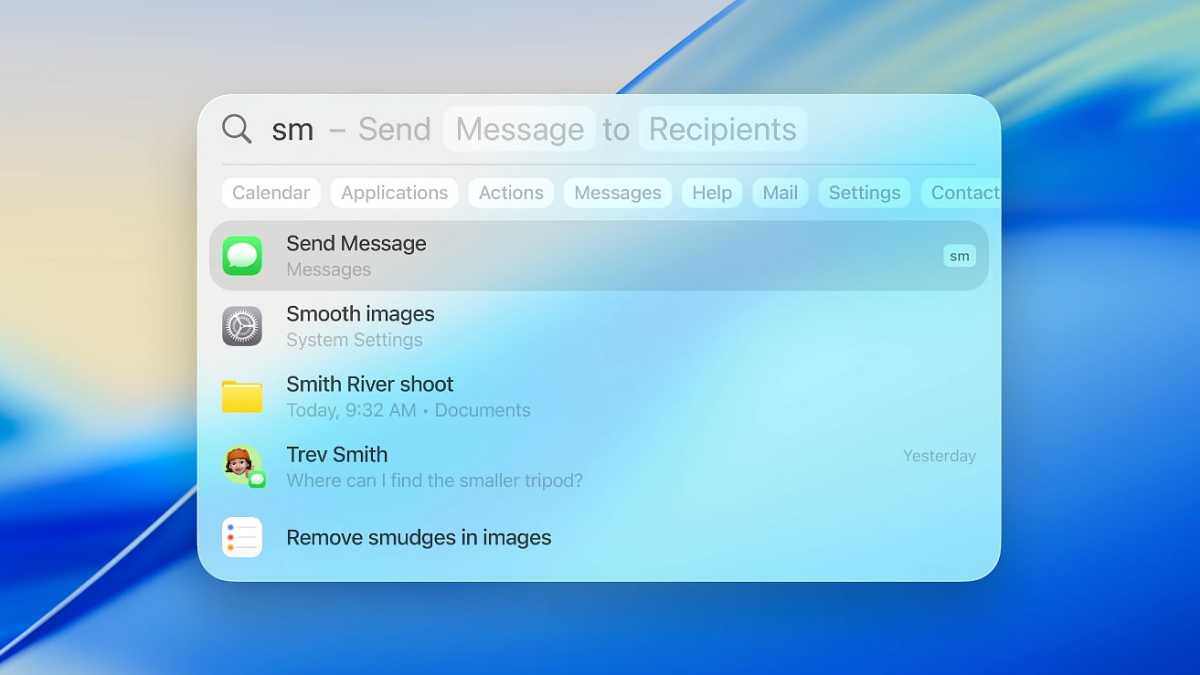
Spotlight has been an ever-present feature in macOS for years, but it hasn’t seen the kind of update it’s received in macOS Tahoe since … well, ever. Both its design and its functionality have been rethought and reworked to bring more features to your Mac.
Instead of a single bar on your desktop, the Spotlight search box now has a few icons on its right-hand side. These let you see your apps, files, Shortcuts actions, and clipboard. Select one of these buttons and Spotlight’s box expands to house relevant items in an easy-to-browse view.
 <button class="lightbox-trigger" type="button" aria-haspopup="dialog" aria-label="Enlarge ima


 United States
