



iOS beta release date and how to get iOS beta updates on iPhone
Description
<body>
Apple unveiled iOS 26 (not iOS 19) at WWDC 2025, and it will (probably) arrive on iPhones in September 2025. But Apple’s beta program is here now, so you can try out the new software features in the developer beta if you’re feeling brave. Although maybe you should first read about why we advise against installing the iOS beta.
A little time later, those signed up for the (typically more stable) public beta will be able to start testing the new version of the iPhone operating system. This will arrive ahead of its full launch, which is expected in September with the iPhone 17 range.
If you want to join the beta, or are already signed up and just want to know when the first developer beta of iOS 26 will be available, or the first public beta of iOS 26, read on.
Updated June 24: The first public beta of iOS 26 is now available.
iOS 26 beta release date: Developer beta
- June 9, 2025
- Most recent update June 24, 2025
As expected, Apple opened its Worldwide Developers Conference with a keynote where it revealed the new features coming in iOS 26 (part of a new unifying annual naming system along with the likes of iPadOS 26 and macOS 26).
The developer beta became available for those registered for the program on June 9.
iOS 26 beta: What’s in the latest beta
The first beta release of iOS 26 on June 9 had everything Apple demonstrated in its WWDC keynote: Liquid Glass, the new Phone app and features, the new Camera and Photos experience, and more.
On June 13, Apple updated beta 1 for developers. There have been several updates since then—the current build is Developer Beta 4, build number 23A5297m.
iOS 26 beta release date: Public beta
- July 24, 2025
The first public beta release of iOS 26 landed on July 24, and corresponds with the second build of Developer Beta 4.
iOS beta: Developer vs Public beta
Apple always runs an iOS beta-testing program throughout the summer months in order to produce a more polished release for the fall launch, and to give developers a chance to test and update their apps. There is also a public beta, which is aimed at a broader audience who are just interested in testing new features.
Each stage of iOS’s development cycle is rolled out to developers first, and then to public beta testers afterwards. If you’re a developer and need to test your apps against the most up-to-date version of iOS possible, this is the version to run.
The developer version of a beta usually comes a few days before the equivalent public beta version (with more than a month between the initial developer and public betas). Because of this lag the public beta is likely to be more stable than the developer beta.
That’s not to say that running the public beta is risk free. Even the public beta has the potential to brick your iPhone, so we recommend that you don’t use your main iPhone and that you also back up the phone before running any updates!
How to get the iOS Developer Beta
Anyone with an Apple developer account can get access to the developer beta. It is not necessary to be a paid-up member of the Apple Developer Program, you can create a free Apple Developer account using your Apple ID.
You can use the Xcode app, the Apple Developer app on iOS, or on Apple’s website to get your free Apple Developer account. We think that using the Apple Developer app is the simplest way – just log in with your Apple ID. We explain how to get a free Apple developer account in How to become an Apple beta tester.
If you want to sell applications to the App Store and sell them you’ll need to pay $99/£79 per year for a developer account. Sign up for the Apple Developer Program (here) or through Apple’s Developer App. You can register as an individual or a company. You will be required to add various bits of information and agree to the program license agreement, then enter your payment details (it’s an annual subscription that you can end up to a day before it renews). It can take a few days to verify you and make the account live. You can compare the free and paid accounts here.
All set with your Apple developer account? Okay! Now to install the beta…
How to install the iOS developer beta
- Back up your iPhone (because this is a beta you are testing!)
- Open the Settings app.
- Tap General.
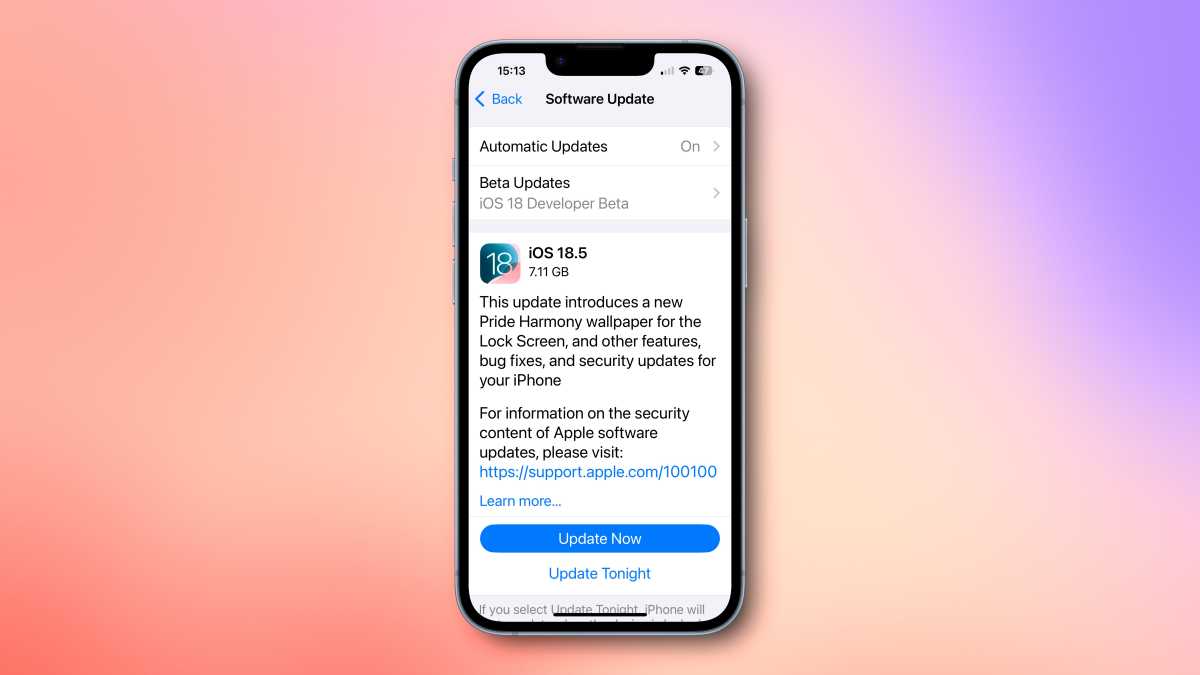
- Tap Software Update.
- In the Beta Updates section, select the iOS Developer Beta.
- Now wait a while while the beta installs.
 <button class="lightbox-trigger" type="button" aria-haspopup="dialog" aria-label="Enlarge" data-wp-init="callbacks.initTriggerButton" data-wp-on-async--click="actions.showLightbox" data-wp-style--right="state.imageButtonRight" data-wp-style--top="state.imageButtonTop">
<svg xmlns="http://www.w3.org/2000/svg" width="12" height="12" fill="none" viewbox="0 0 12 12">
<path fill="#fff" d="M2 0a2 2 0 0 0-2 2v2h1.5V2a.5.5 0 0 1 .5-.5h2V0H2Zm2 10.5H2a.5.5 0 0 1-.5-.5V8H0v2a2 2 0 0 0 2 2h2v-1.5ZM8 12v-1.5h2a.5.5 0 0 0 .5-.5V8H12v2a2 2 0 0 1-2 2H8Zm2-12a2 2 0 0 1 2 2v2h-1.5V2a.5.5 0 0 0-.5-.5H8V0h2Z"></path>
</svg>
</button></figure>
Foundry
Developers can choose to get the Public Beta instead by selecting iOS Public Beta in the Software Update screen.
How to get the iOS Public Beta
If you aren’t a developer, but are keen to try out the new features, we recommend waiting for the public beta—the first developer beta releases tend to be quite buggy and unreliable. Just beware that any beta, public or developer, is likely to be buggy and cause issues with your iPhone, so our advice is not to run it on a secondary iPhone or have some backup plan in place.
Beta testers will continue to receive beta updates even after the final version launches. If you don’t want to continue to get the beta, or have an issue with the beta, read: <a href="https://www.macworld.com/article/1067004/how-


 United States
