



8 Mac settings and shortcuts you need to start using right now
Description
Your Mac is full of surprises, and even many years after first owning one, you can still find yourself learning new tips and tricks that you weren’t aware of before.
There are many ingenious hidden features stashed away in macOS, and we’re here to highlight eight of our favorites. They range from little-known tricks to overlooked gems, and each one should help improve the way you use your Mac.
Desktop stacks
 <button class="lightbox-trigger" type="button">
<svg fill="none" height="12" viewBox="0 0 12 12" width="12" xmlns="http://www.w3.org/2000/svg">
<path d="M2 0a2 2 0 0 0-2 2v2h1.5V2a.5.5 0 0 1 .5-.5h2V0H2Zm2 10.5H2a.5.5 0 0 1-.5-.5V8H0v2a2 2 0 0 0 2 2h2v-1.5ZM8 12v-1.5h2a.5.5 0 0 0 .5-.5V8H12v2a2 2 0 0 1-2 2H8Zm2-12a2 2 0 0 1 2 2v2h-1.5V2a.5.5 0 0 0-.5-.5H8V0h2Z" fill="#fff"></path>
</svg>
</button></figure>
Foundry
After using your Mac for a while, it’s easy to clog up your desktop with files and folders. I get it, I’m no monastic ascetic with a zen-like calm on my Mac desktop either. Thankfully, there’s a way to bring order to chaos without having to laboriously stash all those items away one by one.
Let me introduce a feature called desktop stacks. With this enabled, macOS will automatically group related files into what are essentially heaps on your desktop. So, you’ll find one pile for images, one stack for PDF documents, one for presentations, and more. If you want to find an individual file, just click the stack and everything it contains will be revealed. Click again to hide the mess once more. Swipe two fingers across the stack and you can even browse through its files.
To get going with desktop stacks, just right-click your desktop and select the Use Stacks option. To turn it off, simply disable this option. And with that, your Mac brings the illusion of calm and order to your desktop, even if we all know what’s lurking beneath the façade.
Menu customization
 <button class="lightbox-trigger" type="button">
<svg fill="none" height="12" viewBox="0 0 12 12" width="12" xmlns="http://www.w3.org/2000/svg">
<path d="M2 0a2 2 0 0 0-2 2v2h1.5V2a.5.5 0 0 1 .5-.5h2V0H2Zm2 10.5H2a.5.5 0 0 1-.5-.5V8H0v2a2 2 0 0 0 2 2h2v-1.5ZM8 12v-1.5h2a.5.5 0 0 0 .5-.5V8H12v2a2 2 0 0 1-2 2H8Zm2-12a2 2 0 0 1 2 2v2h-1.5V2a.5.5 0 0 0-.5-.5H8V0h2Z" fill="#fff"></path>
</svg>
</button></figure>
Foundry
The menu bar is a go-to place to find helpful controls for your apps and settings, but you don’t need to just rely on what Apple decides to put there. Instead, you can dive in and customize it as you see fit.
To get started, open the System Settings app and select Menu Bar or Control Center (depending on which version of macOS you’re running) in the left-hand sidebar. Here, you can browse through a range of options and decide whether to show them in the menu bar at all times, only when the app is active, or to hide them instead.
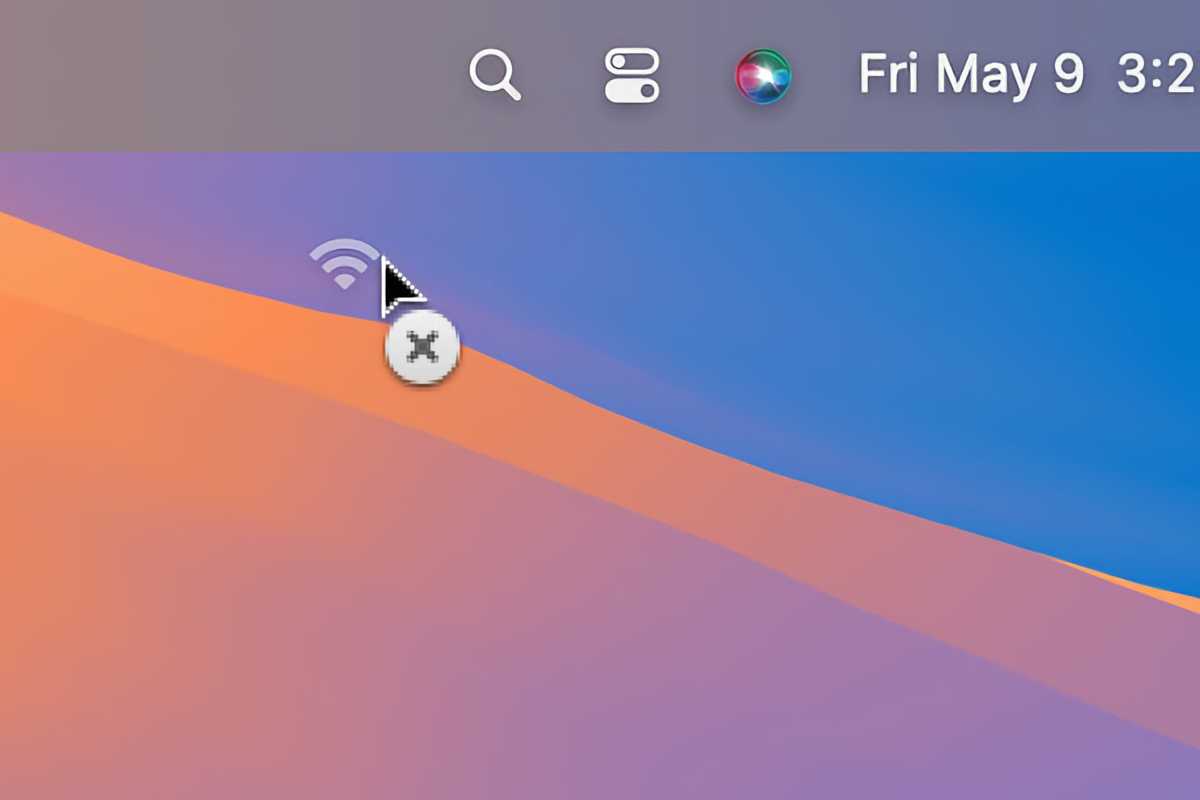
If you want to remove an icon from the menu bar, you have another option beyond using the Control Center section of the System Settings app. Instead, hold the Command key, then click and drag the item out of the menu bar. When an X appears next to your pointer, release your mouse button, and the icon will be removed.
Hot Corners
 <button class="lightbox-trigger" type="button">
<svg fill="none" height="12" viewBox="0 0 12 12" width="12" xmlns="http://www.w3.org/2000/svg">
<path d="M2 0a2 2 0 0 0-2 2v2h1.5V2a.5.5 0 0 1 .5-.5h2V0H2Zm2 10.5H2a.5.5 0 0 1-.5-.5V8H0v2a2 2 0 0 0 2 2h2v-1.5ZM8 12v-1.5h2a.5.5 0 0 0 .5-.5V8H12v2a2 2 0 0 1-2 2H8Zm2-12a2 2 0 0 1 2 2v2h-1.5V2a.5.5 0 0 0-.5-.5H8V0h2Z" fill="#fff"></path>
</svg>
</button></figure>
Foundry
Need a quick way to access system functions like Mission Control, start a screen saver, or lock your Mac without fiddling with settings and menus? Try Hot Corners on for size. With these set up, you simply move your mouse pointer into a specified corner of your Mac’s display and your chosen action will be performed.
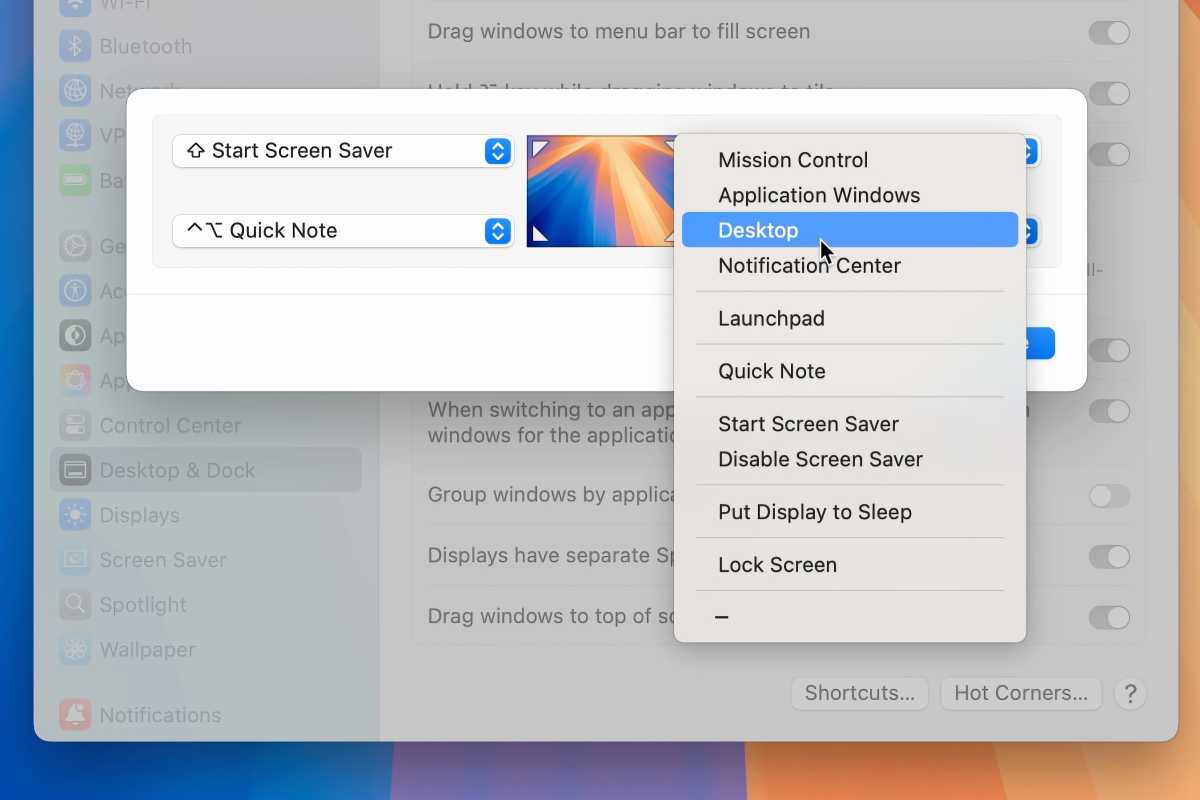
Open the System Settings app and click Desktop & Dock in the sidebar, then scroll all the way to the bottom and click Hot Corners. You’ll now see an image of your desktop with four dropdown menus. Pick one, select an option from the menu, then select Done to confirm.
You can use Hot Corners to do a wide range of things, from showing your desktop or opening the Notification Center to launching a Quick Note or putting your screen to sleep. That gives the feature a lot of flexibility to adapt to your needs.
And if you’re worried about accidentally setting off one of these actions, you can add a modifier key into the mix. Just open one of the dropdown menus, then hold Shift, Control, Option or Command. You can combine any number of these keys, so you might open Launchpad by holding Option and Command, then moving your mouse to the bottom-left corner of your screen, for example.
Drag and Dock
 <button class="lightbox-trigger" type="button">
<svg fill="none" height="12" viewBox="0 0 12 12" width="12" xmlns="http://www.w3.org/2000/svg">
<path d="M2 0a2 2 0 0 0-2 2v2h1.5V2a.5.5 0 0 1 .5-.5h2V0H2Zm2 10.5H2a.5.5 0 0 1-.5-.5V8H0v2a2 2 0 0 0 2 2h2v-1.5ZM8 12v-1.5h2a.5.5 0 0 0 .5-.5V8H12v2a2 2 0 0 1-2 2H8Zm2-12a2 2 0 0 1 2 2v2h-1.5V2a.5.5 0 0 0-.5-.5H8V0h2Z" fill="#fff"></path>
</svg>
</button></figure>
Foundry
For most of us, the usual way of opening a file inside a specific app is to initially open the app, then load the file from there. But there’s a quicker way that doesn’t require you to load up the app first.
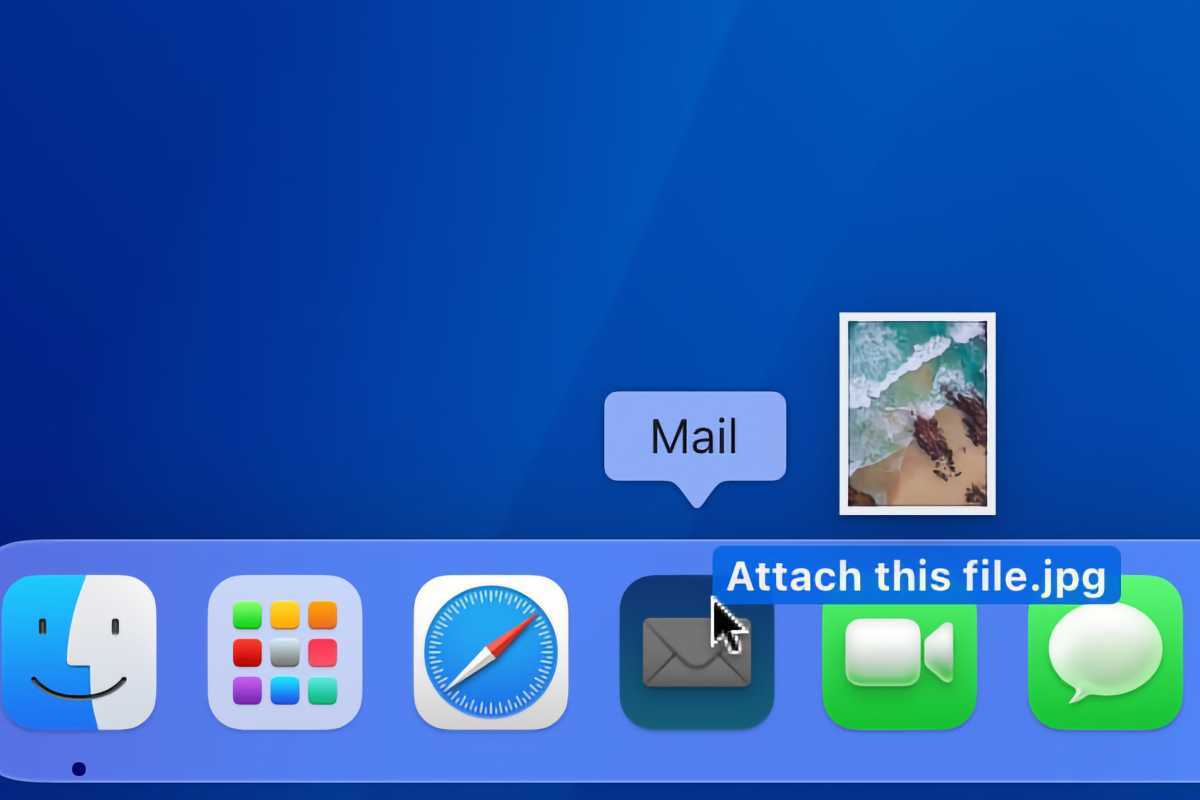
All you have to do is drag the file onto the app icon–voilà, the app starts up with the file ready to go. The easiest way to do this is to drop the file onto an app in your Dock, but you can do this wherever an app is stored; it works with apps housed in your Applications folder, for example. It could save you a little time if you’re working with a folder of files and want to get started quickly.
Speedy saving


 United States
