



Best PDF Editor for Mac (2026): Best tools for text edits, OCR & annotations
Description
Many workplaces and educational institutions have completely switched from paper documents to digital ones. Consequently, Mac users are increasingly dealing with PDFs and other e-document file formats.
Whether you need to edit, sign or create PDFs, we are here to help you find the best PDF editor for your Mac from the multitude of options. There are various PDF editing apps that cater to various budgets and workflows and among them are a few that stand out in terms of features, performance, and design. In this buying guide we have looks in depth at eight of the best PDF apps available for Mac.
How we test PDF editors
Macworld evaluates PDF editors by evaluating a range of common user tasks to assess the software’s functionality and ease of use. Our evaluation focuses on core editing and annotation capabilities. We examine how easy it is to edit text and sign forms, we check for tools that allow highlighting, underlining, and striking through text, and we assess creative tools like a freehand drawing pen. We also test the accuracy of OCR tools where available. We pick the best PDF editors based on the best editor for certain use case, not just the most powerful or expensive. This guide to the best PDF editors is based on full reviews of the software mentioned. We offer more detail on our testing methodology below.
Best PDF editors for Mac
We’ve tested every major PDF editor on macOS, from lightweight free tools to full professional suites, to identify the best options for students, office workers, and power users.
If you’re looking for basic annotation and page organization, the free Preview app that is available as part of macOS may be sufficient. If you need more in the way of editing tools, then one of these apps could better support your needs.
At a glance: Feature Comparison
<figure class="wp-block-table">
| App | Text Editing | OCR | Annotation & Markup | Form Filling / Signing | Cloud Sync | Free Version | Best For |
|---|---|---|---|---|---|---|---|
| Readdle PDF Expert | Yes | Yes | Excellent | Yes | iCloud | Trial only | Best overall Mac-native experience |
| Adobe Acrobat Studio | Yes | Yes | Excellent | Yes | Adobe Cloud | Trial only | Power users & cross-platform workflows |
| Wondershare PDFelement | Yes | Yes | Very Good | Yes | Optional | Trial only | Feature-rich option at a lower price |
| Foxit PDF Editor | Yes | Yes | Very Good | Yes | Foxit Cloud | Trial only | Business & enterprise users |
| Nitro PDF Pro | Yes | No | Good | Yes | No | Trial only | Simple editing without subscriptions |
| Apple Preview | No | Via Live Text | Basic | Yes | iCloud | Yes | Free, basic PDF tasks |
1. Apple Preview: Best free PDF editor
<figure class="wp-lightbox-container">
 <button class="lightbox-trigger" type="button">
<svg fill="none" height="12" viewBox="0 0 12 12" width="12" xmlns="http://www.w3.org/2000/svg">
<path d="M2 0a2 2 0 0 0-2 2v2h1.5V2a.5.5 0 0 1 .5-.5h2V0H2Zm2 10.5H2a.5.5 0 0 1-.5-.5V8H0v2a2 2 0 0 0 2 2h2v-1.5ZM8 12v-1.5h2a.5.5 0 0 0 .5-.5V8H12v2a2 2 0 0 1-2 2H8Zm2-12a2 2 0 0 1 2 2v2h-1.5V2a.5.5 0 0 0-.5-.5H8V0h2Z" fill="#fff"></path>
</svg>
</button></figure>
Pros
- Pre-installed and free
- Clear user interface
- Lots of handy tools
Cons
- Doesn’t allow you to edit existing text
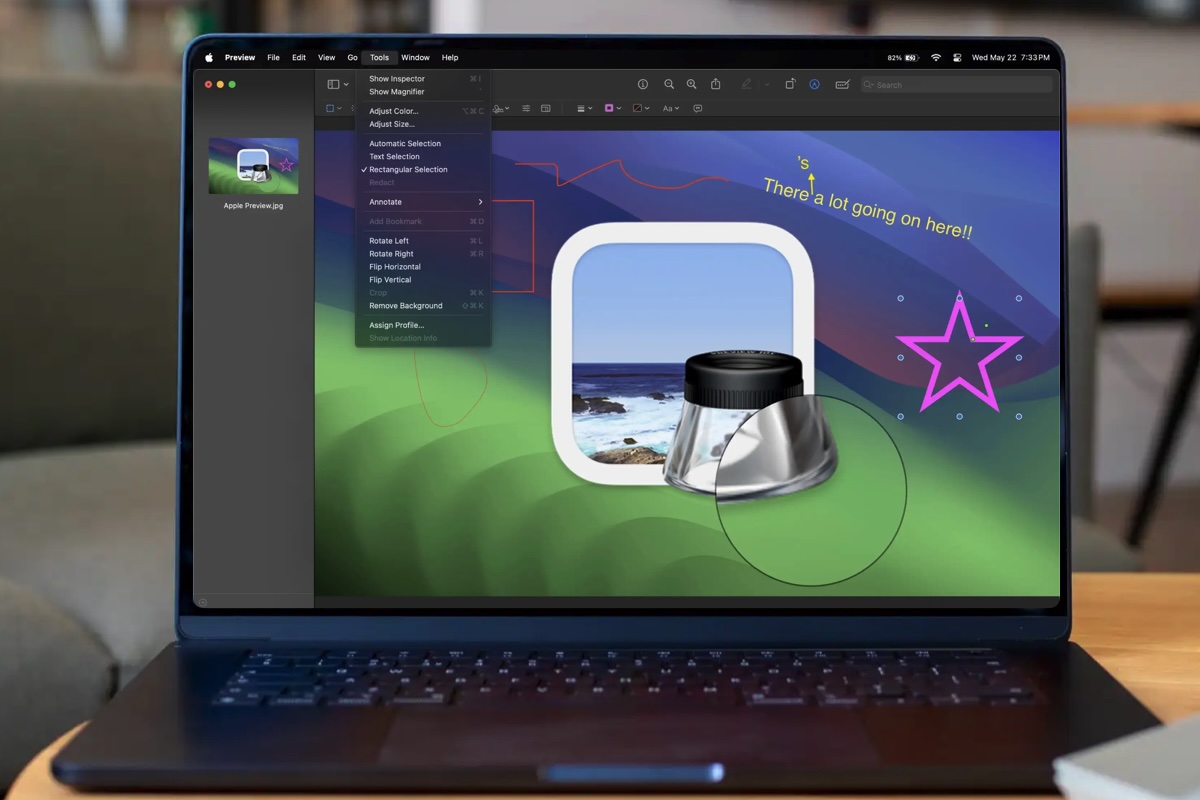
Why Apple Preview is a good choice: Apple Preview, the default document and image viewer on macOS, is a surprisingly capable and free application that handles most personal and business PDF needs. While it is not designed to replace a full-featured, professional PDF editor, Preview offers a robust set of tools for free. Preview’s built-in capabilities are more than sufficient for everyday tasks, making it an excellent starting point for anyone needing to work with PDFs on a Mac or iPad—and even an iPhone.
Apple Preview is the default document and image viewer on macOS (as well as iPadOS and iOS since the ’26 update). It offers a range of useful features beyond just viewing photos and PDFs.
Click on any PDF (or any image format) to open it and it will launch in Preview. Alternatively, open Preview and it will open the Finder, allowing users to browse through folders to locate the file they want to view. The app features a toolbar at the top of the screen, which allows users to view file details, zoom in or out, share the file, fill in a form, or mark up the file.
The Markup button reveals tools for selection, doodling, inserting shapes or sticky notes, signing, and typing text. These tools are easily customizable, allowing users to control the color and size of a shape or text box, as well as pick between multiple fonts when typing. There is also an autofill helper.
Apple Preview is not designed to replace image or PDF editors, but it still offers some power-user features. The menu bar’s Tools button allows users to reveal more advanced image controls, such as granular resizing, color adjustments, and automatic background removal. The File menu includes a Export button that allows users to choose the output’s quality and file format, allowing them to convert images to various formats.
When viewing a PDF file in Apple Preview, users can easily re-order or delete its pages using the sidebar, allowing them to limit the file to the important bits they need. If exporting the PDF using Preview, users can optionally add a password, quartz filter, or file restrictions.
If you’d prefer not to pay for Adobe Acrobat or another solution, Apple Preview may be more suitable for you. Apple Preview offers free tools that Adobe has paywalled, including PDF page organization/deletion, password protection for PDF files, and document scanning.
Just need to turn something into a PDF? Read: How to make a PDF on Mac
Read our full
Apple Preview review
2. Readdle PDF Expert – Cost-effective PDF editor
<figure class="wp-lightbox-container"><img alt="Readdle PDF Expert - Cost-effective PDF editor" class="product-char


 United States
